Use Forminator when you need a contact form, poll or quiz. The Forminator plugin listing describes a visual drag-and-drop builder, calculations and submission management. Start with the fields you need to answer an inquiry, then check the confirmation and email notification separately.
Choose the smallest form that does the job
For an inquiry form, begin with the information the recipient needs to respond. Additional fields create more work for the visitor and more data for you to manage. Forminator supports field types such as email, text, file upload, date and number, so select them around the task rather than adding every available option.
The plugin supports embedding through a WordPress block as well as shortcodes. Its listing also describes submission storage and email routing. These are separate outcomes: a stored entry doesn't prove the notification arrived in the intended inbox.

Place the form on a page
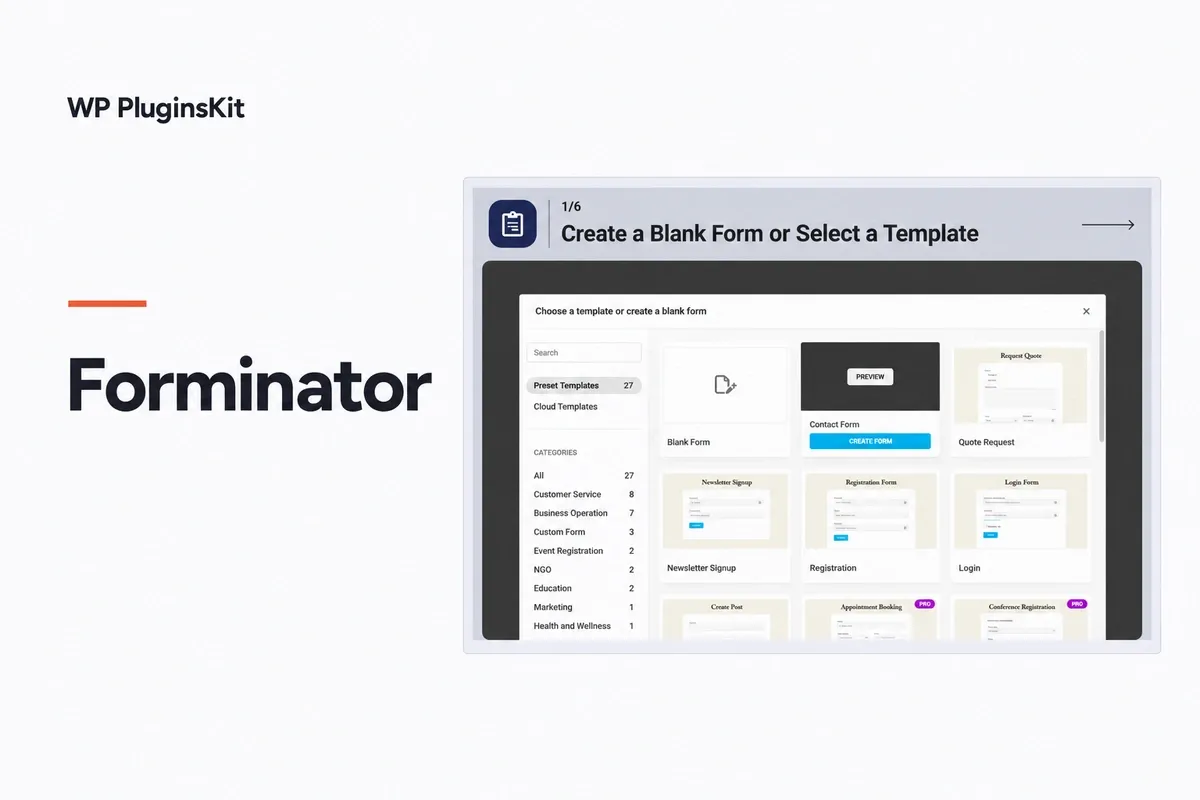
Build a contact form from a template or a blank form, then insert it into a WordPress page with the Forminator block or its shortcode. Preview the page with its actual heading and surrounding text so the form feels like part of the site.
Set the notification recipient and write a confirmation that tells the visitor what happens after submission. Review the plugin’s submission storage and privacy options before collecting personal details.

Check the visitor and recipient experience
Before publishing a form, submit it yourself with the kinds of input visitors will use. Check required-field messages, mobile layout, the confirmation screen, the stored entry and the recipient's notification.
Review what the form stores and how long you need to keep submissions. If the form sits on a page affected by caching or script optimization, test it again after changing those settings; the LiteSpeed Cache page explains why optimization and server caching need separate checks. Browse the plugin directory for the other functions your site still needs.
Check compatibility
- Listed version
- 1.58.6
- WordPress
- 6.4 or later
- PHP
- 7.4 or later
These are the requirements in the Forminator listing on WordPress.org. Minimum versions describe compatibility; keep WordPress and PHP on supported releases.
Setup guide
Use an administrator account on a WordPress site that allows plugin installation. Back up an existing site before adding a plugin or changing its settings.
- Follow WordPress's plugin installation steps: open Plugins → Add New Plugin in the WordPress dashboard.
- Search for Forminator and match it with its WordPress.org listing above. Check the required WordPress and PHP versions before continuing.
- Choose Install Now, wait for it to finish, then choose Activate.
- Use the Forminator instructions to create a form. Add the name, email and message fields you need, then set the notification recipient.
- Publish the form and place it on a page using the Forminator block or the form’s shortcode. Update that page.
Open the page while signed out and send a test message. Check the recipient inbox and the form’s submission list before sharing the page.