How to Install WordPress Plugins from a Directory or ZIP
Install WordPress plugins from the directory or a developer ZIP, activate and configure the function, and check compatibility and access.
Plugin installation & updates

Install WordPress plugins from the directory or a developer ZIP, activate and configure the function, and check compatibility and access.
Create a WordPress child theme with the correct Template header, keep its parent installed, and load styles according to the parent theme.
Delete an inactive WordPress theme from its details screen. Check active and parent dependencies first, and save custom files before removal.
Update a WordPress theme after checking custom files and backups. Compare manual and automatic updates, then verify the important pages.
Change a WordPress theme with a backup, a preview and checks for menus, templates and key pages. Keep a clear way to reverse the switch.
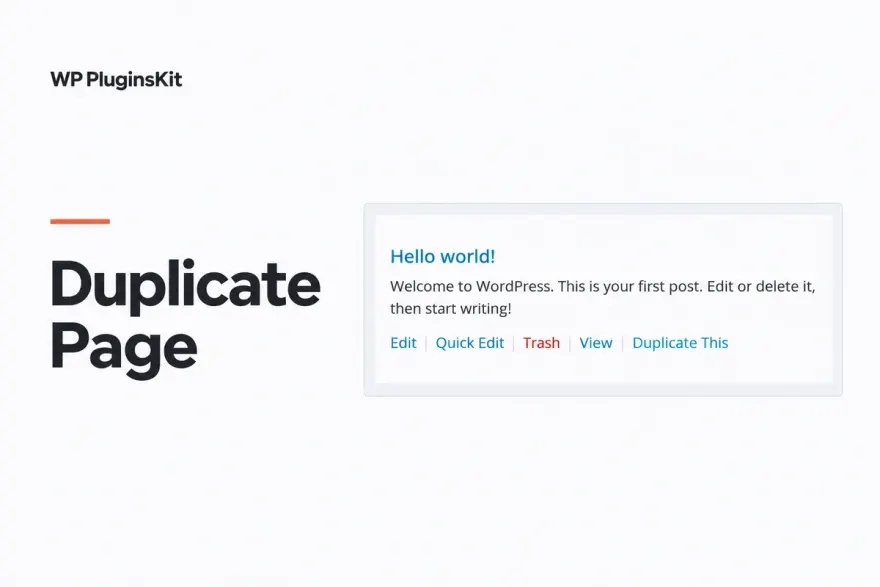
Set the copy status first, use Duplicate This, then check the new page’s identity, content and layout before it goes live.
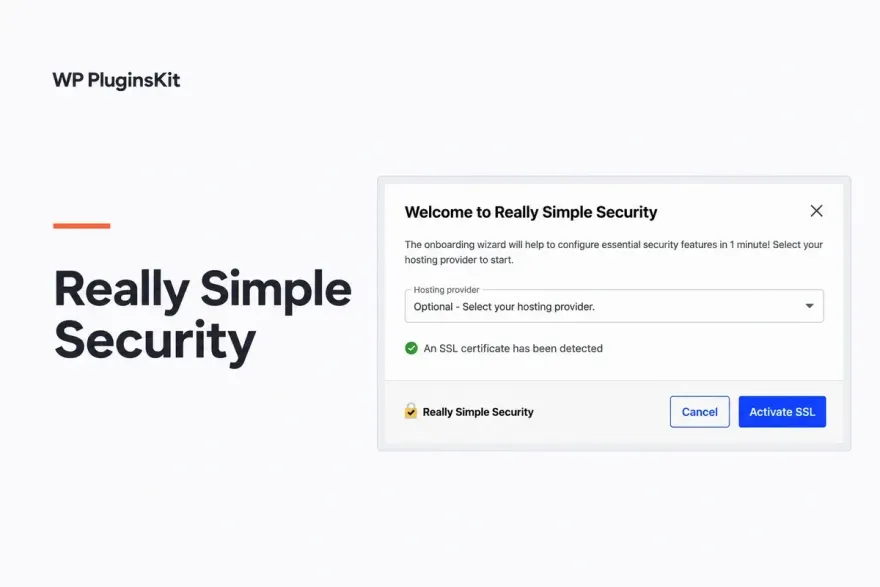
Activate HTTPS, check mixed content and configure login protection without duplicating existing security controls or losing access.
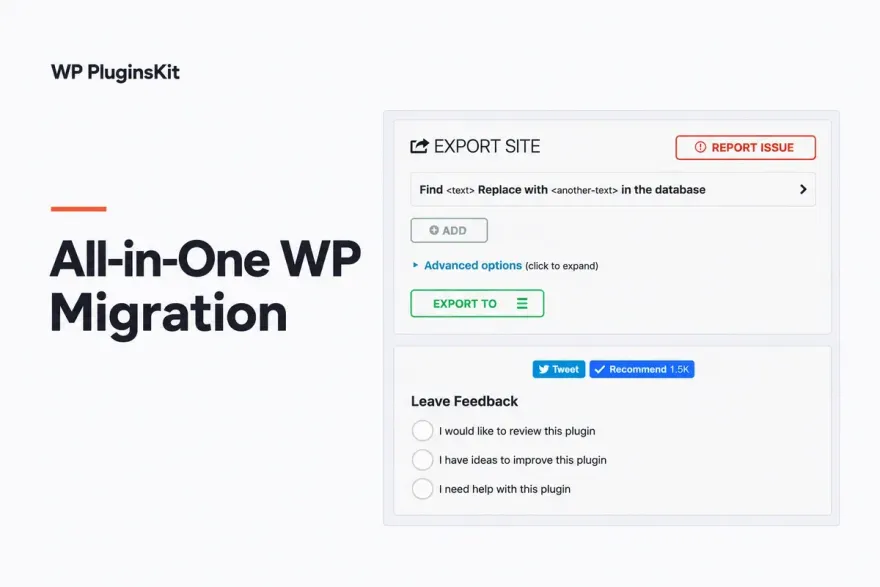
Export a .wpress archive, prepare the destination and verify the imported WordPress site before handing over live traffic.
Update WordPress plugins manually or enable automatic updates. Prepare a backup, review changes, and check the functions your site depends on.
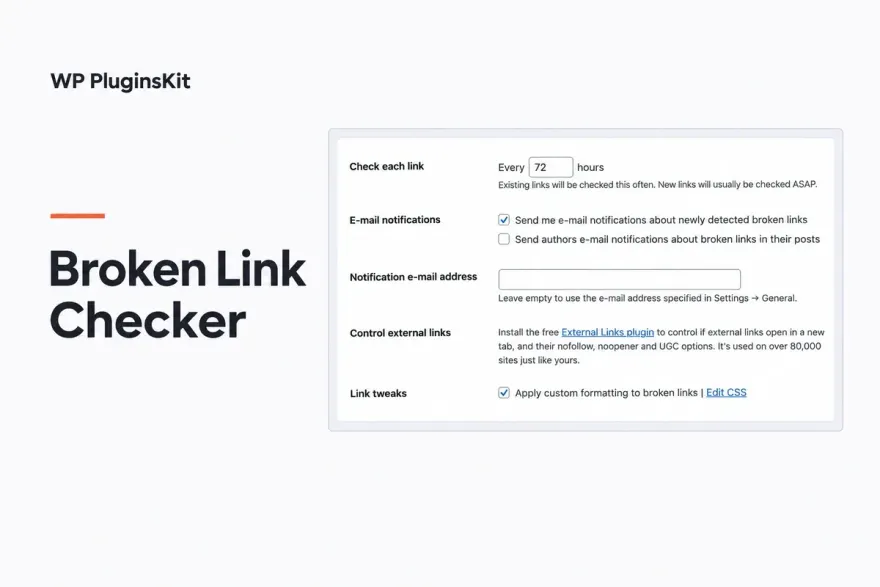
Choose Local or Cloud, inspect suspect links and repair their source without deleting useful references or confusing scans with redirects.
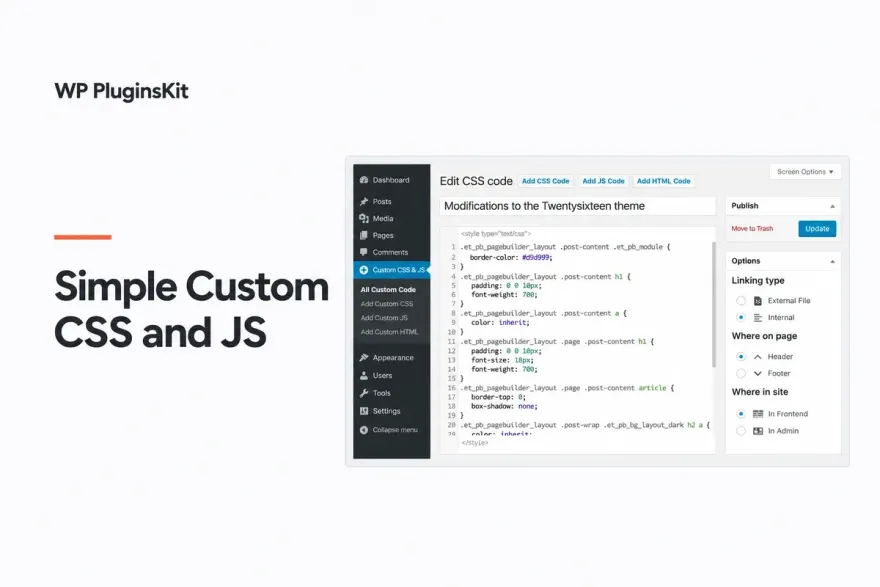
Add separate CSS or JavaScript entries, choose where they load, and check the result without editing your theme files.
Save CF7 entries, verify the scope of CSV exports and protect older fields, retained uploads and staff access.