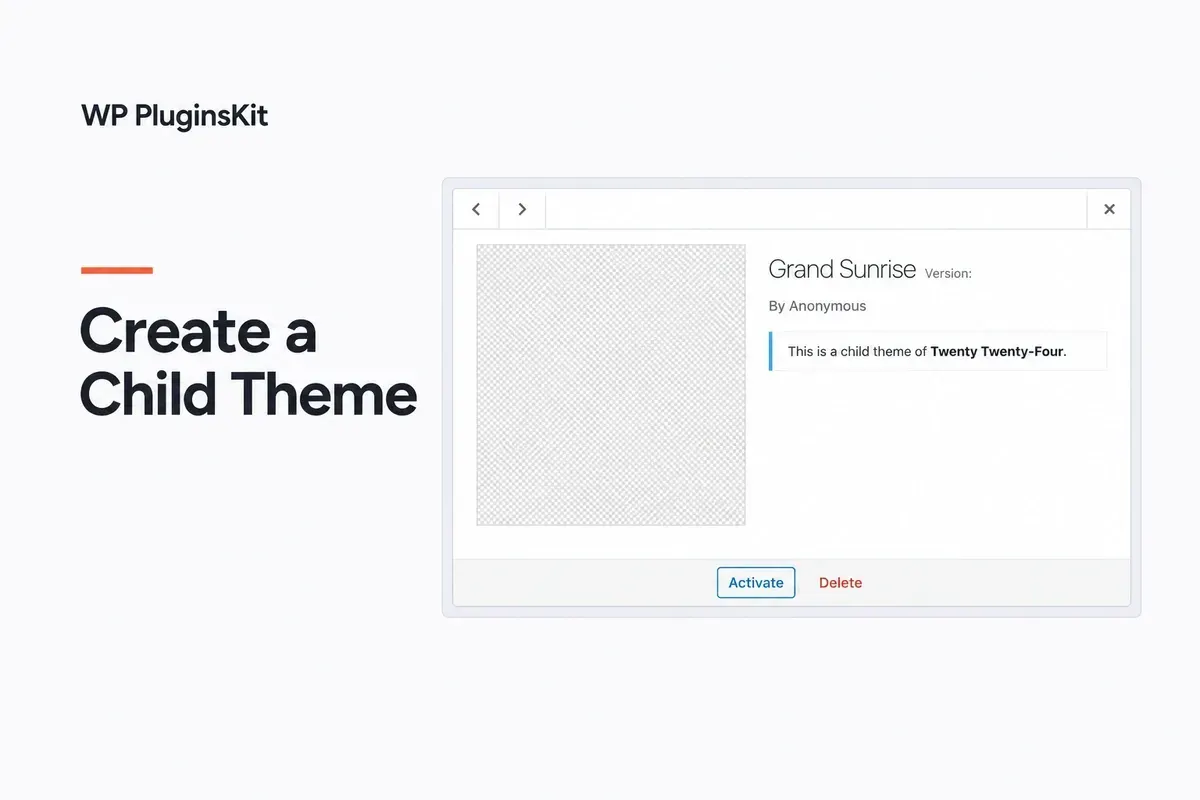
Create a WordPress child theme in its own folder under wp-content/themes, with a style.css header that names the installed parent theme's folder in the Template field. Install and activate the child while keeping the parent installed. The child holds your changes separately from the parent's files.
I'd start with the smallest customization you need and verify it on a test site. A child theme with one deliberate change is easier to maintain than a full copy of the parent that gradually falls behind its updates.
Decide whether a child theme solves your problem
A child theme is useful when you need to maintain theme files or code separately from a third-party parent. It doesn't turn the parent into an optional dependency. WordPress's child theme handbook explains the parent-and-child relationship and the distinction between file changes and user customizations stored in the database.
If your change is already supported by the Site Editor, Customizer or the theme's own settings, check that route first. You don't need to create a child just to activate an ordinary theme setting. For extensive changes across most of a theme, maintaining a separate full theme may be more appropriate than accumulating overrides.
Create the folder and stylesheet header
This example uses Twenty Twenty-Four as the parent, matching the worked example in the official handbook. Install that parent on your test site first. If you use another parent, replace the Template value with its exact folder name.
- Create a folder called
site-notes-child. - Inside it, create a plain-text file named
style.css. - Add the following header at the top of the file.
/*
Theme Name: Site Notes Child
Template: twentytwentyfour
Version: 1.0.0
Text Domain: site-notes-child
*/
The folder name and the display name don't have to be identical, but Template must match the parent's directory exactly. A parent displayed as “Twenty Twenty-Four” uses the folder twentytwentyfour. The handbook identifies this exact match as a requirement; the human-readable theme title isn't a substitute.
Install and activate the child
Keep this first activation on the test copy. Before changing the active theme on a live site, take a current backup of its database and files and record the current theme settings. Activating the child is still a theme switch; verify the result before making it live.
Place the child folder in the test site's wp-content/themes directory using your development workflow. Alternatively, ZIP the folder and use Appearance → Themes → Add New → Upload Theme. The theme installation guide covers the dashboard steps.

Keep the parent installed, then activate Site Notes Child under Appearance → Themes. At this stage, the child should largely resemble the parent because you've declared the relationship without adding a customization.

If WordPress reports a missing parent, check both that the parent is installed and that Template matches its folder. Don't remove the header or add a random template file to hide the error.
Load your CSS only when it needs loading
The style.css header registers the theme; that doesn't guarantee that CSS rules in the file are loaded on public pages. Parent themes handle styles differently. Some load the parent's and child's stylesheets, some load only one, and block themes often use theme.json.
For the Twenty Twenty-Four example, the handbook shows explicitly enqueueing the child stylesheet. Create a new functions.php in the child folder with:
<?php
add_action( 'wp_enqueue_scripts', 'site_notes_child_styles' );

function site_notes_child_styles() {
    wp_enqueue_style(
        'site-notes-child',
        get_stylesheet_uri(),
        array(),
        wp_get_theme()->get( 'Version' )
    );
}
With a different parent, inspect its documentation or enqueue code first. If the parent already loads the child stylesheet, don't enqueue the same file again. If it loads only the active theme's stylesheet, you may need to enqueue the parent's styles instead. The correct dependency and order come from that parent's implementation.
Don't copy the parent's whole functions.php into the child. Both files load, with the child first; duplicate function names can cause a fatal error. Keep only your own added code.
Verify one small change before building more
Add a temporary, recognizable CSS rule on the test site and confirm that it appears on the intended public element. Inspect the page's loaded stylesheet if it doesn't. Remove the temporary rule once you've proved that the file loads.
Check the homepage, a post, navigation and mobile layout. For block themes, saved Site Editor customizations can override file-based templates or styles. A file change that doesn't appear may be hidden by that saved layer rather than a broken child relationship.
Copy a parent template into the child's matching location only when you need to override it. Record why the override exists. When the parent changes that template later, your separate copy needs review; it won't automatically merge the parent's improvements.
Maintain both themes
Keep a backup of the database and theme files, then check your customizations after updating the parent theme. Separating files protects them from being replaced by a parent update, but it doesn't guarantee compatibility with every new parent version.
Use theme setup and changes to plan the next action. Before deleting an inactive theme, confirm it isn't this child's required parent.