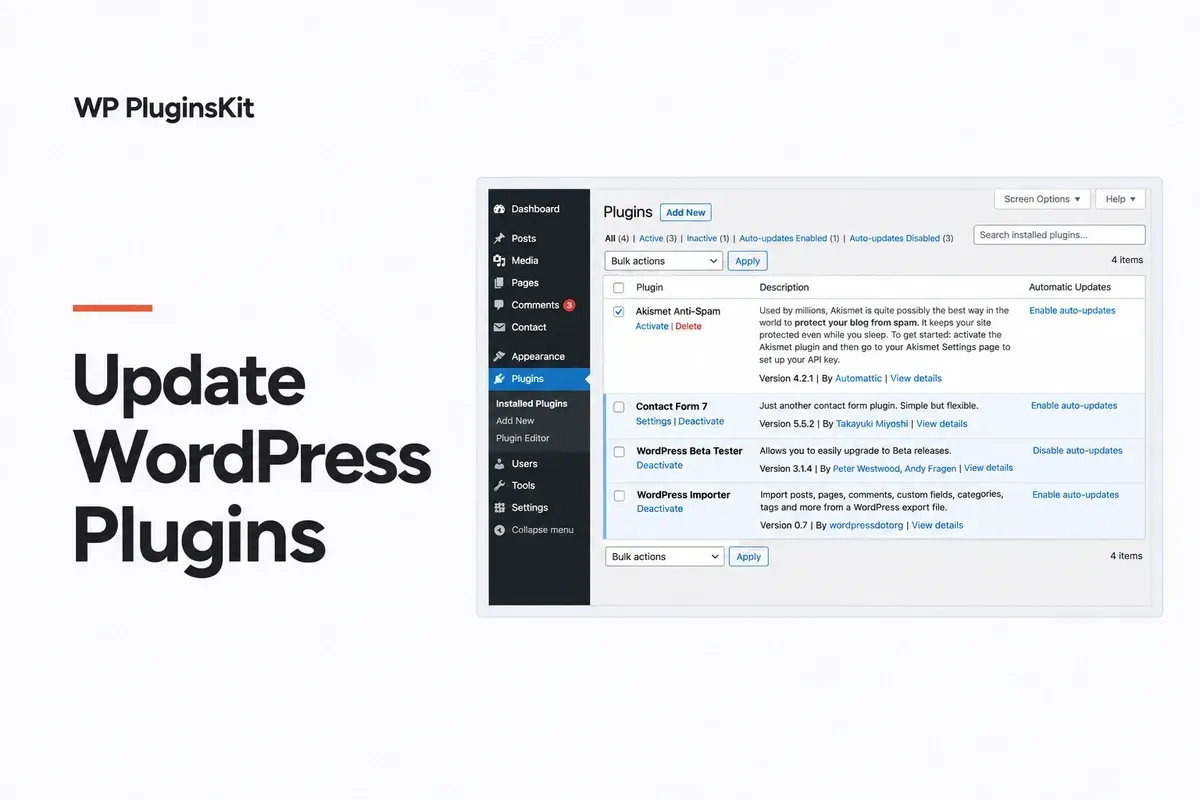
To update a WordPress plugin, open Plugins → Installed Plugins and select update now under the plugin's update notice. You can also select plugins under Dashboard → Updates and run Update Plugins. Back up first, review the update details, and check the plugin's important function afterward.
I'd update a critical plugin on a test copy before the live site. A successful file update doesn't establish that a checkout, form or integration still completes its job.
Prepare before running updates
Keep a current backup of the database and files with a known restore method. Record the installed version and read the release notes, requirements and any migration instructions. A plugin that changes stored data may need more care than replacing its files.
On a site taking orders or accepting important submissions, plan how you'll handle new data if a restore is needed. Restoring an older database can also remove activity that occurred after the backup.
Check the function before updating so you know its starting state. Use a test configuration for payments and outgoing messages during rehearsal. Identify any connected add-ons that need compatible versions.
Update one plugin from its notice
- Open Plugins → Installed Plugins.
- Find the plugin with an available update.
- Open its version details and review the changes.
- Select update now and wait for the result.
- Test the function you identified before updating.

The WordPress plugin management documentation describes this single-plugin workflow and the separate Dashboard update screen. Updating one plugin at a time makes it easier to connect a new problem with a specific change.


Use bulk updates when the group is ready
For several reviewed updates, open Dashboard → Updates, select the intended plugins and choose Update Plugins. The plugin list also offers update-related bulk actions. Confirm which items you've selected before applying the action.

A bulk update is convenient for a prepared group. It doesn't remove the need to check the site's important workflows afterward. If two add-ons require coordinated versions, follow the developers' stated order rather than choosing an arbitrary sequence.
Enable automatic updates per plugin
Under Plugins → Installed Plugins, use Enable auto-updates for the intended plugin when the control is available. WordPress lets you enable or disable automatic updates individually or through bulk actions.
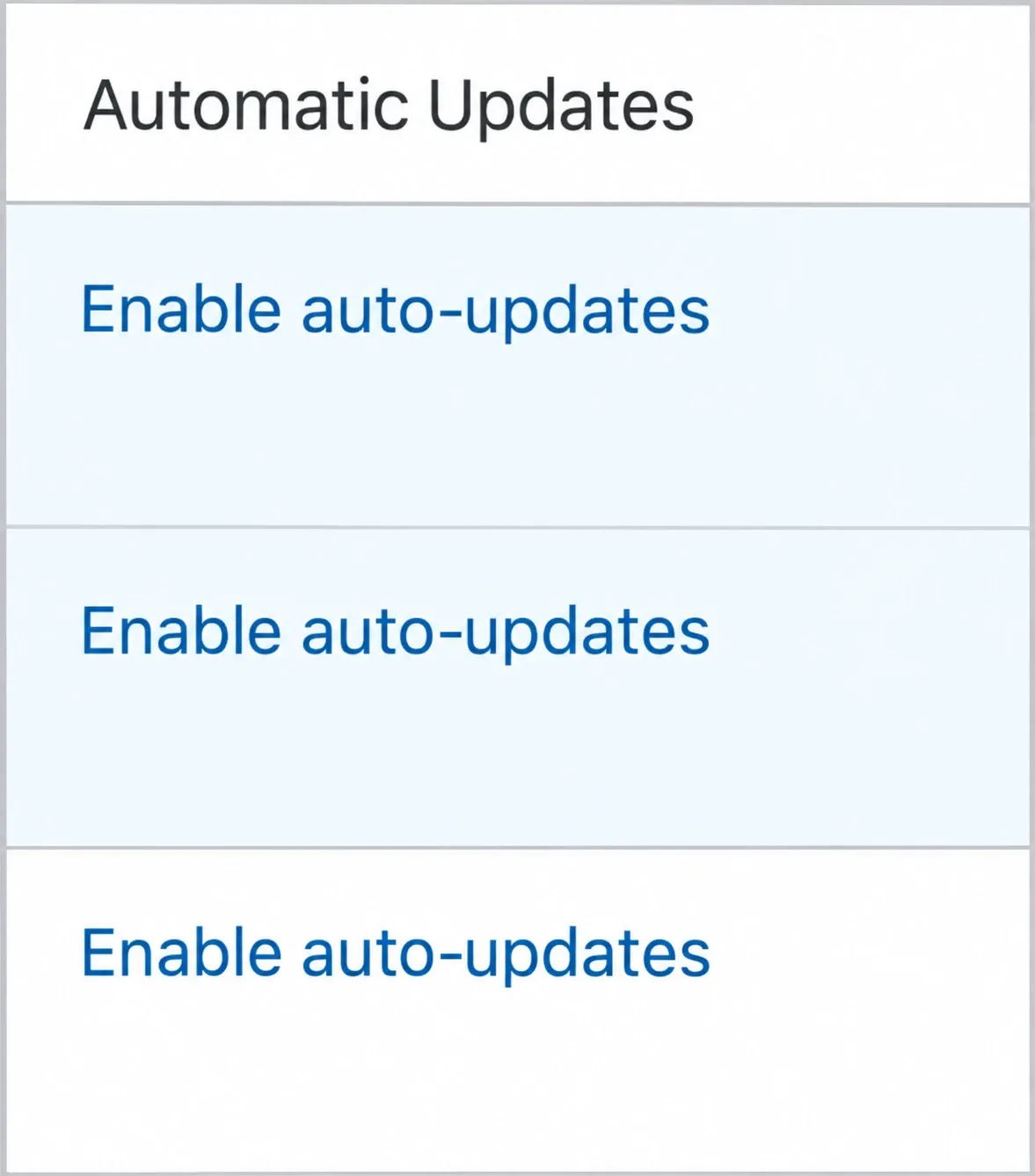
Choose automatic updates together with scheduled backups and a way to notice failures. They help keep software current without manually starting every update, but they don't perform your site's functional acceptance checks.
By default, WordPress runs automatic updates twice a day and displays the next scheduled update where applicable. It sends notifications for successful and failed automatic update attempts. A custom host or plugin setup can change the behavior, so check the controls and messages on your own installation.
If automatic updates don't run
WordPress.com has its own managed plugin update policy. A plugin marked Managed by host is maintained by the platform, so its controls can differ from those of another installed plugin. Use the platform's instructions for that label rather than treating it as a failed update.
If the automatic update controls are absent, check whether your host or another plugin manages or disables them. If an enabled update doesn't run as scheduled, review Tools → Site Health. WordPress documents that automatic updates depend on its scheduled tasks; a scheduling error is worth investigating before repeatedly changing the toggle.
For a commercial plugin, check the developer's update delivery and license requirements. If WordPress doesn't receive an update through the normal channel, follow that product's documented process. Don't replace it with a package from an unrelated mirror.
Check the public result and recover deliberately
Open the affected page and perform the action, rather than stopping at the success message. Submit a test form and confirm delivery, exercise the relevant checkout in test mode, or verify the backup result according to the plugin's purpose. Check administration tasks too if the plugin changes them.
If the update causes a serious failure, stop making unrelated changes. Use the dashboard to deactivate the affected plugin where appropriate, or use the recovery process prepared with your host. Restore only with a clear account of the data and files that will be rolled back.
For a plugin that's not installed yet, use plugin installation instead. Return to plugin installation and updates to choose the next task, or use theme setup if the update concerns your site's design.