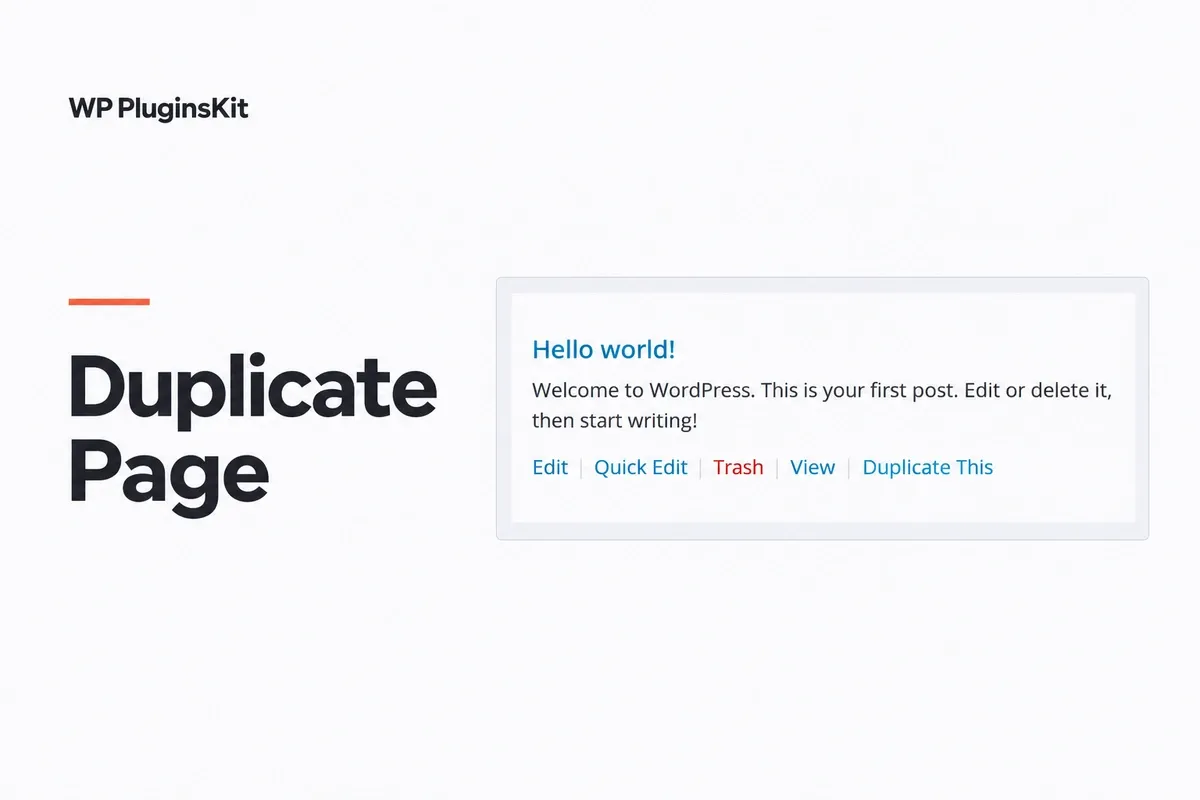
Duplicate Page adds a Duplicate This action for making a separate copy of a WordPress post, page or supported custom post. Before using it, open Settings → Duplicate Page and set Duplicate Post Status to Draft. I'd start there even on a familiar site: the plugin can also create published copies, depending on the saved setting.
Use it for a new page, with its own identity
Choose Duplicate Page when an existing page is a useful starting point for new content. A service-page layout, for example, can save rebuilding the same structure, but the copy still needs its own text, links and address. The plugin creates a new item; it doesn't turn that item into a revision that later merges back into the original.
That distinction matters when your real task is updating an existing URL. Yoast Duplicate Post is a different product with a dedicated Rewrite & Republish workflow for replacing the original content. Duplicate Page's Duplicate This action is an independent-copy route, not that replacement workflow.
The free plugin includes the status choice, an editor selector, a title suffix and a choice of where to go after copying. Duplicate Page Pro adds finer controls, including role selection, post-type selection, link locations and a title prefix. You don't need Pro just to send a new copy straight to its editor or add a suffix.
Install the exact plugin
Before changing a live site's publishing tools, keep a restorable backup of its files and database. The UpdraftPlus setup page covers a backup route. Copying one post doesn't back up the site, and a draft on a live site isn't an isolated staging environment.
In WP Admin, go to Plugins → Add New Plugin, search for Duplicate Page and check the developer: mndpsingh287. Confirm the product against the official Duplicate Page listing, then click Install Now and Activate. Similar names such as Duplicate Page and Post refer to other plugins.
Check the listing's compatibility information against your site before installing. Use maintained WordPress and hosting software; the very old WordPress, PHP and MySQL versions mentioned in parts of the description aren't sensible targets for a new installation. The 4.5.9 release includes copying and page-builder fixes, so don't diagnose a problem from an old tutorial without checking the installed version.
Set Draft before the first copy
An administrator can open Settings → Duplicate Page. In the free settings, review these controls before returning to the post list:
- Choose Editor: select Gutenberg Editor for the Block Editor, Classic Editor for that editing route, or All Editors when the site uses both. This controls the plugin's editor integration; it doesn't convert a page-builder layout into blocks.
- Duplicate Post Status: choose Draft. The other available values are Publish, Private and Pending. Publish can make the copy public immediately, so leave that choice alone unless immediate publication is deliberate.
- Redirect to after click on Duplicate This Link: choose To Duplicate Edit Screen if your next task is rewriting the copy. To All Posts List returns to the corresponding list instead.
- Duplicate Post Suffix: add a short marker such as Working copy if it helps your editors recognize new copies. Replace the resulting title with the intended title before publication.
Click Save Changes, then reopen the settings to confirm the values. The free settings source defines these controls; a Pro feature list doesn't mean that every overlapping setting requires payment.

Copy once, then check the new item
Open Pages → All Pages or Posts → All Posts, locate the source and hover over its title. Click Duplicate This once. With Draft and To Duplicate Edit Screen saved, the intended result is a new draft opened for editing. If you chose the list redirect, find the new item there.
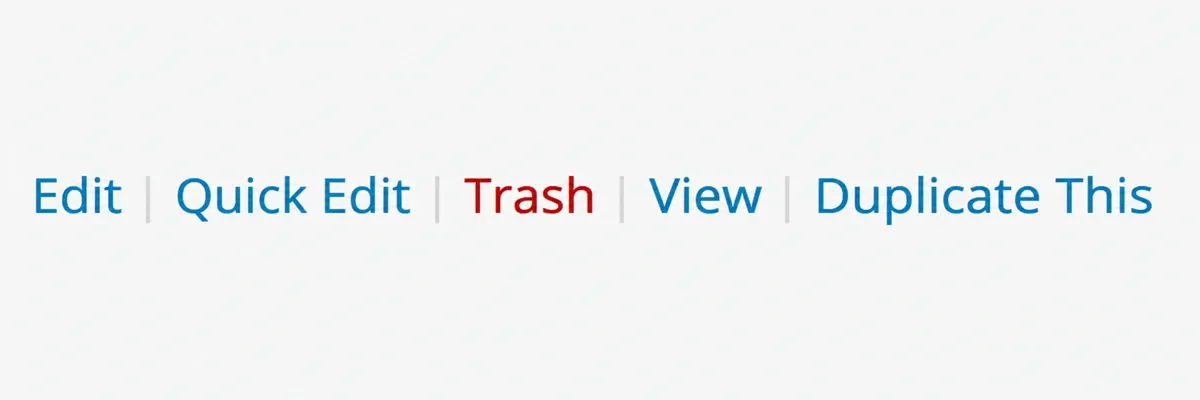
Before changing content, compare the item's edit-screen ID with the original's ID. They should be different. Check its status too: a contributor-like user with permission to edit posts but not publish them can receive a Pending copy of their own post under the 4.5.9 permission logic, even when another status is configured. Don't grant publishing rights just to make the label match a tutorial.
The copying code creates a new post and makes the current user its author. It carries over content, excerpt, parent, post type, menu order, taxonomies and post metadata through its copying routine. That is useful starting material, not a guarantee that every integration's data is independent or complete.
- Rename and rewrite. Give the copy a clear purpose. Replace inherited names, offers, dates and contact details that don't belong on the new page.
- Check the address and page settings. Review the slug, parent, template, author and access settings before publishing. The source post's password is copied too; review it before sharing the new page. Keep the original open in another tab so you can confirm which item you're editing.
- Inspect images and shared elements. Check the featured image, inline images, buttons, forms and linked templates. Before editing a template, verify whether it is global and used by other pages. Reusing a media reference doesn't make a separate image file; don't edit a shared asset assuming only this page will change.
- Review search fields. If you use an SEO plugin, inspect the copied title, description and canonical settings for the new page. The Yoast SEO setup page explains those controls. Copying fields doesn't make their values appropriate for a different URL.
- Preview the whole page. Check desktop and phone layouts, navigation, links and important interactions. Publish only after the new page has been reviewed, then open both addresses and confirm that the original still has its intended content.
If a click appears not to work, check the destination and list before clicking again. Several similar copies make it harder to identify the right item. Keep a useful draft while investigating rather than publishing an unchanged copy to see what happens.
When a builder layout doesn't match
First establish whether the copy has its own ID and whether its saved content is present in the intended editor. Then compare the preview with the original. A missing layout, a shared template and a page that simply opened in a different editor require different checks.
The 4.5.9 changelog records fixes for page-builder layout preservation and post metadata handling. Its copying routine also rebuilds Elementor's post CSS when the required Elementor integration is available. Check your installed version and the affected builder's requirements before investigating a conflict. Those fixes don't establish compatibility with every widget, add-on or external data store.
Content kept outside normal WordPress posts and post metadata needs its own integration check. For example, Crocoblock's copying guide distinguishes JetEngine Custom Content Types and relations stored in separate tables. Don't assume a visually similar page confirms that related records, commerce data or shared resources were copied correctly.
Also identify whose copying action you're using. Elementor documents a native Duplicate Page route specifically for Elementor Host sites. That route and this plugin's Duplicate This link are different features. A menu label from that hosting guide isn't evidence that the same action should appear on every WordPress site.
If the mismatch remains, record the WordPress, Duplicate Page and builder versions, source post type, editor and the element that differs. Reproduce a suspected theme or add-on conflict on staging with a backup. Avoid disabling a live site's plugins or repeatedly recreating the page without knowing which layer is failing.
When Duplicate This is missing
Check Plugins → Installed Plugins first: is this exact plugin active? Next, look for Duplicate This in the standard Posts or Pages list. If only the editor button is missing, ask an administrator to check Choose Editor in the plugin settings; the list action offers another route.
The list link depends on permission to edit the source item. Copying permission also depends on the user's capabilities and ownership; access to one person's posts doesn't establish access to everyone else's. The free plugin deliberately skips the ACF field-group post type when adding its row link. Don't solve a missing action by granting administrator access or treating every custom screen as a supported post list.
If the expected link is still absent, keep the source item intact and collect the role, post type and missing location along with the versions. Use the Duplicate Page support forum for a product-specific question after those checks.
Setup guide
Prepare administrator access and a restorable backup. Use this route for an independent new page or post.
- Check compatibility, then install and activate Duplicate Page by mndpsingh287 through Plugins → Add New Plugin.
- Open Settings → Duplicate Page. Choose the appropriate editor integration and set Duplicate Post Status → Draft before copying. Publish can make a copy public immediately.
- Choose To Duplicate Edit Screen for immediate editing, add an optional suffix and click Save Changes. Reopen the settings to confirm them.
- Go to the source in Pages or Posts and click Duplicate This once. Confirm a different item ID and the intended status; some restricted users receive Pending.
- Rename and rewrite the copy. Review its address, author, page settings, images, shared elements, links and SEO fields.
- Preview desktop and phone layouts before deliberate publication. Check the new address and the original afterward; investigate a mismatch on staging.
Browse the plugin catalog when your task needs a different tool, such as a site backup or a workflow that updates an existing URL.