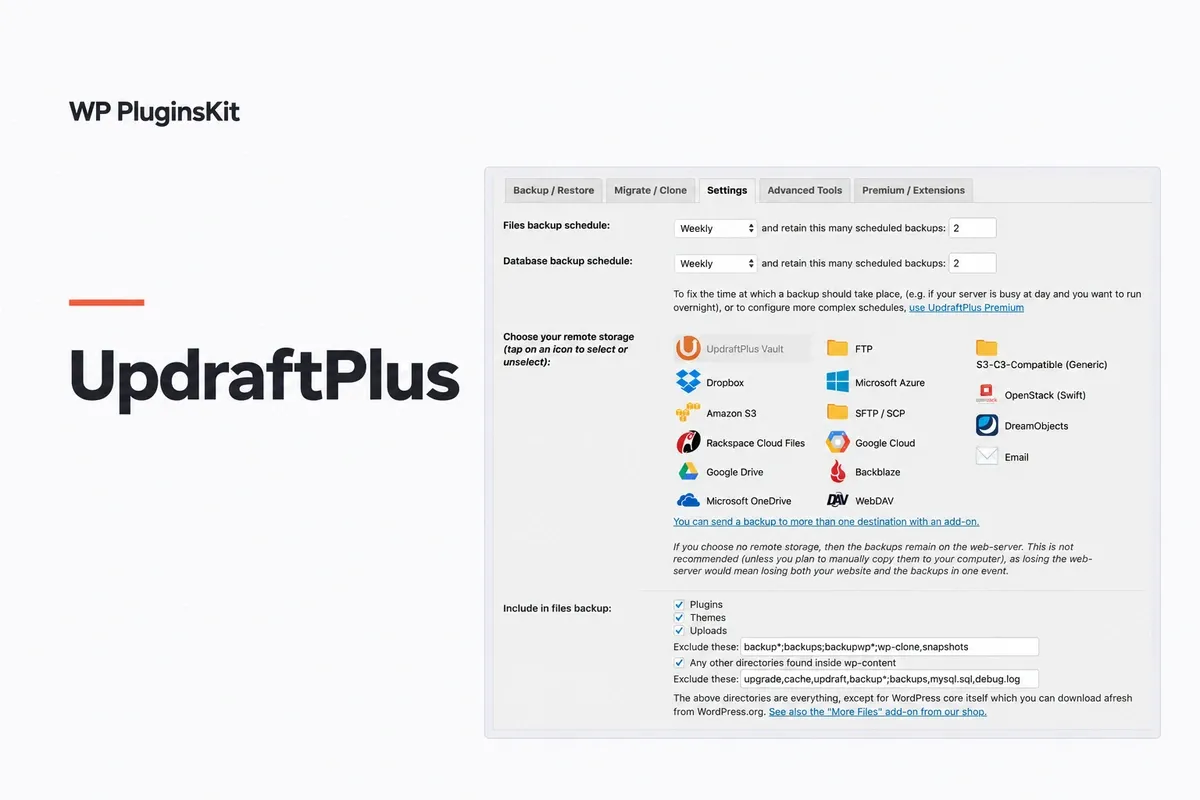
Use UpdraftPlus when you need scheduled backups of your WordPress files and database with a way to restore them. The UpdraftPlus listing describes backup, restoration and migration in the free plugin, with extra storage destinations and automation in Premium. Choose the storage destination and recovery plan before deciding that a schedule alone covers the site.
Keep both files and the database
A WordPress recovery needs the relevant site files and database together. UpdraftPlus separates components such as themes, plugins and the database during backup and restoration. Check which components the chosen backup includes, especially when the site contains uploads or other material you cannot replace from a fresh download.
Store a recoverable copy outside the website's own hosting account. Keep access to that destination independent of the WordPress login. A backup stored only beside the site can be affected by the same hosting failure or account problem.

Check the destination against the edition
The free plugin's listing includes destinations such as Dropbox, Google Drive and Amazon S3. It places Microsoft OneDrive, SFTP and several other destinations in the paid version. Confirm that your intended service is included before configuring a backup routine around it.
Premium also adds features including incremental backups, automatic backups before updates and more direct migration. The free version supports migration through downloading backups from the source site and uploading them to the destination, with a search-and-replace process described by the developer. Check which migration workflow you need before choosing an edition.
Plan recovery around changing data
Check that backups complete and that the remote destination contains the expected parts. On a separate trial site, follow the developer's restore instructions and review the recovered content before relying on the process for a live incident. Keep the production site and its newer data out of an experimental restoration.
Restoring an older backup can omit later Forminator submissions. Decide what changed after the backup before restoring. Keep backups alongside updates and security controls, since each addresses a different part of keeping the site available.
Check compatibility
- Listed version
- 1.26.16
- WordPress
- 3.9 or later
- PHP
- Not specified in listing
These are the requirements in the UpdraftPlus listing on WordPress.org. Minimum versions describe compatibility; keep WordPress and PHP on supported releases.
Setup guide
Use an administrator account on a WordPress site that allows plugin installation. Back up an existing site before adding a plugin or changing its settings.
- Follow WordPress's plugin installation steps: open Plugins → Add New Plugin in the WordPress dashboard.
- Search for UpdraftPlus and match it with its WordPress.org listing above. Check the required WordPress and PHP versions before continuing.
- Choose Install Now, wait for it to finish, then choose Activate.
- Follow the UpdraftPlus instructions to open the settings and create a manual backup of both the files and database. Wait for the backup to finish.
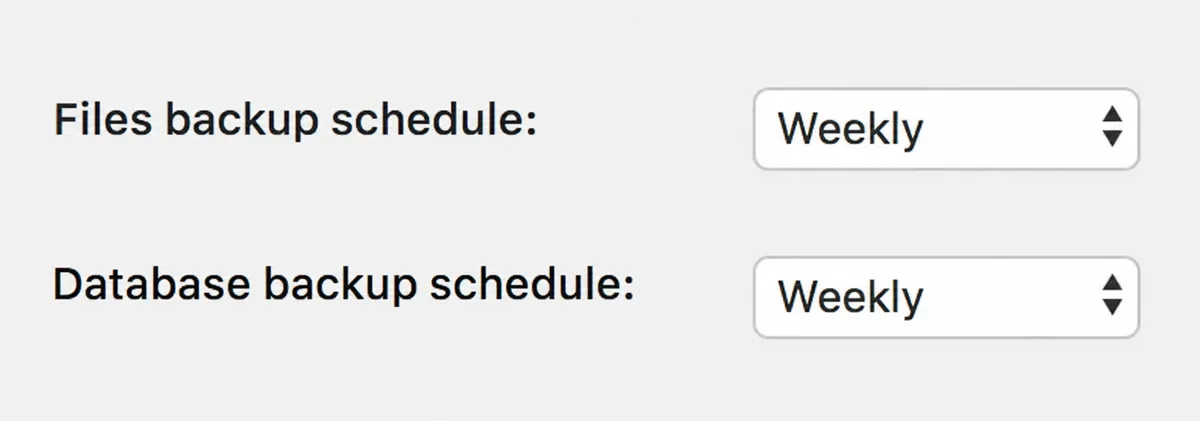
- Connect a supported remote-storage location in the plugin’s settings, authorize it when prompted, and save your settings. Choose a schedule that matches how often the site changes.
Confirm that the completed backup is listed without an error and that the remote location contains its files. Keep access to the storage account available for recovery.