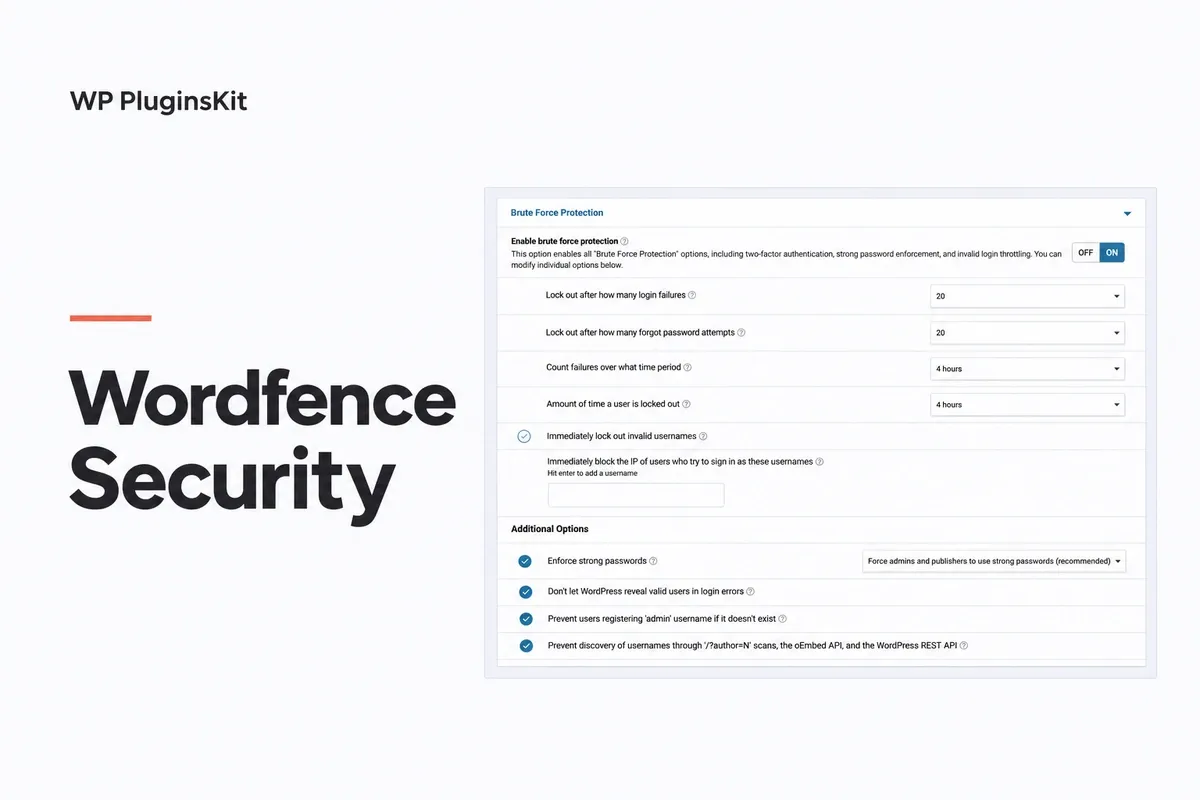
Consider Wordfence Security when you want a firewall, malware scanner and login protection managed inside WordPress. The Wordfence Security listing describes an endpoint firewall, file scanning and login features including two-factor authentication. The free and paid plans differ in how quickly they receive new threat intelligence.
Understand the free threat-feed delay
Wordfence states that the free version receives new firewall rules and malware signatures after a 30-day delay, while Premium receives them in real time. Premium also includes a real-time IP blocklist. This difference matters when choosing a plan for a site that needs prompt coverage for newly identified threats.
Separate the update speed from the functions themselves. The free plugin includes a firewall and scanner; the timing and additional services are where the plans differ. Review the current plan's terms and support scope before selecting a paid option.
Read scan findings before changing files
The scanner checks WordPress core, themes and plugins for suspicious content and compares repository files for changes. A flagged change needs investigation, especially if the site contains intentional custom code. Read the finding and establish what the file does before using repair or deletion tools.
Keep a recoverable backup outside the site's hosting account before changing files. Security software and backups serve different jobs: blocking or detecting a problem doesn't provide a clean recovery copy. An existing compromise can require a separate incident-response process rather than installing a plugin and assuming the site is clean.
Include login and maintenance in the plan
Wordfence supports two-factor authentication using a compatible authenticator. Follow the setup and recovery instructions before enforcing it on the site's administrators, and make sure each administrator retains a working recovery path. Review security notifications so that important findings reach someone who can act.
Continue updating WordPress and the site's themes and plugins, and remove components that are no longer needed after checking their dependencies. Review administrator sign-in and account recovery when changing login-related settings. The plugin directory separates security tools from backup and performance tools so you can plan those responsibilities explicitly.

Check compatibility
- Listed version
- 9.1.1
- WordPress
- 4.7 or later
- PHP
- 7.0 or later
These are the requirements in the Wordfence listing on WordPress.org. Minimum versions describe compatibility; keep WordPress and PHP on supported releases.
Setup guide
Use an administrator account on a WordPress site that allows plugin installation. Back up an existing site before adding a plugin or changing its settings.
- Follow WordPress's plugin installation steps: open Plugins → Add New Plugin in the WordPress dashboard.
- Search for Wordfence and match it with its WordPress.org listing above. Check the required WordPress and PHP versions before continuing.
- Choose Install Now, wait for it to finish, then choose Activate.
- Follow the Wordfence instructions to complete the setup for the free edition. Enter an email address you monitor for security alerts.
- Open Wordfence → Scan and start the first scan. Wait for completion, then review its findings individually before taking any repair action.

Check that the scan completes and that the alert address is correct. Keep WordPress, themes and plugins updated as part of the same maintenance routine.