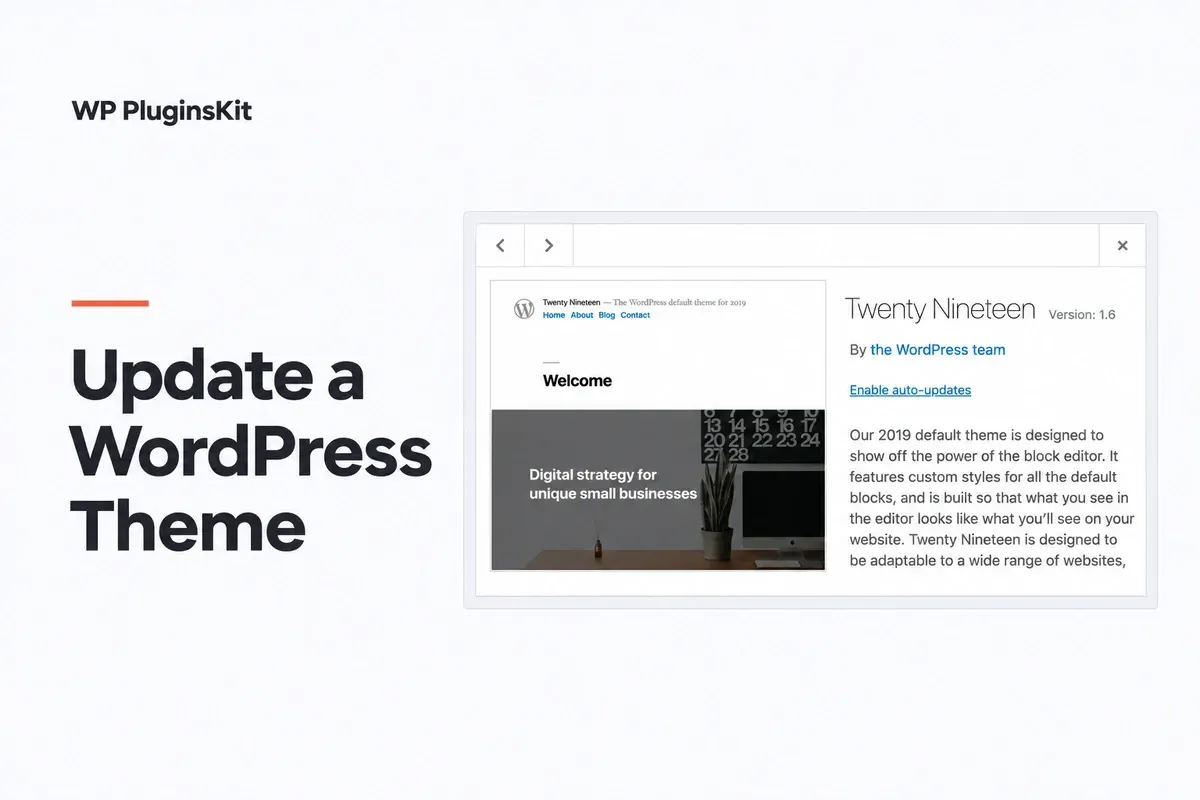
Update a WordPress theme from Dashboard → Updates or the update notice under Appearance → Themes. Before running the update, back up the site and check whether you've edited the theme's own files. Replacing those files can remove direct edits; a child theme keeps its separate files, but still needs compatibility checks.
I'd resolve unknown customizations before pressing the update button. A backup gives you a recovery point, while understanding the edits tells you what the updated site should retain.
Find where your changes live
Open your theme's documentation and check how the site was customized. A setting saved through WordPress, an edit to a parent theme file and a file in a child theme are different kinds of change. Don't assume that every visible customization lives in the same place.
WordPress recommends considering a child theme for theme customization. Its dependency is explicit: the theme loader identifies the parent through the child theme's Template header. Updating the parent doesn't turn the child into an independent theme.
If someone edited the parent files, save and review those changes before the update. Copying the whole old parent into a child is a poor shortcut: it can preserve outdated code as well as your edits. Use child theme setup to understand the separate customization layer.
Back up and rehearse the update
Make a current backup of the database and files, including your theme and child theme. Confirm how to restore it. Keep the current theme version and the developer's release notes so you can identify what changed.

For an established site, apply the update to a test copy first. Compare the header, footer, homepage, archives and a representative post. Include any custom templates or plugin pages the theme styles. The useful test is whether your site's important pages still work, rather than whether the update screen reports success.
Run the update from WordPress
- Open Dashboard → Updates.
- Find the theme with an available update and review its version details.
- Select the theme and choose the theme update action.
- Wait for WordPress to report the result before leaving the update workflow.
- Open the public site and check the pages you used in rehearsal.

You can also use the theme's update now notice on the Appearance Themes screen. If the theme comes from a commercial developer, its update delivery may depend on that developer's licensing or updater. Follow the instructions for that exact theme rather than installing an unrelated ZIP with a similar name.
Updating a parent and updating a child are separate actions. Check both installed themes; the active child doesn't remove the need to maintain its parent.


Decide whether automatic updates fit your site
WordPress provides per-theme automatic update controls in the theme details window. Open the theme under Appearance → Themes and use Enable auto-updates when the control is available. The same location lets you disable it.
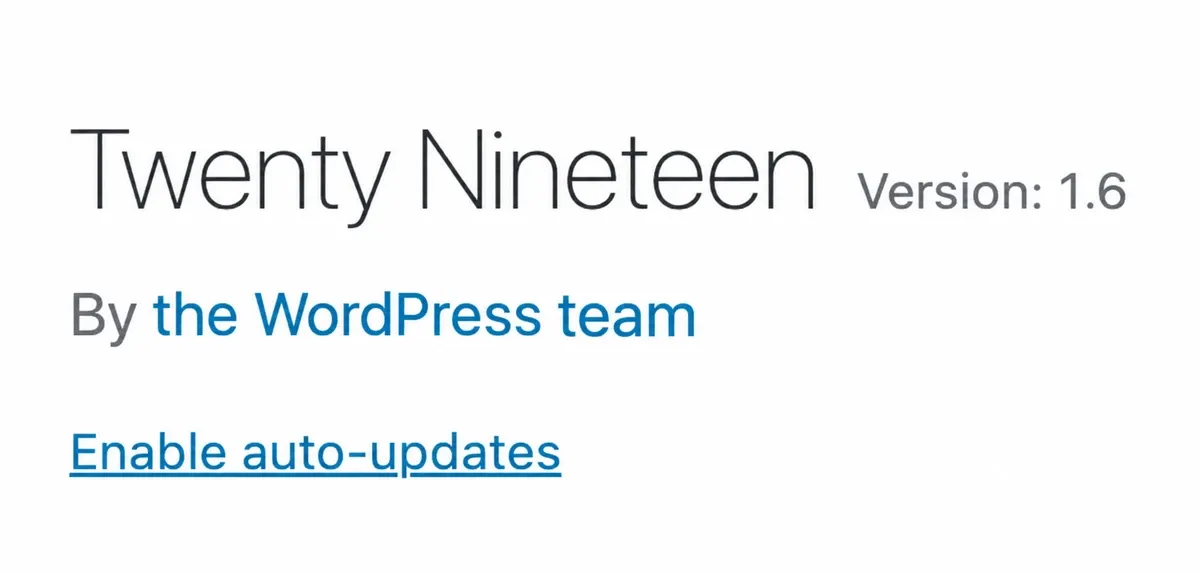
Automatic updates reduce the work of starting each update, but they don't check your custom layouts for you. Keep scheduled backups and a way to notice a broken important page. On a heavily customized site, use a maintenance process that includes someone reviewing the result.
If the control is missing, your host or another plugin may manage or disable it. If scheduled updates don't run, review Tools → Site Health for scheduling problems; WordPress's automatic updates depend on its scheduled tasks.
Respond to a broken layout
Check whether the issue appears on the public site after the relevant cache is refreshed. Compare the exact page with your pre-update baseline and inspect whether the problem involves the parent, a child override or a plugin integration. Record the old and new theme versions when asking the developer for help.
For a serious failure, use the restore method you prepared. Don't overwrite a live store's database with an older copy without accounting for new orders. After recovery, reproduce the update on the test copy before trying again.
If you wanted a different design rather than a newer version, follow changing a WordPress theme. The theme setup hub keeps those two tasks separate.