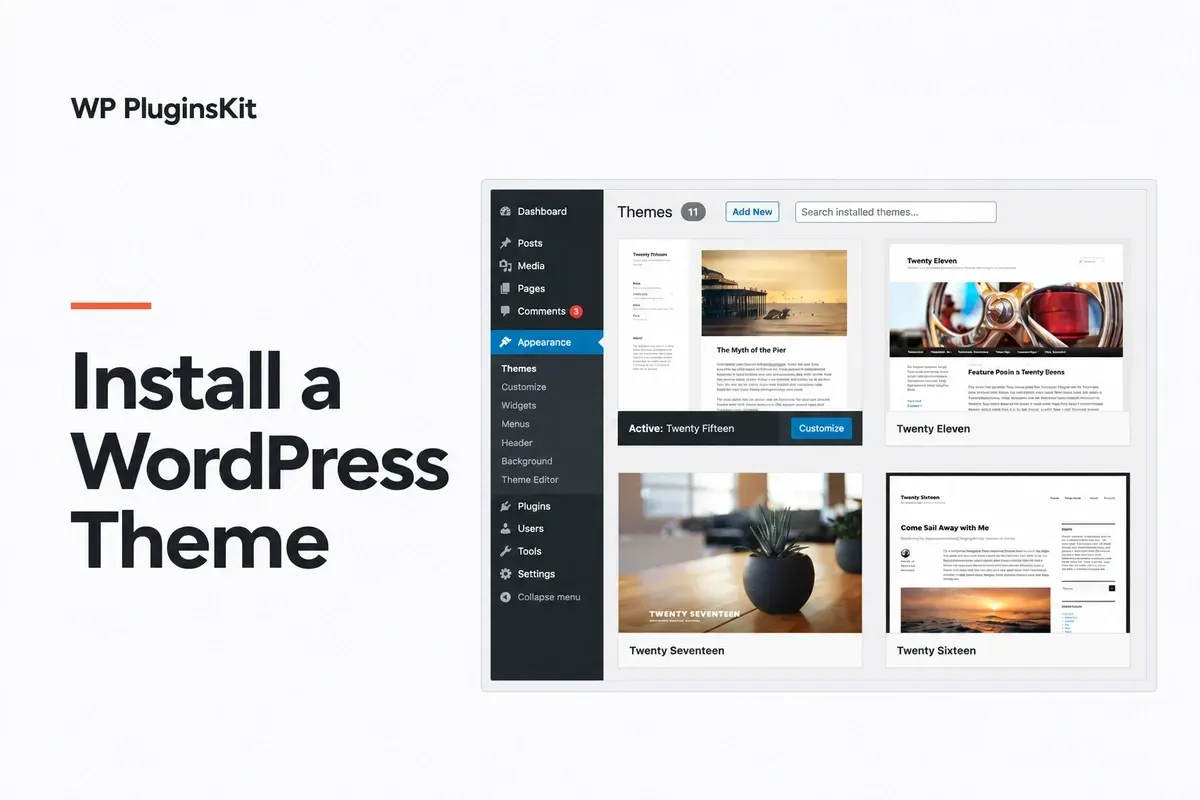
To install a WordPress theme, open Appearance → Themes → Add New, find the theme, and select Install. For a theme you've downloaded from its developer, use Upload Theme and select the installable ZIP. Installation adds the files; Activate applies the design to your site.
I'd preview an installed theme before activating it on an existing site. A directory screenshot shows the developer's example, while a preview with your content can reveal a crowded menu, an awkward title or a missing sidebar.
Check what you're installing
These steps cover a WordPress installation where you have permission to manage themes. Your hosting service or a Multisite administrator may control theme installation. If your account doesn't show the installation controls, check that access before looking for a different upload method.
Download the theme from the WordPress theme directory or its developer. Check the developer's installation notes and requirements. A package containing documentation, a parent theme and a child theme isn't necessarily the ZIP WordPress expects you to upload.

For a live site, make a backup first. A usable WordPress backup includes the database and files; a copy of your posts alone won't restore your theme files or uploads.
On WordPress.com, the available installer also depends on your plan and dashboard style. Check the WordPress.com theme upload requirements and interface steps if your controls differ. A missing upload button doesn't by itself mean that you must migrate the site.
Install a theme from the dashboard
- Open Appearance → Themes, then select Add New.
- Search for the theme's name. Check the name and developer so you don't install a similarly named product.
- Open its details and preview. Check the requirements and installation instructions.
- Select Install and wait for WordPress to finish.
- Use the available preview action to inspect the theme with your content before activation.

WordPress documents this dashboard installation and preview workflow for both classic and block themes. A block theme uses the Site Editor for site templates, while a classic theme normally exposes its own controls and the Customizer. The editing screens won't necessarily look alike.


Upload a theme ZIP from its developer

- Download the installable theme ZIP to your computer. Keep the original archive.
- Open Appearance → Themes → Add New → Upload Theme.
- Select the ZIP, then choose Install Now.
- Read the result. If installation succeeds, preview the theme before choosing Activate.

If the developer provides separate parent and child archives, install the required parent first. A child theme depends on its parent; it isn't a replacement copy of that parent. The child theme setup guide explains that relationship.
A missing stylesheet error is a reason to inspect the package. Check whether you selected the outer download bundle instead of the theme ZIP. Don't fix an installation error by renaming an arbitrary file to style.css.
Preview the pages your visitors use
Check your homepage, a long post, an archive, the main navigation and the mobile layout. If your site depends on a form or shop, include those pages. Look for readable text, visible buttons and content that fits the available width.
Keep the theme inactive if the preview is blank. WordPress explicitly warns against activating a theme with a blank preview before investigating. A separate test site is the better place for a thorough design change.
When you're replacing the design on a working site, use the theme switching checklist before activation. Installation is only one part of that change.
Activate and check the result
Select Activate when you're ready for the design to become live. Open the public site in a fresh browser tab and repeat the key page checks. Confirm the header, footer, navigation, homepage selection and any theme-specific setup.
A new theme doesn't automatically recreate the developer's demo content. Starter-site imports and required companion plugins are separate setup decisions. Read what an importer will change before running it on an existing site.
If installation fails because of an upload limit, a server permission error or an unavailable directory, take the exact error to your host or theme developer. Manual file transfer is an advanced alternative, not a reason to loosen server permissions broadly.
For a new site, return to theme setup and changes when you're ready to maintain the design. If you already use this theme and only want its latest version, follow updating a WordPress theme instead of installing a different one.