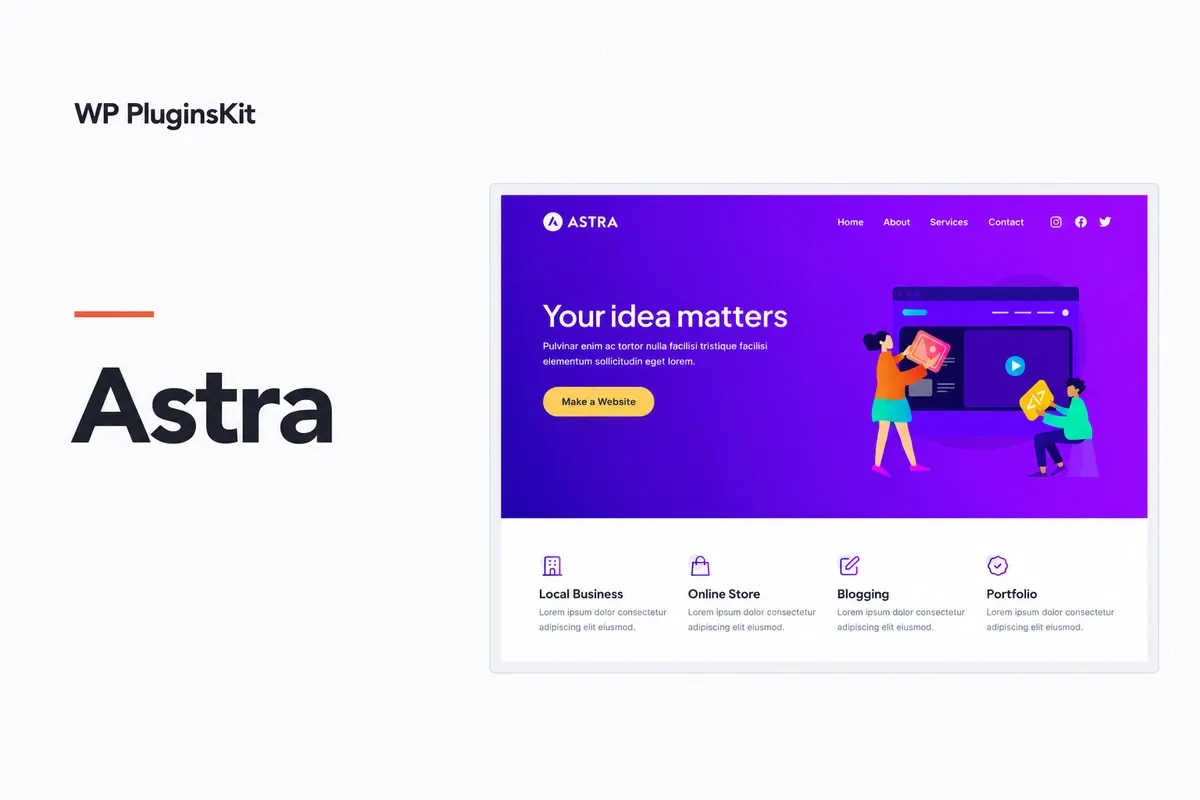
Astra suits a business site where you want to set the header, typography and page layout in the Customizer. You can write pages with the WordPress block editor or a compatible page builder.
- Edition
- Free on WordPress.org
- WordPress
- 5.3 or later
- PHP
- 5.3 or later
- Editing
- Customizer
The base theme works without importing a starter site. Set up your own pages first; importing a complete demo can add content and plugins you do not need.
Setup guide
Use an administrator account on a WordPress site where you can install themes. Back up an existing site and try a theme change on a staging copy first; activation changes its appearance.
- In the WordPress dashboard, open Appearance → Themes and choose Add New Theme.
- Search for Astra. Open its details and match the name with the WordPress.org listing linked above. Check that your WordPress and PHP versions meet its requirements.
- Choose Install, then wait for installation to finish. On an existing site, preview the theme before you activate it, following WordPress's theme installation documentation.
- Choose Activate when you’re ready to apply it. This makes Astra the site’s active theme.
- Open Appearance → Customize and review the site identity, header and typography. Publish your changes, then check a page with your real logo, navigation and text.
Visit the homepage, a post and a page while signed out. Check headings, images, navigation and the footer on desktop and mobile. If the layout is not ready, return to Appearance → Themes and reactivate your previous theme while you make adjustments.