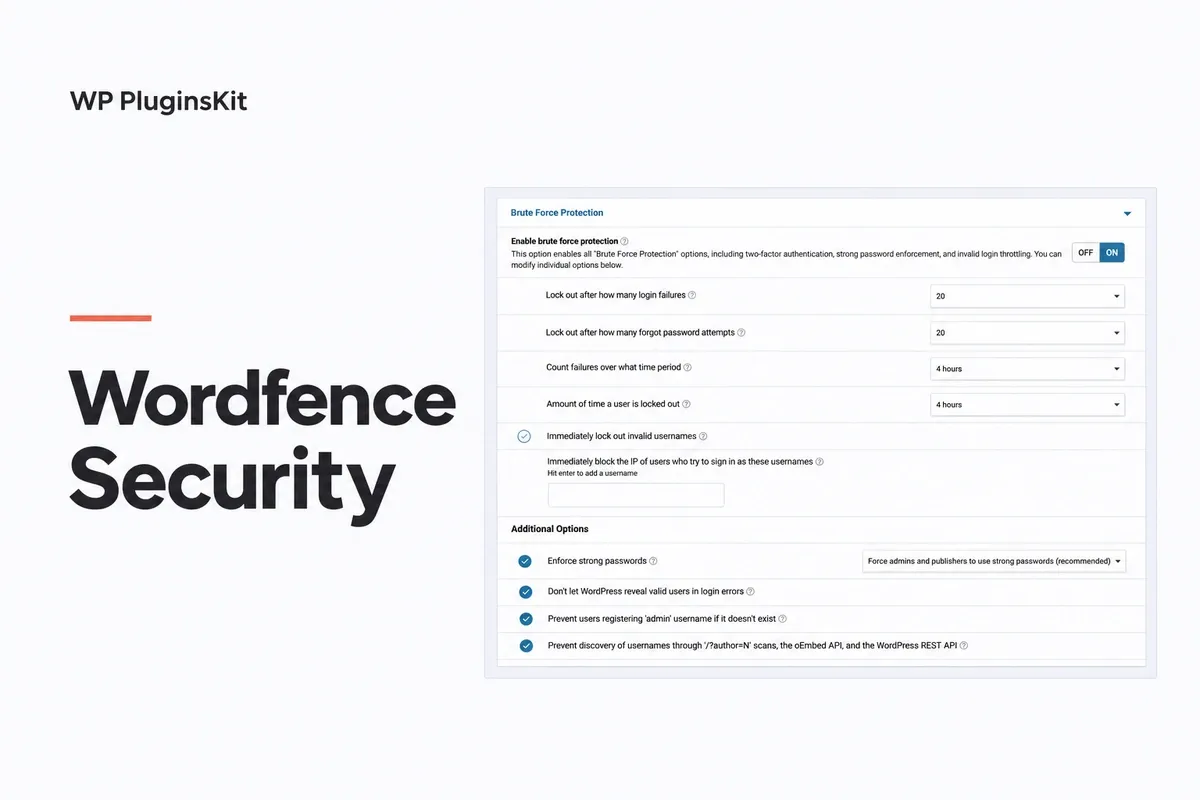
Wordfence combines a firewall with scans that help you investigate suspicious files and changes. Its alerts are a reason to check a finding, rather than delete files without reading what they do.
- Edition
- Free on WordPress.org
- WordPress
- 4.7 or later
- PHP
- 7.0 or later
- Task
- Security
Keep a current backup before changing firewall settings or repairing files. Review each scan finding in context, especially on a site with custom code.
Setup guide
Use an administrator account on a WordPress site that allows plugin installation. Back up an existing site before adding a plugin or changing its settings.
- Follow WordPress's plugin installation steps: open Plugins → Add New Plugin in the WordPress dashboard.
- Search for Wordfence and match it with its WordPress.org listing above. Check the required WordPress and PHP versions before continuing.
- Choose Install Now, wait for it to finish, then choose Activate.
- Follow the Wordfence instructions to complete the setup for the free edition. Enter an email address you monitor for security alerts.
- Open Wordfence → Scan and start the first scan. Wait for completion, then review its findings individually before taking any repair action.

Check that the scan completes and that the alert address is correct. Keep WordPress, themes and plugins updated as part of the same maintenance routine.