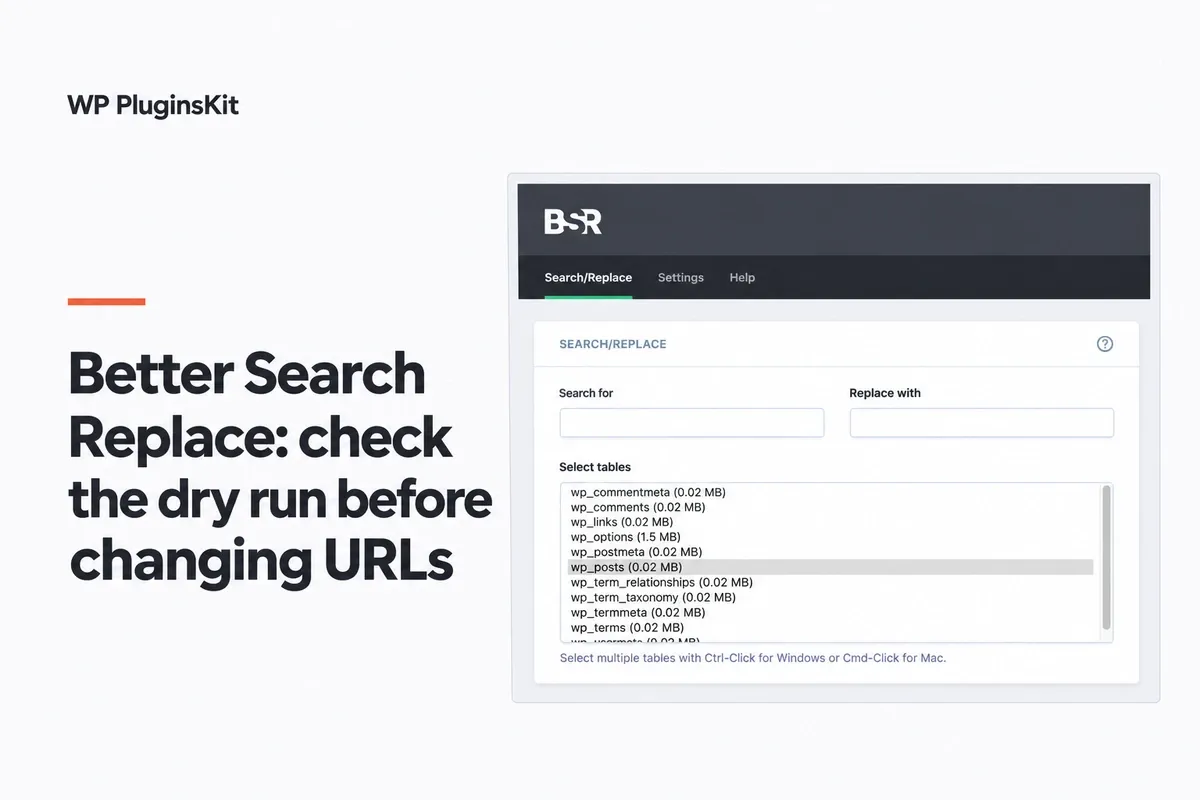
Use Better Search Replace when you need to change a known string in your WordPress database, such as an old site URL left after a migration. Choose the affected tables, keep Run as dry run checked, and inspect the results before allowing a real change. I'd use the free plugin for a precise replacement whose scope I can establish; if I need to inspect every old and new value first, I'd choose a tool with an exact diff.
Choose a database replacement for the right job
The free Better Search Replace plugin supports serialized data, selected tables and a dry run. Serialization support matters because WordPress settings can contain structured values rather than ordinary text. It doesn't make a wrong search string safe.
This is a database operation. It doesn't copy your theme, plugins or uploads to a new server, configure DNS, install an HTTPS certificate, or create redirects for visitors following old links. If you're moving a whole site, establish the destination installation and migration plan first. Use this plugin for the replacement step that remains, rather than treating it as the entire move.
The same boundary applies to cleanup. Replacing a known outdated phrase is different from deleting unused database records. Browse the WordPress plugin catalog for the function you actually need instead of installing several tools that change the same data.
Make the change recoverable before opening the form
Take a current database backup and establish how you'll restore it. For a migration, preserve the files too. UpdraftPlus backup and recovery is one option; your host may already provide a suitable restore point. A backup stored somewhere is less useful than one you can identify and restore to the correct site.
Check that staging uses its own database before experimenting. I'd rehearse a broad replacement there, then take a fresh live backup before repeating the approved operation. On a shop or membership site, plan around new orders and registrations: restoring an earlier database can also discard legitimate activity recorded since that backup.
Record the original search string, replacement string, selected tables and checkbox states. If a real run causes damage, use the recovery plan. Don't assume reversing the two strings will undo it: some instances of the replacement text may have existed before your operation.
Choose literal strings and tables deliberately
Open Tools → Better Search Replace. Put the existing text in Search for and the desired text in Replace with. For a URL change, start with the specific old URL prefix, including its scheme, rather than a bare domain name.
Check that Replace with contains the intended value. An empty replacement removes matched text; it isn't a search-only mode. Use the dry-run checkbox to preview without applying replacements.
For example, an intended change from https://old.example to https://new.example is narrower than replacing every occurrence of old.example. The bare name could also occur in an email address or unrelated text. These are teaching values; substitute the actual strings from your database.
This is literal string matching, not a URL parser. A prefix can also match a longer hostname or a path you didn't intend to change. Check the stored forms, including http://, https://, www, letter case and trailing slashes. Keep path boundaries consistent, and handle genuinely different variants as separate reviewed replacements. Don't replace every http:// string with https://; that would include other sites whose HTTPS support you haven't established.
In Select tables, choose the tables that belong to this installation and contain the intended data. The prefix may differ from wp_. Selecting every table can be appropriate for a planned whole-site URL replacement, but it isn't a safe default for a shared database, a network or a narrowly targeted wording change. If you can't establish which data a table holds, investigate before including it.
On Multisite, subsite administrators are limited to their own subsite's tables. Network administrators and primary-site administrators can work across network tables from the primary site's dashboard. That wider access is a reason to verify scope carefully, not to include the entire network automatically.
The official search-and-replace instructions explain the shared form controls. That documentation also covers Pro features, so don't confuse its saved profiles or exact change previews with the free plugin's table counts.
Keep case and GUIDs under control
Searches are case-sensitive by default. Leave Case-Insensitive off unless you intend to match differently capitalized versions too. Checking it broadens the operation; it isn't a quality setting that should always be enabled.
Leave Replace GUIDs unchecked for an existing site's URL change. The plugin then skips columns named guid. WordPress's GUID guidance explains that these values identify posts for feed readers and must remain stable even when the site's location changes. Finding the old domain in a GUID is not, by itself, a failed migration.

Read the dry run as a scope check
Keep Run as dry run checked and choose Run Search/Replace. The checked state prevents database replacements. Open the result's details link and review the affected tables before deciding whether to proceed.

In the developer's published dry-run example, the visible results include these three table rows:
| Example table | Changes found | Rows updated |
|---|---|---|
wp_comments | 1 | 0 |
wp_options | 9 | 0 |
wp_posts | 3 | 0 |
Those zeros are the important result: the preview found matches without updating rows. These are three visible rows from one developer demonstration, not a total for its database or counts to expect on yours. The example doesn't specify the plugin version, host or database size, so its displayed timings don't establish a useful speed comparison.
A plausible count still doesn't prove that every match is wanted. The free report shows affected-table counts rather than a full old-versus-new diff. If an unexpected table appears, a count is surprisingly large, or you need to inspect each value, stop there. Narrow the strings or scope, inspect the data through an appropriate database tool, or use a workflow that provides exact diffs.
The developer's current upgrade page for WP Migrate describes exact previews, regular expressions and broader migration features. That's a different product decision. Don't buy from an old Better Search Replace Pro price quoted in a tutorial without checking the current offer.
Run the approved replacement, then check the site
Once the scope is justified and the backup is ready, confirm the same strings, tables and options. Uncheck Run as dry run and run the replacement. This is the point where database values can change. Save the completion report before moving on.
Then inspect the actual site, not just the success message. Follow menu and button links, open representative posts and subpages, and check images, galleries and any builder-managed content involved in the change. Test the affected form or other interactive feature. Check the relevant WordPress settings too; a working home page alone isn't enough.
If the site still displays an old value, clear the relevant page or object cache and reload before attempting another replacement. A further dry run can help locate remaining matches, but interpret them: GUIDs you deliberately excluded should stay unchanged. A string in a theme file, external service or another database is outside the selected operation.
Troubleshoot without widening the change
No matches: compare the search string with a known stored value, check case and URL variants, and confirm the selected tables and database. Don't immediately switch to a shorter bare hostname or select unrelated tables just to produce a nonzero count.
Request error or timeout: the plugin's own error guidance suggests decreasing Settings → Max Page Size or contacting support. Smaller batches may help processing, but a failed real run must not be treated as a rollback. Establish what changed and whether you need to restore before retrying. Keep a retry in dry-run mode until the scope is settled.
You need column exclusions, a terminal workflow or an export: WP-CLI search-replace documents those options, including dry runs and skipping columns. Its table and Multisite scope have their own rules. Use that documented method deliberately rather than translating GUI settings into an unreviewed command.
After verification, deactivate and remove this occasional-use plugin if you don't need it. Keep the backup and operation record long enough to check the less frequently visited parts of the site.
Setup guide
Set up Better Search Replace
- Check compatibility and recovery. Version 1.4.11 requires WordPress 6.2 or later and PHP 8.1 or later. Use a maintained compatible environment and a current plugin release before changing the database. Save a recoverable backup.
- Install the official plugin. In Plugins → Add New Plugin, find Better Search Replace by WP Engine, compare the official listing linked above, then choose Install Now → Activate. Open Tools → Better Search Replace.
- Confirm the database and permissions. On Multisite, subsite administrators can use only that subsite's tables. Network administrators and primary-site administrators can access network tables from the primary site's dashboard. Choose the intended site and scope before proceeding.
- Prepare one replacement. Enter the specific existing and replacement strings. Select the relevant tables, leave Replace GUIDs off, and broaden case matching only for an intended reason.
- Run the preview. Keep Run as dry run checked, run the operation and inspect its table details. Resolve unexplained counts or use exact-diff tooling before allowing writes.
- Apply and verify. With the backup ready, retain the approved scope, uncheck dry run and run the real change. Check affected links, media, settings and functionality, then remove the tool if its job is finished.