Complianz is a good fit if you want to manage a cookie banner, cookie policy and script blocking inside WordPress. Start with the free plugin for a single-region configuration. Choose Premium when you need location-based banners for multiple regions, individual consent records or its built-in Google Consent Mode configuration. Verify the site before relying on the banner: a visible consent box doesn't prove that tracking waits for permission.
I'd choose Complianz for a site whose owner can keep the wizard answers aligned with the services in use. Adding a marketing pixel later changes the consent setup, even if the banner still looks correct. The plugin helps implement your choices; the official product guidance leaves responsibility for meeting the applicable requirements with the site owner.
Choose free or Premium by the task
The free plugin includes the setup wizard, a cookie policy generator, cookie scanning and controls for supported scripts and embedded content. Its published feature list specifies a scan of up to 50 posts. That's an inventory limit to consider on a larger site, not a monthly visitor allowance: Complianz states that neither free nor paid plans have monthly pageview or session limits.
| Your task | Free plugin | Premium distinction |
|---|---|---|
| Manage consent for one regional setup | Wizard, banner and cookie policy | Multiple targeted regions with location-based banners |
| Control tracking services | Supported integrations, iframe blocking and Script Center | Additional frameworks and advanced configuration |
| Keep evidence of the consent process | Proof of Consent | Individual Records of Consent |
| Generate more legal documents | Cookie policy | Privacy statements and processing agreements, among other documents |
| Use built-in Google Consent Mode settings | Don't assume a Google Analytics integration includes this paid configuration | Built-in Consent Mode for Google Analytics or Google Tag Manager |
Free can be useful for one regional configuration applied across the site. It doesn't provide the Premium arrangement that selects different banners by visitor location. Choose the region and documents based on the audience you serve and the requirements that apply to your organization, rather than copying the countries selected in a sample screen.
Check the current WordPress license conditions before paying. The plans cover a year of updates and support. If a license isn't renewed, the plugin remains active, but the vendor restricts changes to existing legal documents and configuration; updates, priority support and third-party update features such as TCF also stop. Budget for maintaining a consent system, not merely displaying its initial banner.
Use the scan to build an inventory
Run the scan through Complianz → Wizard, then review the services and cookies against the site's actual pages. Include a page with an embedded video or map and a page with any marketing form. A scanner result is a starting inventory; custom scripts and services loaded only after an interaction still need attention.
The enhanced website scan requires authentication. An older scan-results manual explicitly says its instructions no longer apply to users who authenticated the newer scan. Use the guidance for your active scanner rather than assuming the old monthly schedule or browser-based scan behavior describes every installation.
Complianz runs its administration in WordPress, but that doesn't mean every related operation stays on your server. Its data-sharing disclosure says scan results sent to Cookiedatabase.org include cookie names, the supplying domain and the site's plugin list. Review this connection when deciding which external services your organization permits.
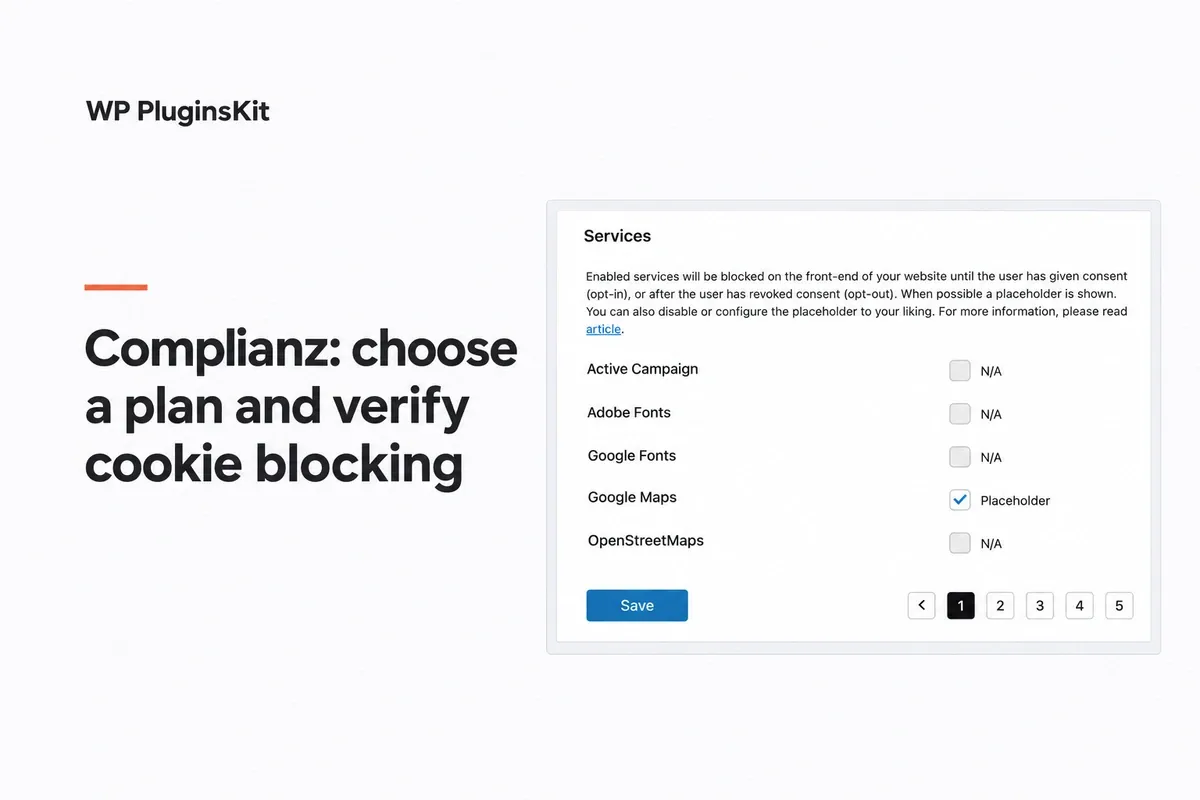
In Complianz → Integrations, review both services and plugins. A supported integration can block an embed and show a placeholder until the visitor permits it. If a custom service is missing, identify its actual script or iframe before configuring Script Center; guessing a vendor name doesn't prove that the request will be blocked.

Verify blocking before and after a choice
Start in a fresh browser session while logged out of WordPress. Open developer tools before loading the page, then inspect Network requests and Application → Cookies. Check the actual tracking service as well as the banner. A browser extension that blocks advertising can hide a configuration error, so use a verification session without such interference.
There is a useful published functional check: BlogVault's staging-site review reports that a YouTube embed and Google Map both waited until consent. The same review says its scan results still needed manual verification. Those observations support checking embedded content explicitly; the report doesn't disclose a plugin version or a repeatable request log that would establish a success rate across other sites.
| Visitor state | Check on your site |
|---|---|
| No choice yet | For an opt-in configuration, services assigned to a consent-required category should remain blocked. A placeholder may occupy the embed. |
| Deny or save optional categories as off | The corresponding service should remain blocked after navigation and reload. |
| Accept a category | The permitted service should load; unrelated categories should retain their own state. |
| Withdraw consent | Reopen the consent controls, turn the category off and verify that the relevant scripts stop loading or reading data. |
Use the banner's consent controls and keep a visible way to reopen them. Complianz supports a manage-consent tab and revocation through the cookie policy. Its withdrawal guidance also explains an important limit: a site can't delete cookies belonging to another domain. A previously stored third-party cookie isn't, by itself, proof that the script continued running after withdrawal; inspect the requests and script behavior too.

I'd keep the first banner design close to the default, with readable buttons and an obvious refusal option. After changing its colors or layout, check it on a phone and with the keyboard. The final site's contrast, focus order and button access matter more than a generic accessibility claim on a product page.
Separate Google consent signals from blocking
Consent Mode tells supported Google tags how to behave under the visitor's consent state. It doesn't automatically control every non-Google tag in a container. Google's basic and advanced consent modes also behave differently: basic mode blocks Google tags until consent, while advanced mode can load them earlier and send measurements without cookies when consent is denied.
Complianz lists its built-in Google Consent Mode configuration under Premium. If you use Site Kit, follow the documented Site Kit and GTM integration, which specifies Premium and the WP Consent API plugin. The Complianz configuration manual says the Site Kit integration uses advanced mode. If your intended policy requires no Google connection before consent, check the implementation against that requirement before choosing this route.
Decide which tool inserts each tracking snippet. If Site Kit already inserts Analytics, don't add another copy through a header plugin or the Complianz wizard. With GTM, configure each tag's consent behavior inside the container as well. Verify the default state and the update after a visitor choice in Google Tag Assistant; a working Analytics dashboard alone doesn't prove the consent signals are correct.
Keep the right kind of consent evidence
Proof of Consent preserves time-stamped policy information and relevant consent settings. It describes the process presented to visitors. Premium Records of Consent additionally stores individual consent registrations, including a browser-stored user ID and the selected categories. These features answer different questions; a historical copy of a policy isn't an individual visitor's record.
Enable individual records only after deciding why your organization needs them and how they'll be retained and handled. They add stored data to maintain. Don't describe the free Proof of Consent feature as an unlimited individual consent log, or assume buying Premium resolves the rest of your privacy obligations.
Trace a request that runs too early
If a service loads before the choice it should require, first confirm that an old consent preference isn't still active and the cookie/script blocker is enabled. Check whether Safe Mode was left on after troubleshooting: the 7.5.7 blocker configuration makes Safe Mode disable blocking. Repeat the check in a clean session, identify the request in Network and trace the plugin or snippet that inserts it. The script-identification instructions distinguish JavaScript requests from cookies set by server-side code; adding a URL to a browser script blocker won't control every server-set cookie.
Next, inspect optimization settings. Complianz's caching guidance explains that combining or renaming a script can prevent a filename-based integration from recognizing it. On staging, exclude the identified script from the relevant optimization, clear the page/CDN cache and repeat the consent checks. Avoid disabling every optimization on the live site as a first response.
If the banner itself is missing, check the wizard's completion, the selected regional behavior and any remembered choice before assuming a loading failure. For an unresolved custom integration, describe the page, responsible service and before/after request behavior in the free plugin's support forum or a Premium support ticket. Keep private identifiers and credentials out of public reports. Leave that tracking service disabled until its consent behavior is resolved.
Setup guide
Set up Complianz in WordPress
Back up the files and database before replacing an existing consent system; the UpdraftPlus setup guide covers that workflow. Save the previous system's configuration so you can restore it if the replacement fails. Use staging to avoid a gap in consent controls during the change.
- Check compatibility. Complianz 7.5.7 lists WordPress 5.9 and PHP 7.4 as minimums. These are compatibility floors, not a recommendation to keep an obsolete server version. The vendor's PHP transition notice raises the minimum to PHP 8.1 from March 2027. Ask the host about a currently supported PHP release compatible with the whole site.
- Install the correct product. In Plugins → Add New Plugin, search for Complianz GDPR/CCPA Cookie Consent Banner by Complianz, then install and activate it. Avoid confusing it with the separate Terms and Conditions plugin. Keep one active consent-banner system during verification.
- Complete the wizard. Open Complianz → Wizard. Enter the site's real audience, organization and document choices. Run the scan, review the detected services and complete the cookie descriptions needed for the policy. Follow the scan-specific instructions if the enhanced scanner asks you to authenticate.
- Configure tracking once. In the wizard's Statistics section, select the tool that inserts analytics or tags. Follow the statistics configuration instructions for that route. Remove duplicate snippet insertion only after identifying its source; don't remove a whole GTM container just to eliminate one duplicate tag.
- Enable the banner and blocker, then verify. Complete the Documents stage and open Finish. For this consent-blocking setup, set Show Consent Banner and Enable cookie and script blocker to Yes. These are separate controls in the 7.5.7 Finish configuration; showing the banner alone doesn't enable blocking. Review the policy and clear relevant caches. In a fresh logged-out session, run the no-choice, deny, category-acceptance and withdrawal checks above on representative pages. Check the policy links and the manage-consent control on a phone too.

After adding a new embed, analytics tool or marketing pixel, revisit the inventory and repeat the affected checks. Keep Complianz alongside the site's other maintained WordPress plugins; consent settings need to follow changes to the site.