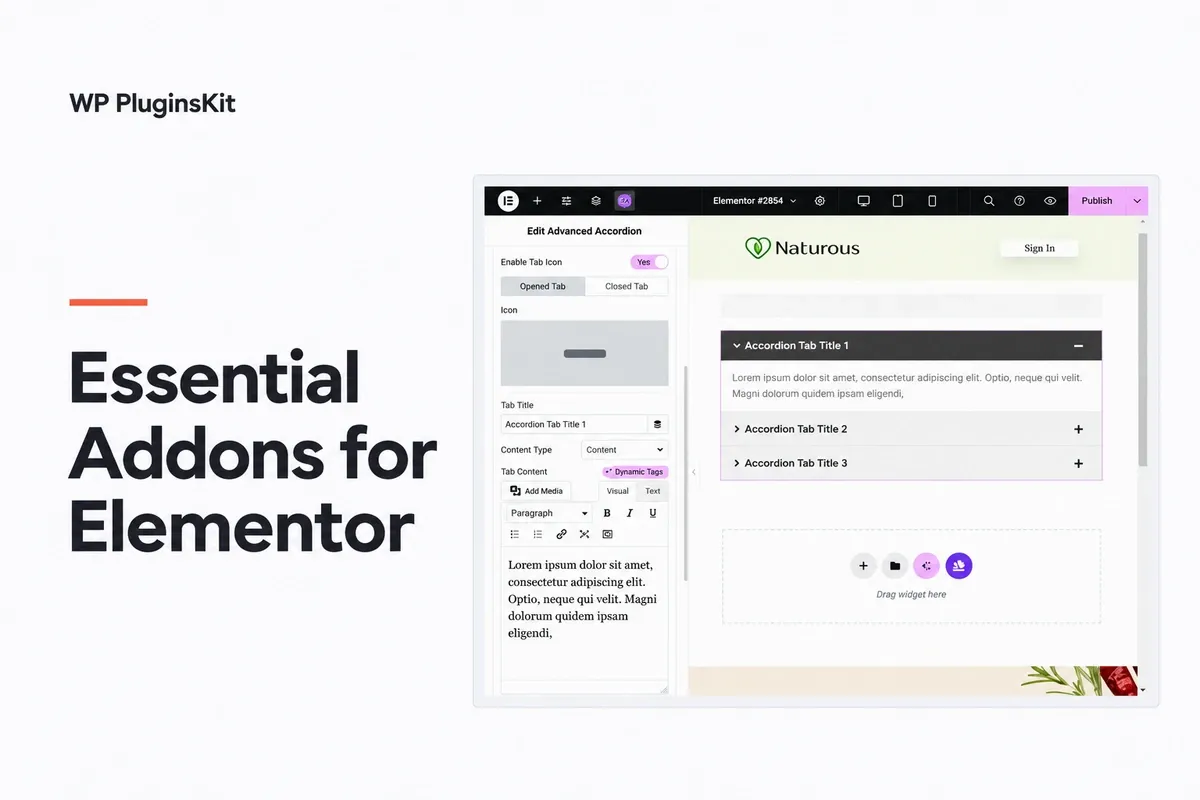
Essential Addons for Elementor adds widgets to the Elementor editor, including free Advanced Accordion, Advanced Tabs and Post Grid elements. You need the free Elementor plugin installed and active; Elementor Pro isn't required. I'd add Essential Addons when it supplies a specific missing widget, then keep unused elements disabled rather than install several overlapping addon packs.
Choose the widget before choosing a paid plan
Start by checking whether your existing Elementor widgets already solve the layout problem. Essential Addons is useful when you want its particular content controls or presentation, but another plugin also becomes part of the page's maintenance. Keep a record of which pages use its widgets before disabling elements or removing the plugin.
The official free plugin listing separates free elements from Pro additions. These examples are enough to make an initial decision without comparing the size of entire widget libraries.
| Task | Where to start |
|---|---|
| Text | Free Advanced Accordion; choose its Accordion or Toggle behavior inside the widget. |
| Tabs | Free Advanced Tabs. Start with plain content before placing a complex saved template inside a tab. |
| Posts | Free Post Grid; Post Carousel is a separate Pro element. |
| Forms | Free stylers include Contact Form 7 and WPForms. The corresponding form plugin must also be installed and active. |
| Social | The Essential Addons Instagram Feed widget is Pro; it isn't part of this free setup. |
Don't confuse the Toggle behavior inside Advanced Accordion with the separately listed Pro Toggle element. Likewise, Elementor Pro and Essential Addons Pro are different products. The developer confirms that Essential Addons works with Elementor Free and Elementor Pro; buying either Pro product isn't a prerequisite for the free accordion below.
Templately is a separate template and cloud service. It isn't needed to write your own accordion content. If you're considering a bundle, check the entitlement duration: the Essential Addons plan descriptions offer different time-limited Templately Pro inclusions. Don't assume a plugin license includes permanent access to every premium template.
What the published performance test tells you
Colin Newcomer's WP Mayor test of Essential Addons compared a page built with Elementor and Elementor Pro under three conditions. The review was published in 2023 and later updated; its exact tested plugin versions aren't specified. WP Mayor also discloses that the review was a paid service.
| Test page | Page size | Requests |
|---|---|---|
| EA off | 1.01 MB | 31 |
| EA on, no EA widgets | 1.01 MB | 31 |
| Two EA widgets used | 1.03 MB | 33 |
All EA widgets were enabled in the active-plugin condition. The final page replaced the native Countdown and Price List widgets with Essential Addons equivalents. That's one published test on inexpensive hosting, with no repeated-run distribution; these numbers don't predict the cost of every widget or establish the performance of the current release.
My takeaway is to compare the actual page you intend to ship. Record its requests, transferred size and loading behavior before adding the widget, then repeat under the same conditions afterward. Check the interaction as well: a fast page with an accordion that won't open hasn't passed.
Prepare an existing Elementor site
Use a staging copy for the first change, especially on a site with several addon packs. Keep a recoverable backup of both files and the database; UpdraftPlus is one option for that workflow. Take note of your WordPress, PHP, Elementor and addon versions before changing them.
The Essential Addons 6.8.9 readme declares WordPress 5.3 and PHP 7.0 as minimums. Those are compatibility floors, not recommendations to run old software. Meet the requirements of your installed Elementor version and use a maintained hosting stack. The 6.8.9 release notes also include security enhancements, so use the current compatible release rather than an old download from a review.
Use the installation steps below after completing these checks. Once the plugin is active, choose the onboarding options and enable your first element.
Choose the onboarding privacy option deliberately
The plugin listing describes usage tracking as opt-in. The Quick Builder consent screen offers Proceed to Next Step alongside Skip This Step. Read Find out what we collect before accepting; collection can include site, admin-email, server, plugin, theme and element-usage information. Choose Skip This Step if you don't want to opt in.
Enable the element you need and save it
Open Essential Addons → Elements, find Advanced Accordion and enable it. Select Save Settings. The developer's element configuration instructions distinguish individual switches from Global Control, which enables or disables the whole collection.
On an established site, don't start with a global disable. Check which elements its existing pages and templates use, then switch off only those you can confirm are unused. On a fresh site, begin with the element needed for your first page. Extensions have their own controls; an ordinary text accordion doesn't require a social connection or a form plugin.

Build a free Advanced Accordion
- Open a draft page with Elementor. Search the element panel for EA Advanced Accordion and drag it into the intended container.
- In Content → General Settings, choose the required Accordion Type: Accordion or Toggle. Check the resulting open-and-close behavior on the preview rather than choosing from the name alone.
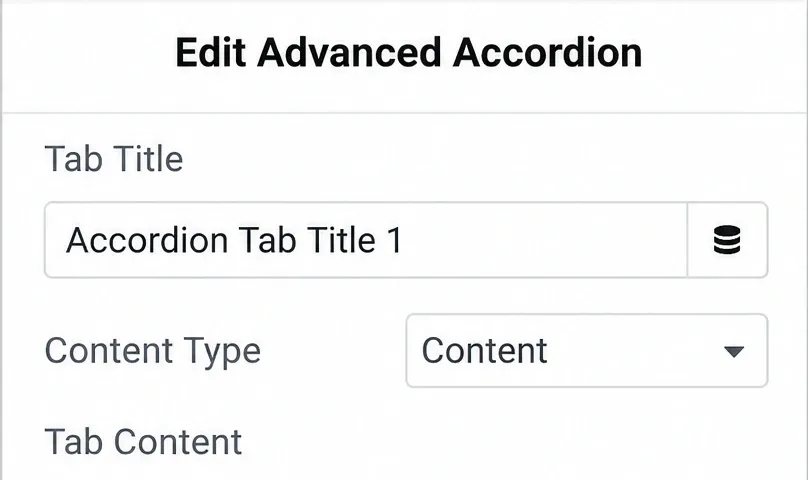
- Open each content item. Replace the example title in Tab Title with a specific heading and keep Content Type set to Content for this first example. Enter the answer in Tab Content. The documentation calls these the content title and content settings; the editor fields identify the individual tab.
- Set Active as Default only for the item you want initially open. Remove unused example items and check the toggle icons. Keep essential instructions visible outside the accordion if hiding them would make the page difficult to use.
- Use the Style tab to adjust the title, content and icon presentation. Save the draft and open its front-end preview.
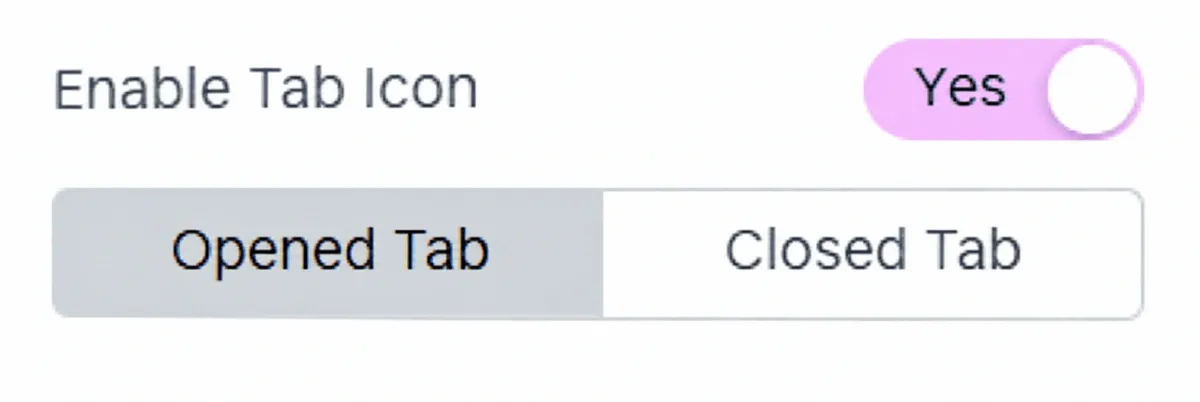
The Advanced Accordion instructions also support Saved Template content and an Enable FAQ Schema option. Leave FAQ schema off for this basic layout exercise. Expanding text doesn't by itself make the content a question-and-answer page or justify a search-ranking promise.
Check the visitor page, then reopen the editor
Use a narrow phone preview and a desktop preview. Open every item, close it again, and check the initial open item after reloading. Try long titles, links and a longer answer; text should wrap without clipping or covering the toggle icon.
Use the keyboard to move through the front-end preview. Confirm that you can reach the controls, see focus and operate the accordion without a mouse. If a control is unreachable or its state is unclear, fix that before publishing. Then reopen the page in Elementor and confirm that the titles and content you saved remain in the right items.
For the final visitor check, use a logged-out view. If your cache serves the old layout, clear the relevant page cache and check again. Keep the change isolated: don't add several widgets and alter optimization settings in the same pass.
Fix the symptom without resetting the site
| If | Next check |
|---|---|
| No widget | Confirm Elementor is active, Advanced Accordion is enabled in Elements and Save Settings was used. Reload the editor and search for EA Advanced Accordion. |
| No styler | Confirm the matching form plugin is active. The EA styler doesn't replace the form plugin; a plain accordion needs neither. |
| Old view | Save the page, inspect a fresh visitor view and clear the relevant cache. Compare that view with the editor before changing styles again. |
| Nested error | Try a plain-text item on staging. If that works, inspect the saved template and the plugins supplying its interactive widgets. |
A documented Advanced Tabs support case involved another addon's WooCommerce carousel inside saved templates; the developer reported a fix in 6.0.8. That is a specific historical integration issue, not evidence that every current tab or accordion needs the same workaround. Include your actual widget, template source, versions and reproduction steps when seeking support.
If you later need Essential Addons Pro, the Pro installation instructions require the free Essential Addons plugin to remain active. Add the official Pro ZIP alongside it rather than deleting the free dependency. For now, finish the single free widget and its visitor checks; use the plugin catalog when you have a separate function to add.
Setup guide
Install Essential Addons alongside Elementor
Complete the backup and version checks above before installing on a staging copy.
- Confirm that Elementor is installed and active, and that an existing page opens in its editor.
- Open Plugins → Add New and search for Essential Addons. Match the WordPress.org plugin whose slug is essential-addons-for-elementor-lite, then select Install Now and Activate.
- Follow the documented installation flow into the Quick Builder, or open Essential Addons from the dashboard. Keep optional template services and integrations out of this first plain-text example.