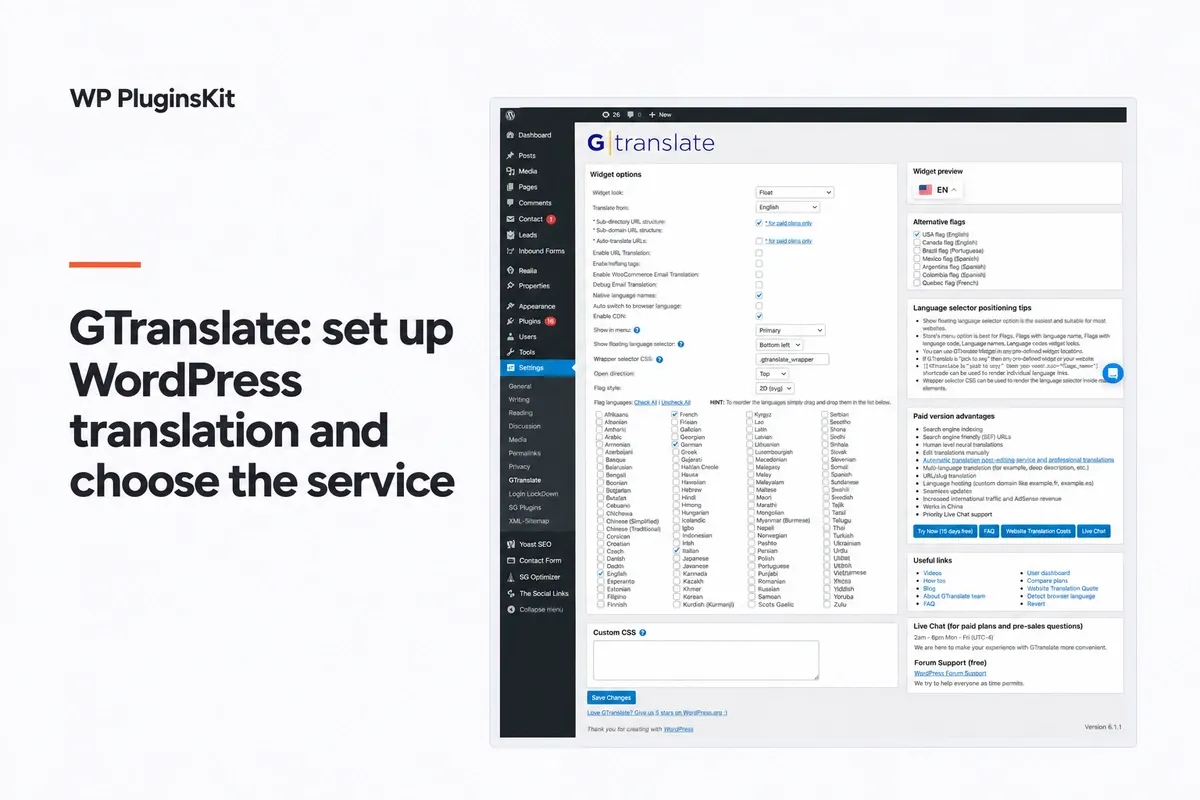
Set up GTranslate in WordPress under Settings → GTranslate, choose the language your original pages use and place a language selector where visitors can reach it. Check the service conditions first: commercial or revenue-generating use requires an applicable paid subscription. I'd use the eligible free service for visitor translation when separate, indexable language pages and editable translations aren't part of the job.
Choose the service before installing
The current GTranslate listing separates the plugin code's GPLv2-or-later license from the translation service's permitted use. Free code doesn't mean unrestricted free use of the connected service.
Under the service's permitted-use conditions, the free version covers personal, educational, internal testing, nonprofit and governmental purposes, provided the use doesn't directly generate revenue from the service. Nonprofit use must further nonprofit activities; governmental use includes public institutions and other public-sector entities. A commercial website or WooCommerce store needs an applicable paid subscription. If your site's purpose falls between those descriptions, resolve eligibility with GTranslate before enabling the service.
Existing installations need this check too. Version 5.0.1 replaced the legacy Google Website Translator widget after Google's October 1, 2026 shutdown date. The current directory FAQ tells existing users to review the replacement service's terms before updating a live site. An older tutorial saying the free service is suitable for any business can lead you to the wrong choice.
- Eligible noncommercial visitors need to read the existing page in another language. The free visitor-translation widget may fit.
- A business or store needs GTranslate. Choose an applicable paid subscription, even if SEO isn't the goal.
- Search engines need separate language URLs, or an editor needs to correct translations. Check the paid service's features and the selected plan before configuring it.
Review text sharing and prepare the site
Translation uses external services. The directory's external-services disclosure says the browser loads widget files from GTranslate's CDN and sends the page text being translated to Google's translation endpoint. Requests also expose connection information such as the visitor's IP address and browser headers. Browser-based processing still sends data outside the browser.
Review that flow against your site's privacy information, consent setup and content-security rules before activation. A paid translation proxy processes and serves translated versions through GTranslate's cloud infrastructure. I wouldn't enable automatic translation across private or sensitive content without first deciding which content may be sent to those services.
GTranslate 5.0.2 requires WordPress 6.0.1 or later. Back up the site and confirm how you'll restore it before changing a live installation; the UpdraftPlus backup workflow covers that preparation. Use staging for the first configuration, particularly when the site already has a language switcher, a consent manager or script optimization.
Install and set the original language
- Open Plugins → Add Plugin, find the official Translate WordPress with GTranslate listing, install it and activate it.
- Open Settings → GTranslate. In Translate from, choose the language the original page is written in.
- Select the target languages your visitors need. Start with languages you can arrange to review, rather than exposing every available option immediately.
- For a predictable first check, leave Auto switch to browser language off. You'll select the target language manually when checking the result.
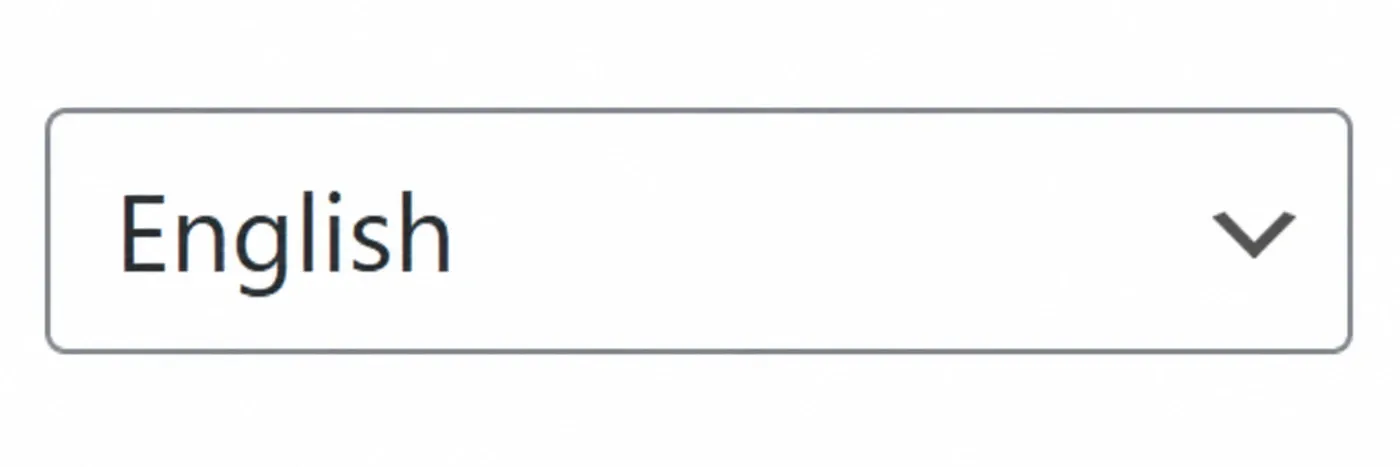
Translate from is the source language. For an English original that visitors will read in Spanish, keep English here and select Spanish among the destination languages. Choosing Spanish as the source would describe a different starting page.
The basic widget setup doesn't require you to create a Google Cloud Translation API project or paste old Google Website Translator code into the theme. Follow the plugin's installation and placement instructions; tutorials for other Google translation products describe different integrations.
Place one language selector and save
I'd start with a floating selector because it gives you a visible control without editing a theme template. Set Widget look to Float, then choose a corner in Show floating language selector, such as Bottom right. Pick a position that leaves your cookie controls, chat button and important navigation usable.
Enable Native language names if you want visitors to see languages in their own names. Check the result with the languages you've selected; labels should be understandable without relying on a flag alone. Keep one deliberate placement for the first check so a duplicate switcher doesn't confuse the result.
Click Save Changes, refresh the visitor-facing page and look for the selector in the chosen corner. The current plugin settings also include a Show in menu option for available theme menu locations. If the menu you need isn't listed, use a supported placement rather than assuming every navigation layout will appear there.

For an inline placement, the plugin supports the [gtranslate] shortcode in posts and pages. Switch off the floating placement if you're replacing it. Leave Wrapper selector CSS alone unless you're deliberately placing the widget inside a matching page element; a selector that matches nothing gives it nowhere to appear.
Check the visitor workflow before enabling more automation
Open the staging page as a logged-out visitor, select a target language and inspect meaningful content beyond the heading. Check a long paragraph, a navigation label and any button or form the visitor needs. Then switch back to the original language and follow a link to another page.
Repeat that route on a phone. Open and close the selector, scroll the page and check whether its expanded choices cover a consent control or another fixed button. Change the position or widget style if either control becomes difficult to reach.
Have a competent speaker review important copy before relying on the translation. Product names, prices, instructions, legal wording and form errors deserve particular attention. Automatic output that looks fluent can still change the meaning. Paid GTranslate supports correcting translations; the free widget doesn't provide that editing feature.
Once manual selection behaves as intended, decide whether automatic browser-language switching would help your audience. If you turn it on, repeat the checks with a browser configured for one of your target languages. Don't use automatic switching to hide an unresolved manual-selector problem.
Separate visitor translation from multilingual SEO
In the free version, the website URL stays the same and translations aren't stored. It doesn't create separate, indexable language versions. That boundary matters more than a broad claim that search engines can or can't read JavaScript.
The paid GTranslate service uses a translation proxy and provides language-specific URLs, with editing and multilingual SEO features. Confirm the selected plan's URL translation, language-hosting and other requirements before choosing it. Dedicated URLs make a different publishing arrangement possible; they don't guarantee indexing, rankings or extra sales.
Leave Sub-directory URL structure and Sub-domain URL structure off for an eligible free-widget setup. Those settings are for a configured paid service. Ticking a paid URL option or an hreflang option doesn't provision a subscription or finish the service's domain setup.
For a paid rollout, settle the plan and URL structure first, then follow GTranslate's instructions for that arrangement. Treat any DNS or server changes as a separate staged change with a rollback plan. Keep the original site reachable, and verify translated URLs, navigation and corrections before directing visitors to them.
Isolate missing or broken translations
- No selector after saving. Confirm a placement is enabled, refresh the page and check whether a page cache still serves the previous markup. If using a wrapper selector, confirm the intended element exists.
- The selector opens but translation doesn't start. Check whether consent rules, content-security rules or a browser blocker prevent the required external requests. Isolate the rule on staging instead of disabling protection across the live site.
- Changing language breaks only after optimization. Retest with the affected script-delay or combination setting off on staging. Restore settings one at a time to identify the conflict.
- Some text stays in the original language. Check whether it's text in an image or content supplied by another service. The directory FAQ identifies third-party content as a possible limitation; don't assume reinstalling will change its source.
- A name or phrase must stay unchanged. The plugin FAQ supports a
notranslateclass around text to exclude it. Apply the exclusion narrowly and recheck the surrounding sentence.
If the problem remains, send GTranslate support the plugin version, widget style, affected language, placement and a public example that contains no private data. For the next plugin decision, return to the WordPress plugin catalog; keep this selector's purpose clear before adding another translation tool.
Setup guide
Set up GTranslate
- Choose the service. Confirm free-service eligibility or arrange the applicable paid subscription. Review external text sharing before activation.
- Prepare. For GTranslate 5.0.2, use WordPress 6.0.1 or later. Back up the site and start on staging.
- Install. Install and activate the official Translate WordPress with GTranslate listing through Plugins → Add Plugin. Open Settings → GTranslate.
- Set languages. Set Translate from to the original page language, select the target languages and leave Auto switch to browser language off for the first manual check.
- Place and save. Choose Widget look: Float and an unobstructed corner in Show floating language selector. Click Save Changes and refresh the visitor page. Keep paid URL options off for a free-widget setup.
- Verify. Check language selection, important text, navigation and forms as a logged-out visitor and on a phone. Arrange language review; choose paid editing or multilingual URLs when the publishing task requires them.