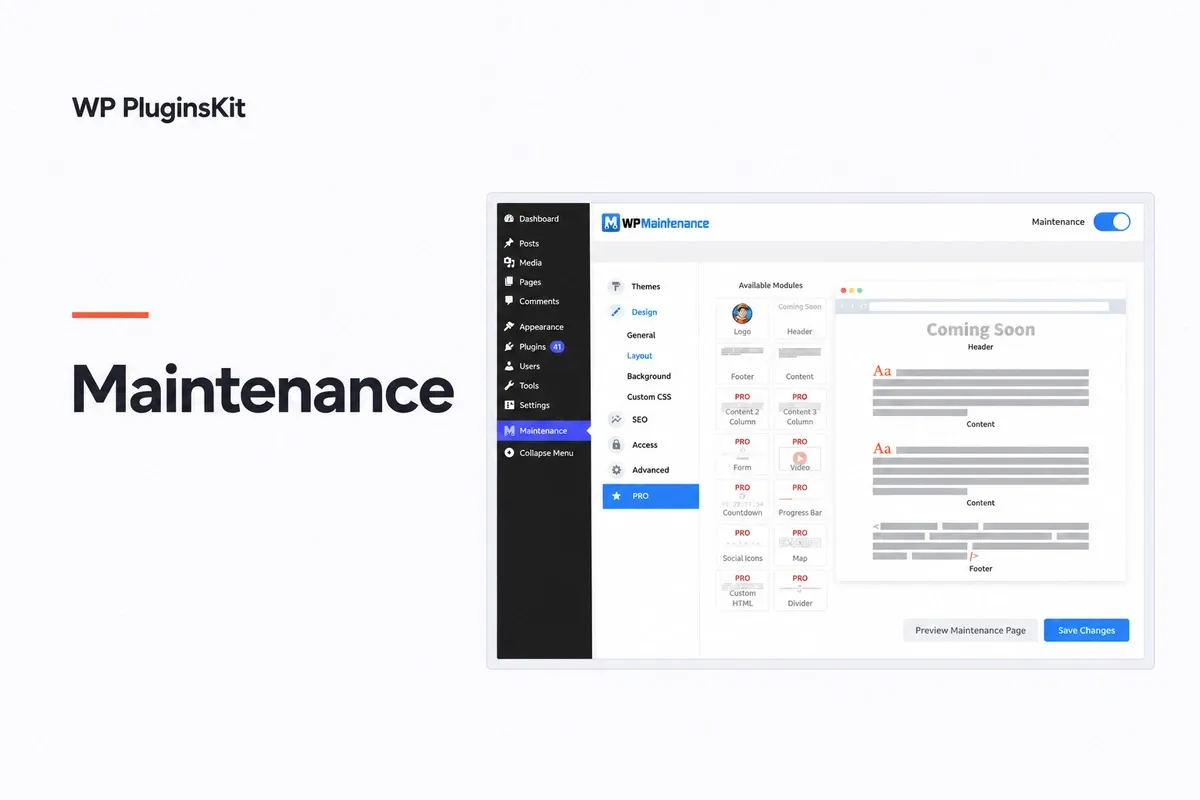
Open Maintenance in WordPress, prepare the page under Design → Layout, then enable the 503 option under SEO before switching maintenance mode on. Check the result in a signed-out browser: the free plugin lets all logged-in users see the normal site by default, regardless of role. I'd use it for a short, planned visitor interruption; keep substantial rebuilding on staging.
Check access before hiding the public page
Maintenance by WebFactory Ltd uses the plugin-directory slug maintenance. It is a separate product from Under Construction Page, LightStart and similarly named maintenance plugins. Version 4.30 introduced a redesigned interface; the steps here follow that builder and the 4.33 controls.
In the free version's current default behavior, any authenticated WordPress user can bypass the temporary page. That includes customers or subscribers, not only administrators. The 4.33 access rules check whether a user is logged in, rather than requiring an administrator role. The PRO-marked Show Normal Site to Logged in Users control doesn't make the free default an administrator-only bypass.
If unfinished content must stay confidential, use staging with appropriate access protection. Maintenance changes the public page response; it doesn't establish a site-wide security boundary for files, APIs or every WordPress endpoint.
Keep a recoverable backup before changing the site, using a process such as the UpdraftPlus backup setup. Decide who will enable and disable the page. Also check whether your host, Elementor or another plugin already controls maintenance mode. I'd leave one system in charge so that turning this switch off has a clear, verifiable result.
Prepare the message while maintenance is off
Keep the top Maintenance switch off while editing. Its click handler saves the change immediately, so don't use it as an unsaved preview. First finish the message, access rules and search-engine response.
- Open Design → Layout. Use the free Header and Content modules for the title and explanation. Logo and Footer are also available in free.
- Hover over a module and choose Edit module. Replace the default heading with a specific message, such as “We're updating the site.” Explain the interruption in the content. Include a contact route that remains usable; give a reopening estimate only when someone can keep it accurate.
- Save the module's changes, then use the page's Save Changes button. Check text size and placement under Design → General if the message is hard to read.
- Open Preview Maintenance Page. Check the wording, links and appearance on a narrow screen as well as desktop. This preview can show the maintenance page while the mode is off; it doesn't prove that ordinary visitors receive it.
A short message is enough for routine work. Form, Video, Countdown and the multi-column content modules are PRO features. I'd skip them unless the outage needs that function; a countdown is a poor substitute for a reopening time you can maintain.
Enable the 503 response separately
Open SEO and turn on Enable 503 (Service Unavailable) status code to discourage Search Engine crawlers, then save. In 4.33 the option is off by default. The release also fixes this control, so update an older installation before relying on the revised workflow.
For a temporary interruption, the 503 response tells a crawler that the server is unavailable. A normal 200 response can instead make the temporary message available for processing as page content. The plugin's response handler sends 503 only when this option is enabled; the large Maintenance switch alone doesn't select it.
Don't equate 503 with permanent ranking protection. Google's server-error guidance says server errors slow crawling and persistently unavailable URLs can eventually leave the index. Keep the interruption short and restore normal responses promptly; there's no universal safe number of outage hours.
The free SEO Title field is available on this screen. Meta Description is marked PRO. Neither replaces checking the actual HTTP status after enabling the page.
Keep only the intended pages open
Leave Access → URL Based Rules at Disabled if the temporary page should cover the ordinary public site. If a page must remain available, choose Listed URLs will NEVER be affected by maintenance mode. For the opposite scope, choose ONLY listed URLs CAN BE affected by maintenance mode.
Enter one path per line in URL List, starting and ending with /. For example, /contact/ represents that specific page. The 4.33 code compares paths exactly; don't assume this entry also covers every child URL. Save, then check a listed path and an unlisted path while signed out.
These URL rules are free. IP Whitelisting and Secret Access Link are PRO options. Avoid buying PRO merely because an older guide says that every access exception is paid.
Show Login Button adds a small link to the WordPress login page in the lower-right corner. Hiding that button doesn't change the logged-in bypass or make the site private. Keep your established admin-login route available separately.
Enable the page and check a real visitor response
After saving the message, 503 option and access rules, turn on the top Maintenance switch. The enabled control is blue with its knob on the right. The header switch's save handler applies the change immediately.
- Clear the relevant page cache, host cache and CDN cache through their normal controls. Open a separate signed-out or private browser window.
- Visit a normal public page directly. Confirm the maintenance message and check its contact link. Repeat on a second page and on any path affected by your URL rules.
- In Chrome developer tools, open Network, enable Disable cache and reload with developer tools open. Select the main document request. With the 503 option enabled, a covered visitor page should return 503.
- Keep your administrator session open and confirm it can reach the normal site. If customer or subscriber accounts exist, check their access too before starting work that they shouldn't see.
If signed-out visitors still receive the old site, check the header switch, URL rules and cached response before changing the page design. If the temporary page appears but the document returns 200, recheck the saved SEO option and any host or CDN layer that serves the response. A successful builder preview doesn't settle either problem.
Turn maintenance off and verify the normal site
Finish the site work, turn the top Maintenance switch off and clear the relevant caches again. Revisit the same URLs while signed out. Confirm that normal content returns with its expected response, usually 200 for an ordinary page, and that the temporary message is gone. Also check the site's important form or purchase path before considering the interruption finished.
If the Maintenance page persists, confirm that another maintenance plugin or a host-level mode isn't still enabled. On WP Engine, the portal's core maintenance control doesn't disable plugin-generated maintenance pages. Use the control responsible for the message you're seeing.
The plain “Briefly unavailable for scheduled maintenance” message after an interrupted WordPress update is a different branch. It can involve the root .maintenance file, alongside wp-config.php. First establish that the update has stopped; don't remove its flag while an update is still running. Follow the stuck-update recovery procedure and check the failed update itself, since removing a leftover flag doesn't repair a broken plugin upgrade.
Setup guide
Open Plugins → Add New or Add New Plugin, search for Maintenance and verify WebFactory Ltd and the slug maintenance. Check the current listing's requirements, click Install Now, then Activate.
Open the top-level Maintenance menu. Keep its switch off while preparing Design → Layout, the SEO 503 option and any Access URL rules. Save, preview, then enable the header switch. Verify the signed-out page and document status. Keep admin access available, and turn the mode off and recheck normal pages when the work is complete.