MetaSlider builds image slideshows for WordPress and places them in a page with a block or shortcode. The free plugin covers image slides and local video; YouTube, Vimeo, animated layers and post feeds belong to Pro. I'd start with a simple image slideshow, check its crop and navigation on a phone, then add only the features the page needs.
Choose the slideshow plugin and slide type
Install the MetaSlider Slideshow plugin with the directory slug ml-slider. MetaSlider also has a separate gallery product, so check that you're following the slideshow instructions. A gallery of thumbnails and a slideshow that changes the main image are different starting points.
For photos with captions and optional links, the free Image slide is enough. The current directory also includes Local Video slides in the free plugin. Older MetaSlider articles describe local video as a Pro feature; don't use those older edition boundaries to decide what you need now.
Pro adds hosted-video sources such as YouTube and Vimeo, animated Layer slides, Post Feed slides and advanced navigation such as thumbnails and filmstrips. Check the required slide type before paying for an add-on. A plain photo slideshow doesn't need those extras.
Build the first image slideshow
On an established site, take a recoverable backup before adding a plugin or replacing a prominent page section. The UpdraftPlus setup covers backup preparation. Use staging for a homepage change so you can inspect the result before visitors see it.
- Open Plugins → Add New, search for MetaSlider, check the Slideshow listing and install and activate it.
- Open MetaSlider in the dashboard and create a new slideshow. Give it a name that identifies its purpose, such as a project photo sequence.
- Choose Add Slide, then Image in the Media Manager. Upload your photos or select existing Media Library images.
- Choose Add to slideshow. Arrange the slides in the intended order by dragging them.
- Configure the images, slideshow dimensions and navigation, then choose Save. Use Preview to inspect the sequence before adding it to a page.
In the Image slide controls, General manages the caption, while Link controls the destination when someone clicks the image. Leave the link empty when a photo has no useful destination. If you add a link, check where it goes on the finished page.
Use SEO to describe the image with appropriate alt text. The image title and alt text serve different purposes; a caption doesn't automatically supply either. Check whether the controls use the Media Library text or a slide-specific value before editing the same description in two places.

Open Crop when the subject is cut off. MetaSlider normally crops around the center, and the crop controls let you favor a different area. I'd use photos with a consistent shape for the first slideshow; that makes it easier to see whether the chosen dimensions suit the content. Check faces, product edges and any text inside images at the actual phone width.
Place the saved slideshow in a page
In the WordPress block editor, add the MetaSlider block and select the saved slideshow by name. The block editor integration provides an editor preview and width choices. Save the page changes and inspect the front end as well as the editing screen.
For the Classic Editor or a page builder, copy that slideshow's own shortcode from MetaSlider's sidebar and insert it in a shortcode-capable location. In the block editor, a Shortcode block is another option. Copy the real shortcode rather than an example ID: an ID from someone else's tutorial won't select your slideshow.
The embedding instructions include Elementor and other editor routes. Avoid editing theme PHP just to place a slideshow when a block or shortcode already solves the task. For Bricks, the vendor uses its Shortcode element and notes that the editor preview may differ because not all slideshow CSS loads there; judge the saved front-end page too.
Make the width match the page layout
100% Width fills the space containing the slideshow. Inside a narrow post column, that means the post column. It doesn't necessarily mean the whole browser window.
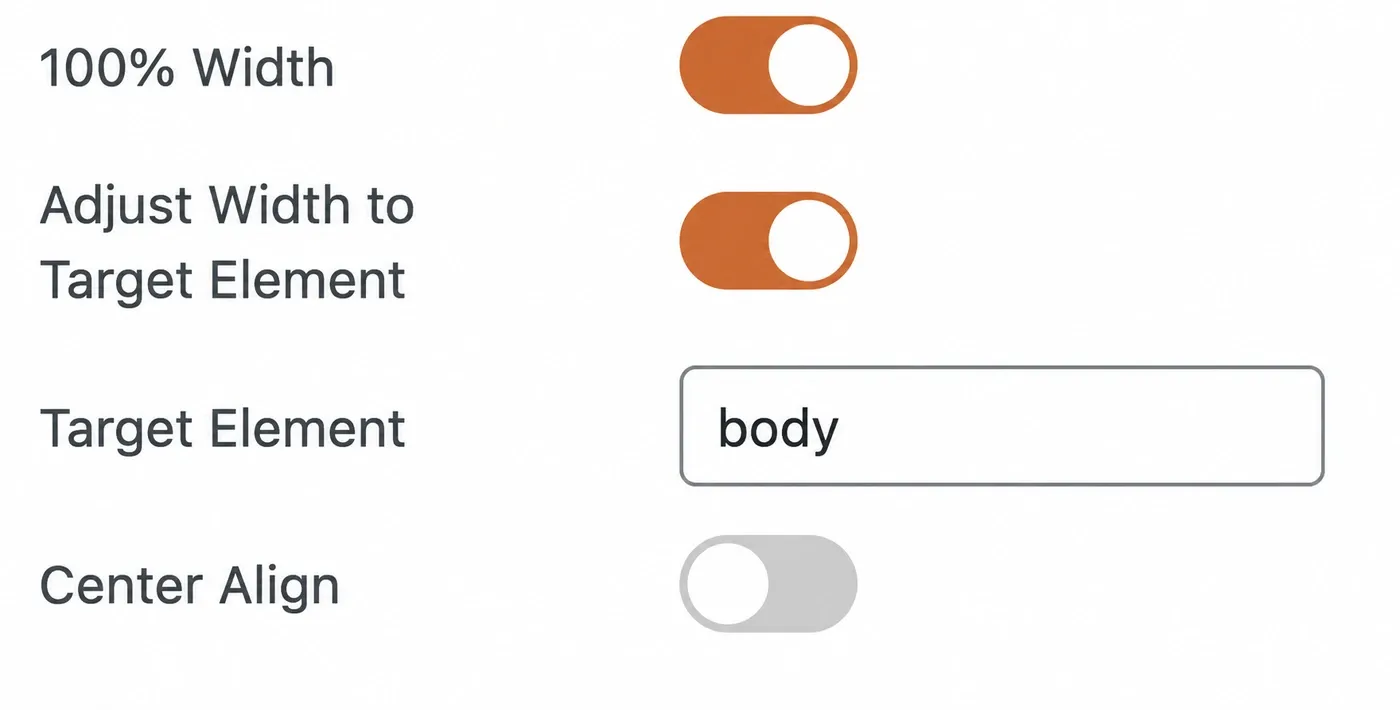
For an edge-to-edge layout, the full-width controls include Adjust Width to Target Element. Its usual target, body, can extend the slideshow beyond the post column. Check the theme's layout and the resulting page before keeping that setting. If the result is misplaced or clipped, use a suitable full-width page area rather than repeatedly increasing the image dimensions.
Keep a boxed slideshow when the surrounding text uses a content column and the images don't need to span the screen. A wider slider is useful only if the photographs and the page layout benefit from it.
Check navigation, motion and reading
Choose visible navigation that people can use without waiting for an automatic transition. MetaSlider offers arrows and dots; number navigation depends on the selected theme and uses the Dots option. A numbered design isn't always clickable: the vendor's Radix example displays numbers as information, while its Bubble example uses clickable numbers.
I'd begin with autoplay off so readers control the sequence. If the page needs autoplay, check that people can pause it and read the longest caption. The accessibility settings include Keyboard Controls for moving with arrow keys. Verify the intended navigation with a keyboard on the finished page, including the play/pause control when used. Built-in ARIA features don't establish that every combination of theme, captions and controls is accessible.
Check the page on both a phone and a larger screen. Look for cropped subjects, unreadable captions, links that are hard to select and navigation that has been hidden on a device. Keep the page's essential message outside the slideshow too, so it remains easy to find without opening every slide.
Use local video when the page needs it
For a video in your Media Library, choose Add Slide → Local Video. The Local Video settings provide a cover image, player controls and playback options. Prefer MP4 or WebM for broad browser support; MOV support varies. Check the actual file on the devices your visitors use.
Keep Show controls available when viewers need playback control. Autoplay may require muting; don't make sound starting automatically part of the page's essential instructions. Use a cover image for the unloaded video, and add a VTT text track when captions are needed. Hosting a video locally also puts its delivery on your hosting plan, so consider the file size and traffic before replacing a small photo sequence with several videos.
Diagnose a missing slide or broken slideshow
One slide is missing. Check its Hide Slide eye control. A red line and overlay indicate a hidden slide. In Pro, also check whether its Schedule allows it to appear now. These are different from a slideshow that fails to load entirely.
The whole slideshow is broken. Confirm the block or shortcode selects the saved slideshow, then try a fresh image slideshow and another browser. The troubleshooting sequence separates slideshow-specific problems from browser, theme and optimization conflicts. Test conflicting optimization features on staging one at a time, restoring each setting after checking its effect.
Current development focuses on FlexSlider; older instructions may offer Nivo Slider, Coin Slider or Responsive Slides. Don't search for every legacy library when configuring a new slideshow. If MetaSlider settings won't save, investigate a security rule that disables the WordPress REST API before replacing images or reinstalling the plugin.
For an unresolved problem, report whether it affects one slideshow or all of them, the relevant versions, and which isolated check changed the result. Free users can use the WordPress.org support forum; the vendor's account ticket form is for Pro or account questions.
Setup guide
- Back up an existing site and use staging for a significant layout change.
- Install MetaSlider Slideshow, create a slideshow, add Image slides from the Media Library and save it.
- Check captions, image links, alt text, crop and visible navigation before inserting the slideshow.
- Add the MetaSlider block and select the saved slideshow, or copy its own shortcode into a supported editor location.
- Check the front-end page on a phone and desktop. Confirm width, navigation and playback behavior; investigate hidden slides separately from a broken slideshow.
Keep MetaSlider focused on the image or video sequence you need. If you're still choosing the page's layout, settle that with your WordPress theme first, then use the plugin directory for the remaining feature.