
Post Types Order lets you drag posts into a manual sequence, save it, and apply that order to compatible WordPress lists. Start at Settings → Post Types Order, save the settings, then open the content type's Re-Order screen. I'd use the free plugin for a shared editorial sequence; a list that still shows the old order needs a query or cache check before you move the posts again.
Choose the free plugin for the right task
Install Post Types Order by Nsp Code, with the directory slug post-types-order. Its dedicated Re-Order screen supports ordinary posts and non-hierarchical custom post types. Creating a new content type, defining fields and arranging its entries are separate jobs; this plugin addresses the last one.
The free plugin stores a sequence through WordPress's menu_order field. A theme or block still has to use that sequence when it builds a list. Turning on automatic sorting can affect multiple compatible lists, so check the archive, homepage sections and any other places that display the same content.
Choose a different workflow when you need parent-and-child ordering or a separate sequence for each category. The developer lists hierarchical Re-Order, taxonomy-specific sorting, visual conditionals and paginated sort lists under Advanced Post Types Order. Don't change a content type's hierarchy merely to make a sorting menu appear.
Save settings before moving posts
- Make a recoverable backup and note the current order. The UpdraftPlus guide covers backup preparation before a database-changing task.
- Find the exact plugin under Plugins → Add New, install it and activate it.
- Open Settings → Post Types Order. Set the relevant menu location to Show under Show / Hide re-order interface.
- Keep Minimum Level to use this plugin at Administrator unless another trusted role needs to manage the shared sequence.
- Choose the automatic-sort behavior below, then click Save Settings. Save again after adding a new content type if its sorting controls don't appear.
The settings in version 2.5.9 distinguish Auto Apply Sort from Admin Auto Apply Sort. The first applies the sequence to compatible front-end queries. The second displays the sequence in the administration list. Seeing the right order in the dashboard doesn't establish what visitors will see.
For a site whose posts should share one curated order, I'd enable Auto Apply Sort and inspect every affected list. If only one section needs manual ordering, leave it off and have that section's developer explicitly request orderby set to menu_order. This avoids replacing a deliberate chronological list elsewhere.
Archive Drag&Drop separately enables handles in the ordinary WordPress post list for the selected type; it requires Admin Auto Apply Sort. You can use the dedicated Re-Order screen instead. Keep these controls separate when diagnosing a missing handle.
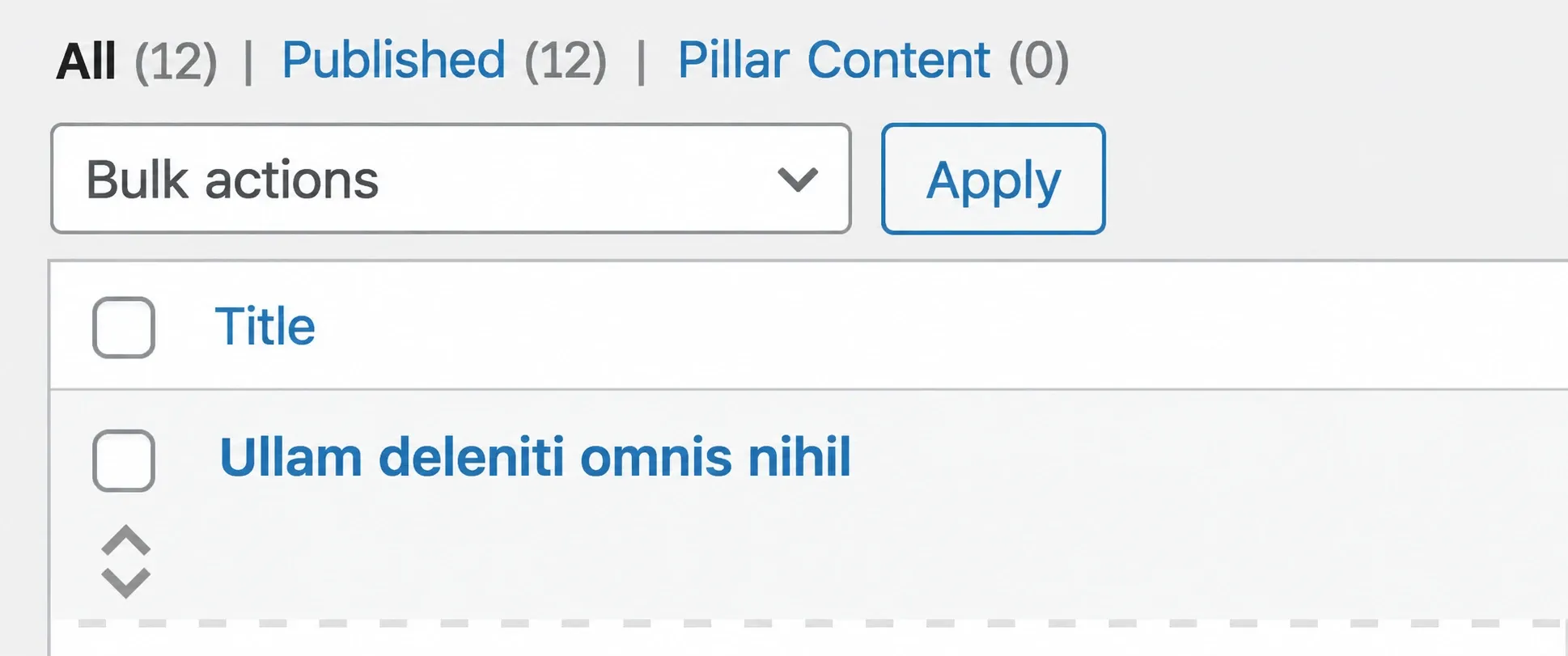
Move a row, save and refresh
Open Re-Order beneath the relevant content menu, such as Posts → Re-Order. Drag one recognizable title to its intended position. The list below shows the row-grab area; the example titles aren't a sequence you need to reproduce.
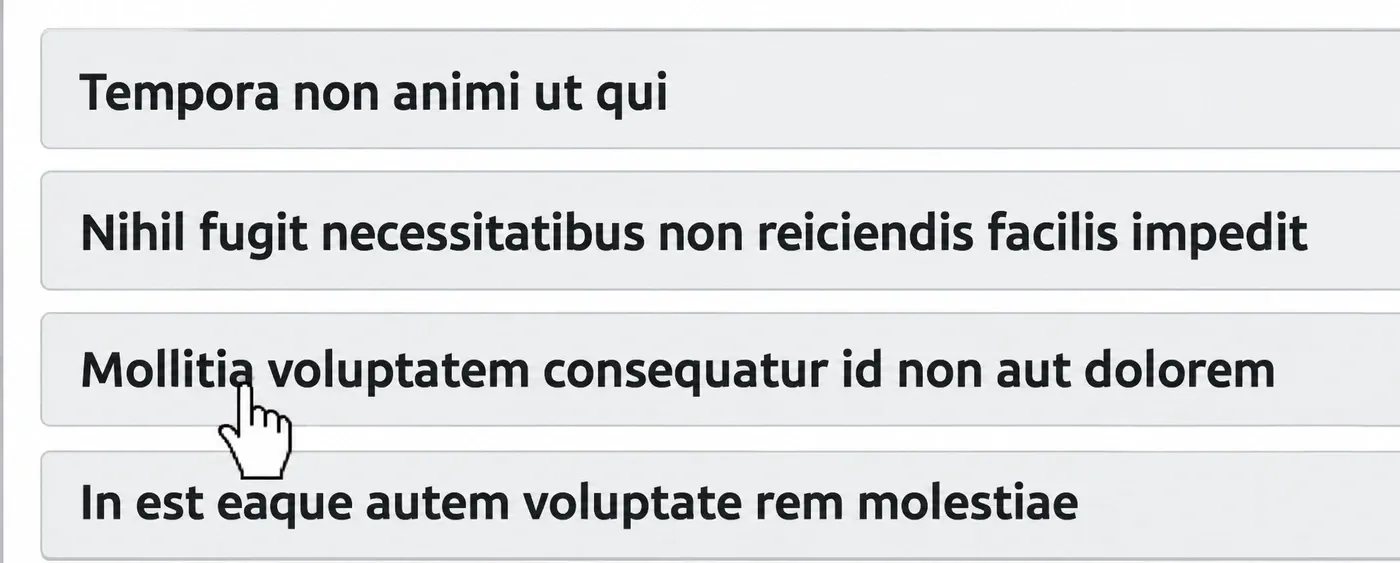
Click Update in the dedicated screen and wait for the save response. Version 2.5.9's save handler writes the positions and returns Items Order Updated when it succeeds. Reload Re-Order and confirm that the title stayed where you placed it before checking the front end.
Next, open the actual archive or page that visitors use. Check the first few titles, then the next page if the list has pagination. Use an ordinary visitor view as well as your administrator session, because cached HTML can differ. For a failed save, keep the error message and check role access before attempting a reset.
Large collections need another check. In Post Types Order 2.6.1, Settings → Post Types Order → Enable Items Limit keeps a default limit of 700 items in Re-Order. Leave it enabled initially; items beyond the displayed limit cannot be dragged from that screen. Unchecking it loads all items and can slow down or freeze a large list. A developer can adjust the limit with pto/interface/query/limit; don't raise it indiscriminately on a constrained host.
Find why the front-end order differs
Work from the saved sequence outward. Repeatedly dragging the same posts won't repair a template that fetches a different order.
| What you see | Check next |
|---|---|
| Re-Order changes disappear after reload | Confirm Update succeeded and your account has the configured sorting capability. |
| Saved order is correct, but visitors see an old list | Confirm Auto Apply Sort is enabled if intended, then purge the relevant page or host cache and reload. |
| Only one block or template ignores the sequence | Inspect that component's query, ordering controls and whether it uses ordinary WordPress query filters. |
| The list appears reversed | Check Use query ASC / DESC parameter and the query's direction. An enabled DESC setting reverses the manual sequence. |
| Search results keep their own order | Non-empty search queries are deliberately excluded by the current ordering filter; don't use a search page as the archive acceptance check. |
The developer's query and cache guidance explains explicit menu_order queries and filter handling. Ask the component's developer to inspect the actual query rather than adding a global snippet to every loop. The plugin also supports ignore_custom_sort for queries that must retain their own order, and its current filter preserves an existing SQL FIELD() ordering expression.
A headless front end adds a separate boundary. In Post Types Order 2.6.1, enable Auto Apply Sort under Settings → Post Types Order when REST collections should follow the saved sequence. The plugin hooks collection queries for post types with show_in_rest enabled and puts menu_order first while retaining the existing order as a tie-breaker. It skips queries marked ignore_custom_sort and navigation-menu items. Check the actual REST response and the headless client's displayed sequence; a custom endpoint or a client that reorders results can still need its own integration.
Check navigation and avoid a destructive reset
Use Next / Previous Apply when native adjacent-post links should follow the saved sequence. Check both links on a middle item. Revert Previous/Next Links changes their direction; a theme's manually assembled navigation can need its own adjustment.
Reset Order is a broad action. In 2.5.9 it sets menu_order to zero for every post of the selected type, rather than undoing the last drag. Record the intended sequence and confirm your backup before using it. To correct one misplaced item, move it back and Update instead.
If Re-Order is missing, revisit Show / Hide, the configured role and whether the custom type has a visible administration menu. The free dedicated interface excludes hierarchical types. Changing registration settings can affect other site behavior, so resolve that requirement with the content-type owner instead of altering it as a sorting workaround.
Setup guide
- Back up the site, activate Post Types Order and save its settings.
- Show the relevant Re-Order interface and choose front-end and admin automatic sorting separately.
- Move a known row in Re-Order, click Update and verify persistence after reload.
- Check the visitor-facing archive, pagination and any other lists affected by Auto Apply Sort.
- Diagnose cache or component queries when the saved sequence is correct. Reserve Reset Order for an intentional whole-type reset.
Keep the smallest sorting scope that meets your editorial requirement. Add another tool from the plugin directory only when registration, display or another separate task requires it.