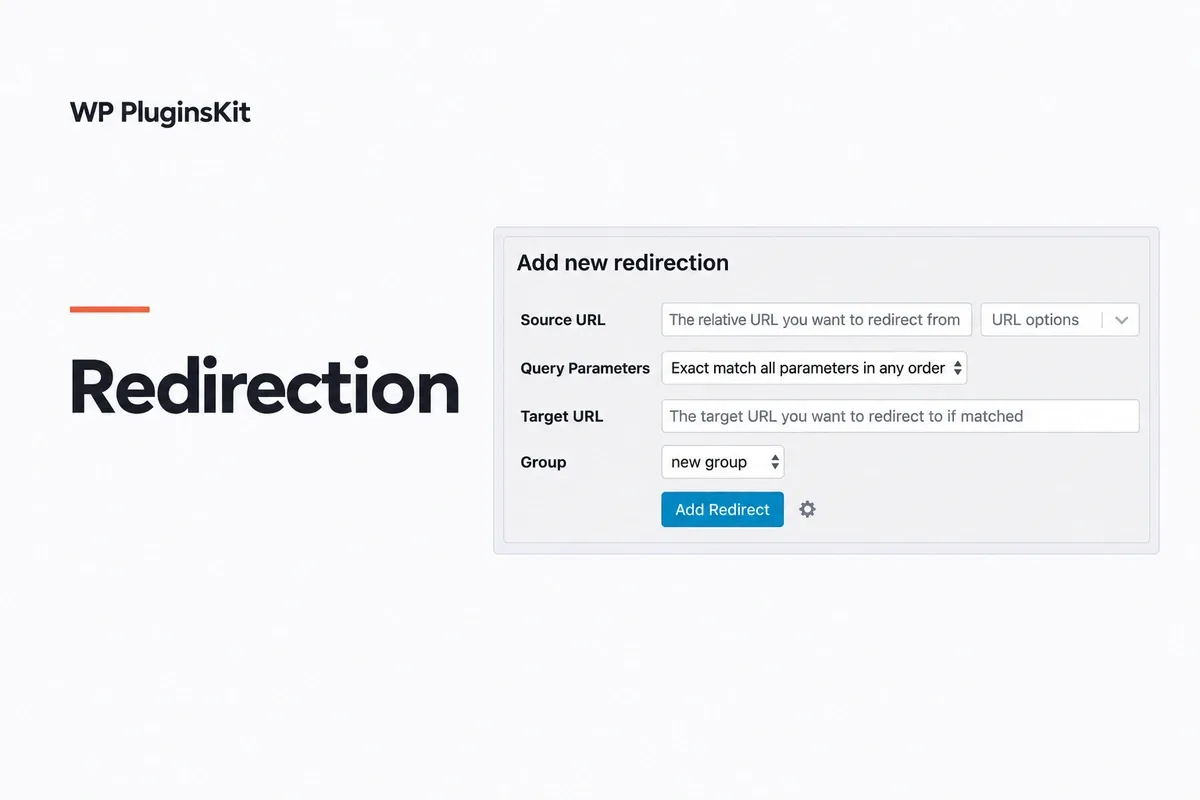
Redirection is a free WordPress plugin for managing redirects and investigating 404 errors. Choose it when you need a dedicated place to maintain moved URLs without editing server rules. I'd start with one permanent page move, an explicit query-parameter choice and a response check before adding automatic monitoring or broader rules.
Choose one tool to own each redirect
The Redirection plugin by John Godley includes redirect management, configurable logs, regular expressions and optional monitoring of changed post URLs. There isn't a premium edition that you need to buy for these features. It handles a different job from choosing page titles, writing descriptions or producing an SEO sitemap.
Check your existing SEO plugin and hosting panel before installing another manager. For example, Rank Math has a Redirections module available through its Advanced mode. If that module already maintains the required routes, keep those routes there unless you have a deliberate migration plan. Installing a second SEO suite just to obtain a redirect manager adds unnecessary overlap.
Server or CDN rules may act before WordPress receives a request. Give each route one intended owner and record where it lives. Redirection's default WordPress handling is useful for URLs served through WordPress; it can't intercept a request that never reaches that installation. Moving an entire domain also requires the old domain's DNS, hosting and HTTPS to keep delivering requests to the appropriate redirect service.
Prepare backups and decide what to log
Back up the database and files before changing redirect ownership or importing rules. The UpdraftPlus setup page explains the backup workflow. Preserve a separate export of existing redirect rules and test changes on protected staging first. Don't leave the old and imported copies active together without checking which one handles each request.
For a deliberate migration, the import tools provide a preview and duplicate-handling choices. Inspect that preview and keep the original data until the imported routes have been verified. An import can create or update entries depending on those choices; importing the same file again isn't a harmless retry by default.
The current 5.10.1 release lists WordPress 6.7 and PHP 7.4 as minimums. Working permalinks and requests served by WordPress are additional conditions in the installation requirements. Minimum compatibility isn't a recommendation to keep an outdated WordPress or PHP installation.
Decide whether you need redirect and 404 logs before completing initial setup. Under Options, the log settings allow an expiry period or No Logs, plus reduced or disabled IP collection. I'd use a short investigation window and avoid IP logging unless the diagnosis needs it. Expiry cleanup depends on WordPress cron, so selecting a period doesn't guarantee that records disappear at an exact instant.
Leave HTTP-header capture off for a basic page move; it greatly increases stored log data. The privacy guidance distinguishes local logs from optional external URL, IP and user-agent lookup tools. Those lookups can send the selected data to another service. Don't submit private recovery or administrative URLs to them. Logging settings support your privacy decisions; they don't establish legal compliance for the site.
Install and open Redirection
Open Plugins → Add New Plugin, search for Redirection and match the publisher John Godley. Click Install Now, then activate the plugin. Open Tools → Redirection and complete the initial setup if prompted, applying the logging choices above. Keep optional automatic imports and URL monitoring off until you've reviewed existing rules and chosen their owner.
The management interface uses the WordPress REST API. If setup reports an API problem or a rule won't save, stop at that error before creating more rules. The diagnostic section below separates an admin communication failure from a saved redirect that doesn't match its public URL.
Add one permanent page move
Use this example for an ordinary public page requested with GET: the old path /old-contact/ has permanently moved to /contact/ on the same site. Replace both paths with your own. Open the destination directly first and confirm that it's the relevant, working replacement, rather than another redirect or a page that sends visitors back to the old path.
- Open Redirects and find Add new redirection.
- Enter
/old-contact/in Source URL. A source normally uses the path starting with/, without the site's domain. - Enter
/contact/in Target URL. The target may be relative or absolute; check its domain before saving. - Keep Regex off for this literal path. Inspect the case and trailing-slash options instead of assuming their defaults match your plan.
- Choose the query-parameter behavior explained below.
- Open the cog for advanced options. Keep Match as URL only, When matched as Redirect to URL and select 301 - Moved Permanently.
- Choose the intended group and click Add Redirect. Confirm that the saved rule is present and enabled.
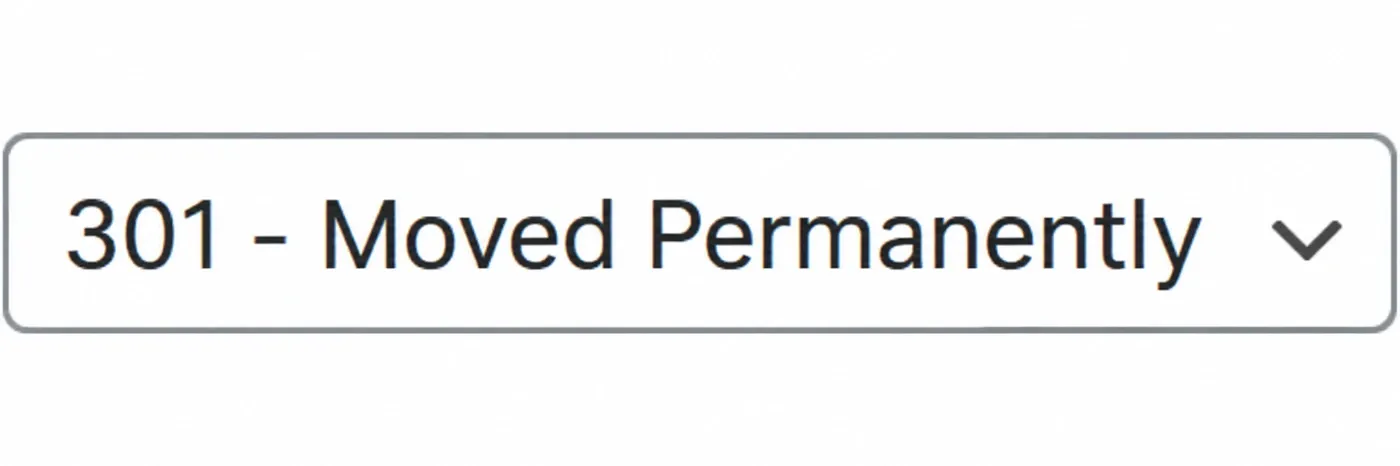
A 301 response identifies a permanent move through its Location header. For a temporary page move, choose a suitable temporary redirect such as 302 instead. This example doesn't cover form submissions, checkout callbacks or other requests where preserving the HTTP method needs separate consideration.
Keep source and target different, and avoid routing through intermediate redirects. Update internal links you control to point directly to the replacement; the redirect can remain for old bookmarks and external links. A URL fragment such as #pricing isn't sent to the server, so the Source URL can't match that fragment. Don't try to solve a page-anchor problem by adding a server-side source rule for it.
Choose what happens to query parameters
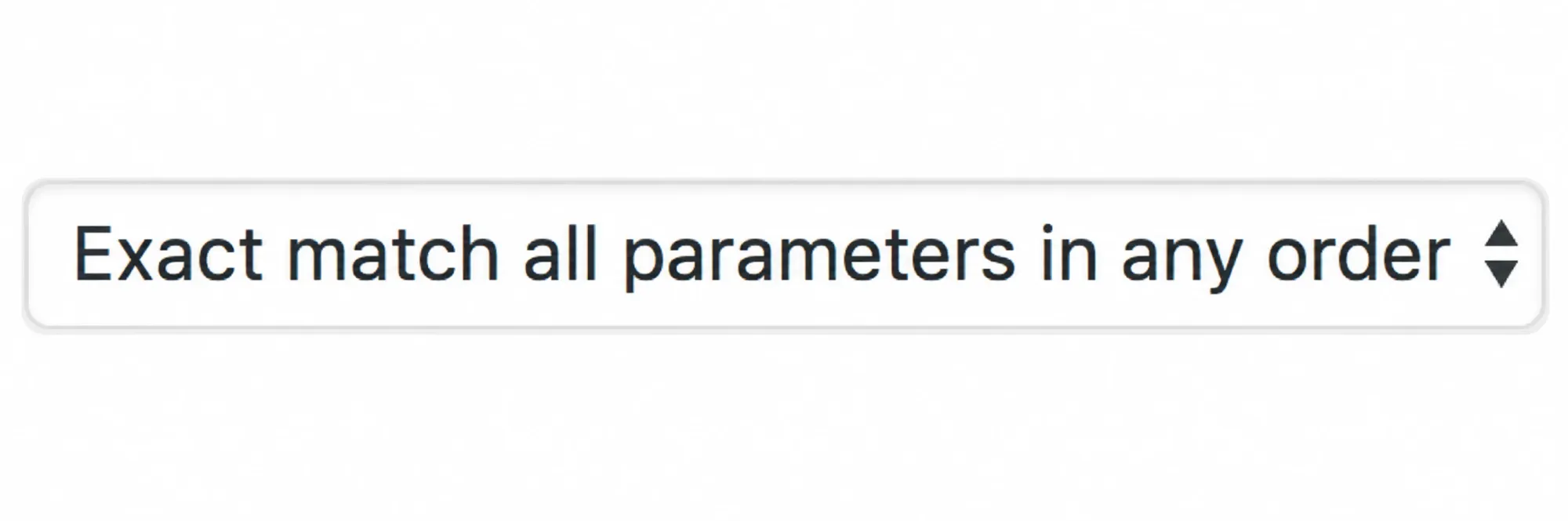
A path and its query string aren't interchangeable. A parameter can represent tracking, a search term, a product selection or information that the destination still needs. Redirection's URL-matching options distinguish exact matching, ignoring parameters and passing them to the target.
- Exact match: query parameters must match the source rule, regardless of their order. A source without parameters shouldn't be assumed to cover all parameterized variants.
- Ignore all parameters: match the path even when parameters are present, without passing those incoming parameters to the target.
- Ignore and pass parameters to the target: match the path and carry the incoming parameters to the destination.
For the contact-page example, choose Ignore all parameters only if the old page's parameters have no useful meaning at the replacement. Choose the pass-through option when the destination needs them, and exact matching when only a particular parameter combination should move. Don't discard functional parameters or forward sensitive values merely to make a rule appear to work.
Verify the response and keep a safe undo
Open your browser's developer tools, select the Network panel and preserve the request log before loading the old public URL in a fresh session. Inspect the original document request: the response should be 301, its Location should point to the intended destination, and the final page should return the expected successful response. Seeing the right page in the address bar alone doesn't establish which redirect code or intermediate route was used.
Check the source with no query string and with a harmless example such as ?campaign=example. Confirm whether the parameter is retained or dropped as intended. Test the trailing-slash and case variants you intend to support, then visit an unrelated working page to confirm that the rule leaves it alone. A broad pattern that catches this control page needs correction before release.
If the result is wrong, use the rule's Disable action. The disabled rule remains stored while becoming inactive, which lets you inspect or correct it without deleting its definition. Browser and server caches can retain an older response after a change; clear the relevant cache and retest in a fresh session. Disable is an undo for the rule, not a promise to remove already cached redirects.
Diagnose a failed save or redirect
The rule won't save: record the exact error and failed admin request. The REST API troubleshooting page explains blocking, redirected API requests and missing authentication headers. A readable public /wp-json/ response doesn't prove that authenticated admin calls work. Ask the host or security administrator to inspect the specific failure; don't disable all protection or change site addresses blindly.
The saved rule doesn't match: confirm that it's enabled, compare the exact source path and query mode, and inspect the case, slash and Regex options. Check for another matching rule and its priority. Redirection processes lower position numbers first. Use the narrowest rule that solves the actual move.
A different destination appears: inspect the response chain and identify the component making the earlier redirect. WordPress, another plugin or a server rule may be responsible; the vendor's another-agent diagnosis explains those ownership conflicts. Changing a later rule won't fix an earlier server redirect.
An existing PDF or image ignores the rule: the server may serve the file before WordPress runs. The URL-not-redirecting guidance identifies that boundary. Have the host confirm the request path and arrange an appropriate server-level rule if needed. Don't delete a working file as the first diagnostic step.
Repair real 404s with relevant targets
The 404s view helps identify requested URLs that returned a not-found response. Use its URL grouping and counts to find repeated broken links, then decide whether to repair an internal link or add a relevant replacement redirect. The 404 log's Add Redirect action opens a form for the target; it doesn't decide which destination serves the visitor's intent.
Don't send every unknown URL to the homepage. Bot probes and genuinely missing content don't all have a useful replacement. A published Page titled “404” also isn't proof of an HTTP 404 response; inspect the actual status when diagnosing it.
Enable automatic permalink monitoring only for content types whose URL changes you want this plugin to own. Deleted-post monitoring creates disabled rules that still need a target and activation. Keep the manager active while its WordPress rules are required, retain your export and review logs only for as long as they serve a purpose. The red Delete Redirection option removes all plugin data and disables it; it isn't a first-line repair for one broken route.
Setup guide
Set up one public page redirect
- Identify the route's owner, back up the site, export existing rules and use protected staging.
- Install Redirection by John Godley. Open Tools → Redirection and complete setup with deliberate log-retention and IP choices.
- Confirm that the replacement page works directly. Under Redirects, enter a literal source path and its relevant target.
- Keep Regex off, inspect slash and case behavior, choose query handling and select Redirect to URL with 301 for a permanent move.
- Add the rule, then check its enabled state, original response code, Location, final response, parameter behavior and an unrelated control page.
- Disable the individual rule if wrong; account for cached responses before retesting. Apply the verified route to the live site through its normal change process.
For a different WordPress feature, return to the plugin catalog.