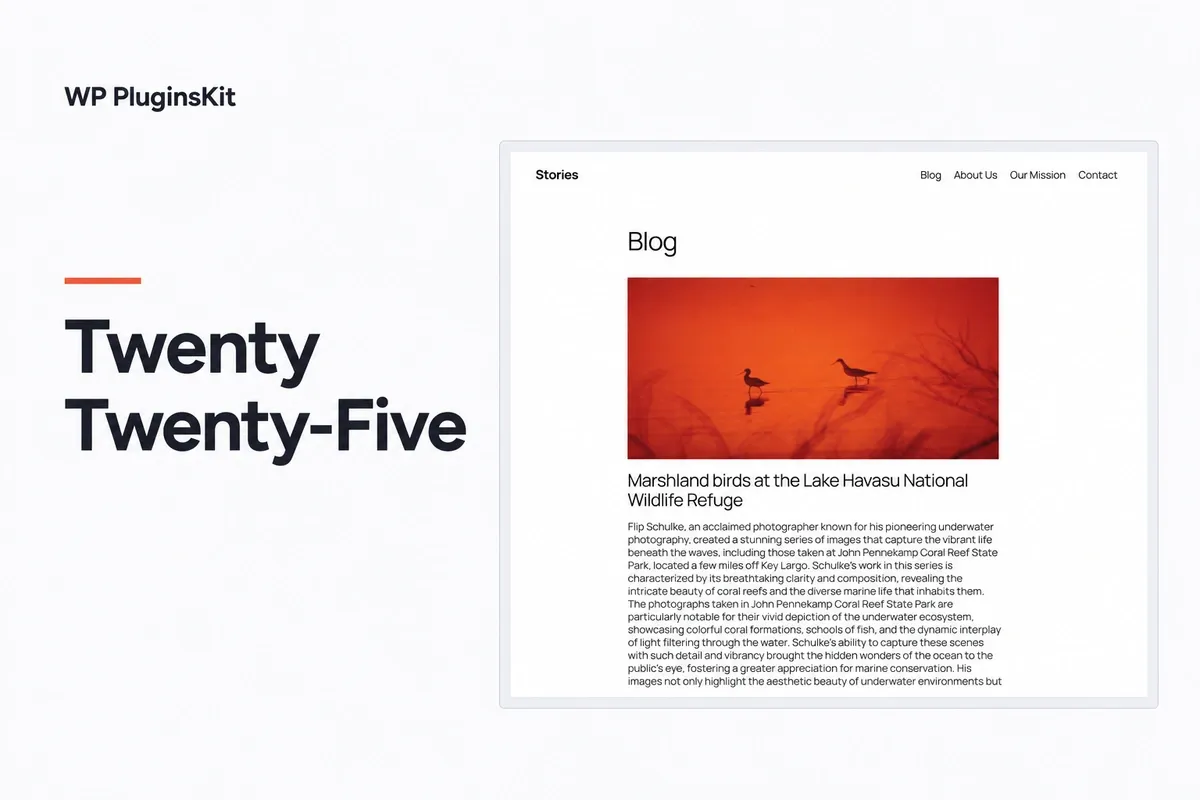
Choose Twenty Twenty-Five if you want to edit the site's design with WordPress blocks, including templates, rather than rely on a classic theme's design settings. The Twenty Twenty-Five listing describes patterns for different page types and templates for text-focused and image-heavy blogs, alongside typography and color options.
Understand the Site Editor workflow
Twenty Twenty-Five is a block theme. WordPress's Site Editor documentation explains how block themes let you work with site-wide styles, templates and template parts. A template controls the layout used by a type of page; an individual post still contains its own content.
This is the distinction to settle before you choose a design. Editing a shared template can affect multiple pages that use it. When you're only changing one post's wording, work in that post rather than its shared template.

Use patterns to start a page
The theme includes patterns suited to page types such as services and landing pages. Use a pattern as a starting layout, then replace the text and images with your own material. Review whether the arrangement helps your visitors find the service, article or contact detail they came for.

A blog, magazine or portfolio can be a good match for this approach when you want content and templates built from WordPress blocks. The theme is available free from WordPress.org. You don't need a commercial theme upgrade to download it.
Choose between block and classic editing
If your site already relies on a classic theme and page builder, switching editing models deserves a careful preview. GeneratePress and Astra offer other theme workflows to assess alongside the tools your current pages use. A new theme doesn't remove those pages' dependencies on their existing builder.
Before changing an established site, save a backup and preview a normal post, a page, navigation and an archive. Check the shared header and footer at mobile width. Once the theme is active on a trial copy, identify which changes belong to global styles, which belong to a template and which belong only to one page.
Check compatibility
- Listed version
- 1.5
- WordPress
- 6.7 or later
- PHP
- 7.2 or later
These are the requirements in the Twenty Twenty-Five listing on WordPress.org. Minimum versions describe compatibility; keep WordPress and PHP on supported releases.
Setup guide
Use an administrator account on a WordPress site where you can install themes. Back up an existing site and try a theme change on a staging copy first; activation changes its appearance.
- In the WordPress dashboard, open Appearance → Themes and choose Add New Theme.
- Search for Twenty Twenty-Five. Open its details and match the name with the WordPress.org listing linked above. Check that your WordPress and PHP versions meet its requirements.
- Choose Install, then wait for installation to finish. On an existing site, preview the theme before you activate it, following WordPress's theme installation documentation.
- Choose Activate when you’re ready to apply it. This makes Twenty Twenty-Five the site’s active theme.
- Open Appearance → Editor to choose a style and adjust your templates. Create a page with a heading, paragraph and image, then preview it on a narrow screen.
Visit the homepage, a post and a page while signed out. Check headings, images, navigation and the footer on desktop and mobile. If the layout is not ready, return to Appearance → Themes and reactivate your previous theme while you make adjustments.