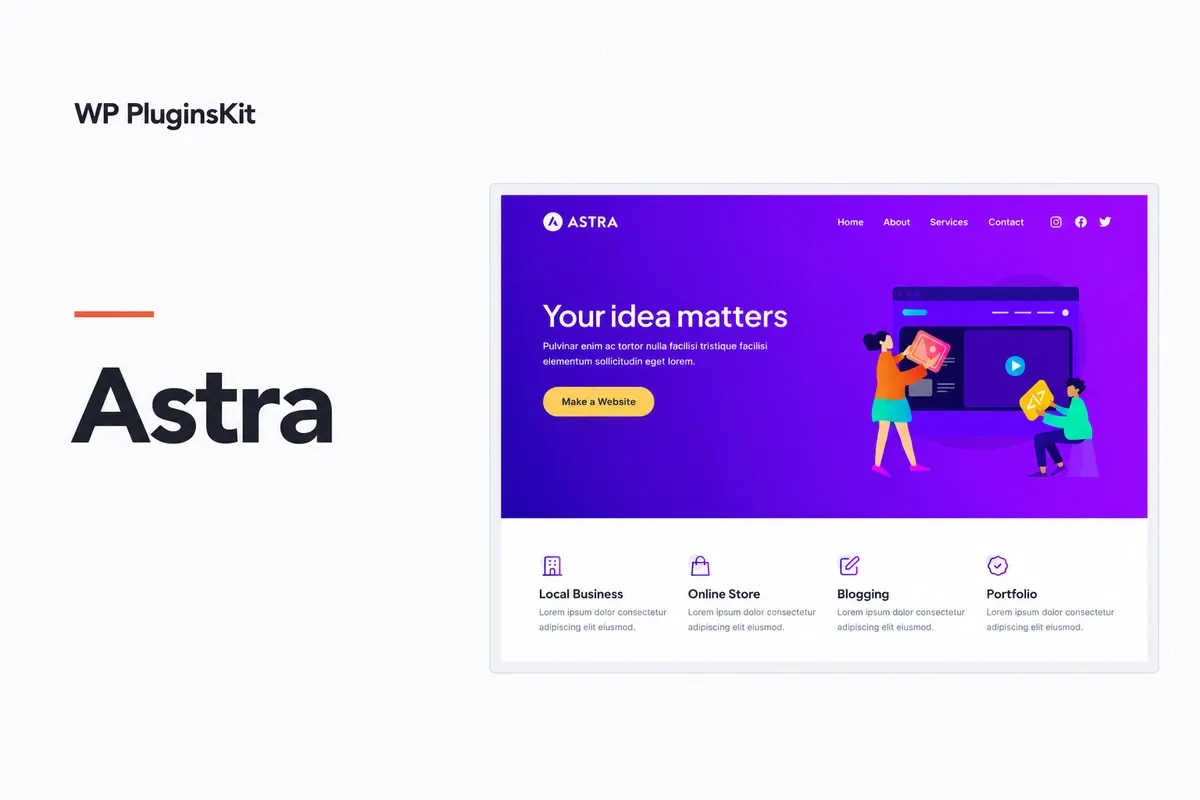
Choose Astra when you want to control your site's overall design while keeping your preferred editor for page content. The Astra WordPress theme listing describes support for the block editor and builders including Elementor, Spectra and Beaver Builder. Decide which editor you'll use before selecting a starter design.
Separate the theme from the page builder
Astra provides the site's design framework, with Customizer controls documented by its developer. A page builder or block plugin adds its own editing tools; installing the theme doesn't make every tool in a demo part of the theme. This distinction matters when you're replacing a design on a site that already contains builder-created pages.
Start with the editor your team already knows. If your pages use Elementor, check those pages with Astra before rebuilding anything. If you're starting with WordPress blocks, keep the first trial page in that editor so you can see which extra tools you need.

Check what the starter design needs
The free theme is available from WordPress.org, while the developer also offers commercial upgrades. Check the requirements of a particular starter design before importing it: a design can depend on a separate builder, template collection or paid feature. Judge the components you'll install rather than the appearance of the demo alone.
Choose the editing approach first
Astra fits an approach where theme controls and page content editing work alongside one another. If your priority is to edit the whole site's templates using WordPress blocks, examine Twenty Twenty-Five's block theme approach before committing to a starter site. That choice affects how you maintain headers, footers and templates later.
On an existing website, save a backup and preview a representative post, navigation menu and mobile page before activation. Keep a record of which plugins the current design needs. For another classic theme with a built-in header and footer builder, compare the controls described on the Kadence page.
Check compatibility
- Listed version
- 4.14.3
- WordPress
- 5.3 or later
- PHP
- 5.3 or later
These are the requirements in the Astra listing on WordPress.org. Minimum versions describe compatibility; keep WordPress and PHP on supported releases.
Setup guide
Use an administrator account on a WordPress site where you can install themes. Back up an existing site and try a theme change on a staging copy first; activation changes its appearance.
- In the WordPress dashboard, open Appearance → Themes and choose Add New Theme.
- Search for Astra. Open its details and match the name with the WordPress.org listing linked above. Check that your WordPress and PHP versions meet its requirements.
- Choose Install, then wait for installation to finish. On an existing site, preview the theme before you activate it, following WordPress's theme installation documentation.
- Choose Activate when you’re ready to apply it. This makes Astra the site’s active theme.
- Open Appearance → Customize and review the site identity, header and typography. Publish your changes, then check a page with your real logo, navigation and text.
Visit the homepage, a post and a page while signed out. Check headings, images, navigation and the footer on desktop and mobile. If the layout is not ready, return to Appearance → Themes and reactivate your previous theme while you make adjustments.