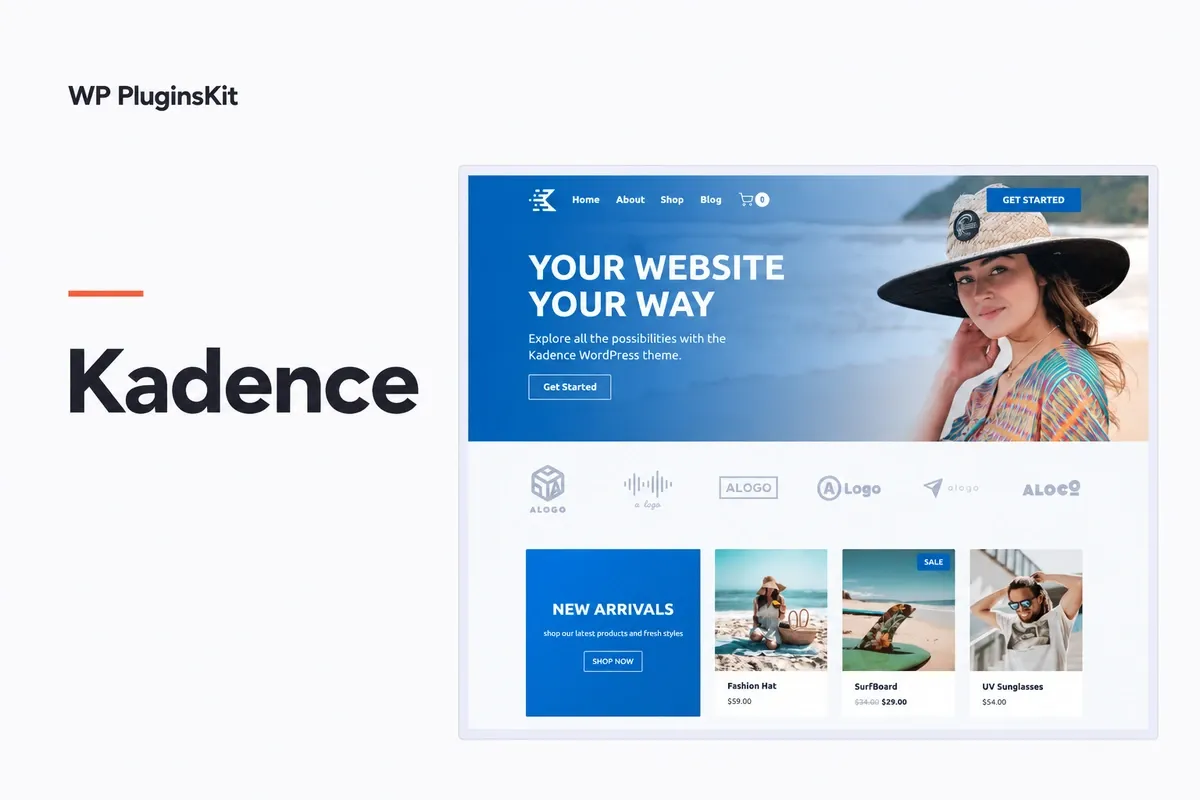
Choose Kadence when the header, footer, colors and typography are the first parts of your site's design you want to control. The Kadence theme listing describes a drag-and-drop header and footer builder together with global font and color controls. That makes it worth checking for a business site with specific branding and navigation needs.
Keep the theme, blocks and templates separate
Kadence Theme controls the overall design. The developer's theme page distinguishes the theme from Kadence Blocks and starter templates. A template can bring its own plugin requirements, so check the exact design's requirements before deciding that the theme alone covers your project.
The free theme is distributed through WordPress.org, and commercial upgrades are available from the developer. Look at the particular header elements, layout options or templates you need before choosing a paid package. A product family name isn't enough to identify which features belong to the free theme.
Match the controls to the site
For a small business site, begin with the navigation, logo placement and readable text styles. Then review a longer page to see how the site's typography holds up beyond the homepage. Build a short trial page with your own content before importing a complete starter site.
For a simple inquiry form, Forminator can add the visitor-input tools separately from the theme. Check the form on a page with your chosen header and text styles.

Check whether you want a block theme instead
Kadence is a classic theme workflow, with site design controls alongside the editor you use for page content. If your aim is to build the site's templates with blocks in the Site Editor, compare Twenty Twenty-Five. Pick the editing model before getting attached to a demo's colors.
Save a backup before changing an existing site's theme. Preview the header at a narrow screen width, open every navigation level and check the footer links. If you import starter content, use a trial site first so you can identify the added pages and plugins before repeating the change on the live site.
Check compatibility
- Listed version
- 1.6.0.1
- WordPress
- 6.6 or later
- PHP
- 7.4 or later
These are the requirements in the Kadence listing on WordPress.org. Minimum versions describe compatibility; keep WordPress and PHP on supported releases.
Setup guide
Use an administrator account on a WordPress site where you can install themes. Back up an existing site and try a theme change on a staging copy first; activation changes its appearance.
- In the WordPress dashboard, open Appearance → Themes and choose Add New Theme.
- Search for Kadence. Open its details and match the name with the WordPress.org listing linked above. Check that your WordPress and PHP versions meet its requirements.
- Choose Install, then wait for installation to finish. On an existing site, preview the theme before you activate it, following WordPress's theme installation documentation.
- Choose Activate when you’re ready to apply it. This makes Kadence the site’s active theme.
- Open Appearance → Customize to set the header, footer and global styles. Preview on desktop and mobile, then test every navigation link after publishing.
Visit the homepage, a post and a page while signed out. Check headings, images, navigation and the footer on desktop and mobile. If the layout is not ready, return to Appearance → Themes and reactivate your previous theme while you make adjustments.