Prepare the temporary page under Settings → UnderConstruction, check its content and access exceptions, then turn Under Construction Mode on and save. Visitors will see the holding page while permitted logged-in users can keep working on the normal site. I'd use WebFactory's free plugin for a straightforward launch placeholder; its version 5.83 returns HTTP 200, so don't choose it expecting a 503 maintenance response.
Check the response and access you need first
Install Under Construction by WebFactory, whose directory slug is under-construction-page. Several plugins use nearly identical names. Instructions for WPBrigade's Under Construction, Coming Soon & Maintenance Mode or WebFactory's separate Maintenance plugin won't necessarily match this interface.
The distinction matters for search engines. In the free 5.83 response handler, the holding page sends 200 OK along with a Retry-After header. That header doesn't turn the response into 503 Service Unavailable. To inspect your site's response, open the browser's developer tools in the logged-out window, select Network, reload the page and inspect the main document's status code. If an existing indexed site needs a brief maintenance window with a 503 response, choose a mode that explicitly supports that requirement before hiding the site.
Prevent Search Engines from Indexing the Temporary Site is a PRO feature in this plugin. Don't read its presence in Main as a working free switch. A visible holding page also doesn't make every file, endpoint or resource private. Use your host's access protection for confidential development work, and check the actual visitor response and indexing controls before relying on them.
Keep one tool responsible for the holding page. If you already use Elementor to build the site, check whether its own mode is active before enabling another plugin. Two competing page replacements make it harder to identify the source of the page visitors see. Before the underlying site work, keep a recoverable backup, such as the one described in the UpdraftPlus setup; a temporary page doesn't protect the database from an update failure.
Prepare the message while construction mode is off
After activation, open Settings → UnderConstruction. The mode starts disabled by default. Leave it off while preparing the page so an unfinished message doesn't replace the site.
- Open Design, select a free theme and save. Use Preview to inspect it. A design marked PRO needs the corresponding paid version; the free plugin isn't the full drag-and-drop builder.
- Open Content. Set Title for the browser tab and Description for the page's meta description. These are separate from the visible Headline and main Content.
- Write a short explanation of the site's status and a useful next step. For example, a launch page can say the site is being prepared and give an existing contact route. Promise an opening time only when you can meet it.
- Fill in the relevant Social & Contact Icons links, then save and preview again. Check each destination; an icon doesn't connect a mailbox, signup service or social account for you.
The Content settings support built-in placeholders such as [site-title], which uses the WordPress site title. Don't assume third-party plugin shortcodes work in the free version. Leave optional tracking off unless you have a defined measurement and consent setup; it isn't needed to display the page.
Keep access limited to the people doing the work
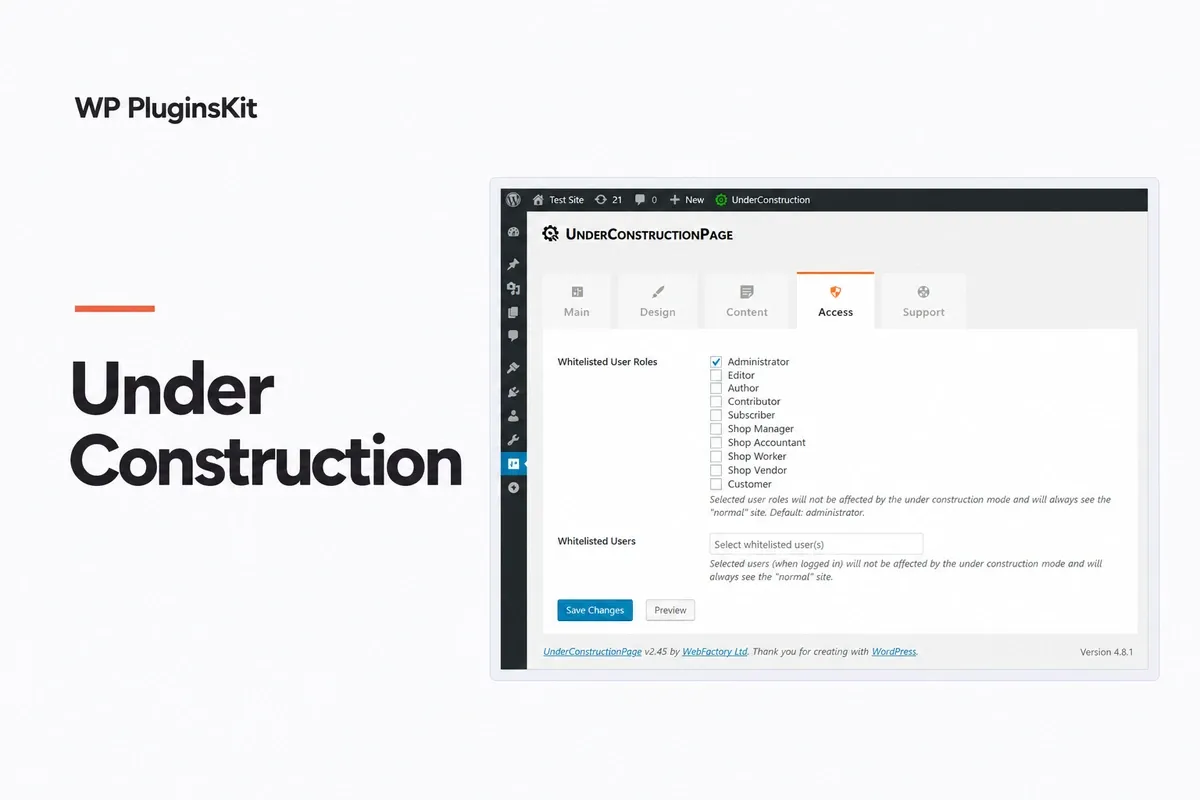
Open Access before enabling the mode. Under Whitelisted User Roles, Administrator is selected by default. Selected roles see the normal site while logged in. I'd keep that exception narrow: selecting a broad customer or subscriber role can reveal the unfinished site to everyone with that role.

Use Whitelisted Users when one existing editor needs access but their whole role doesn't. Select the account and save. The free access settings require that person to log in; sharing the ordinary homepage URL won't grant them an exception.
IP exceptions, secret direct access links and per-URL rules are PRO features. Don't create a public promise that the free mode hides only one unfinished page: its ordinary front-end replacement applies across the site, subject to the allowed-user exceptions. Keep your normal admin login address available. The Login Button option in Content can display a route to WordPress login, but it doesn't grant permission to see the normal front end.
Enable the page and check both visitor views
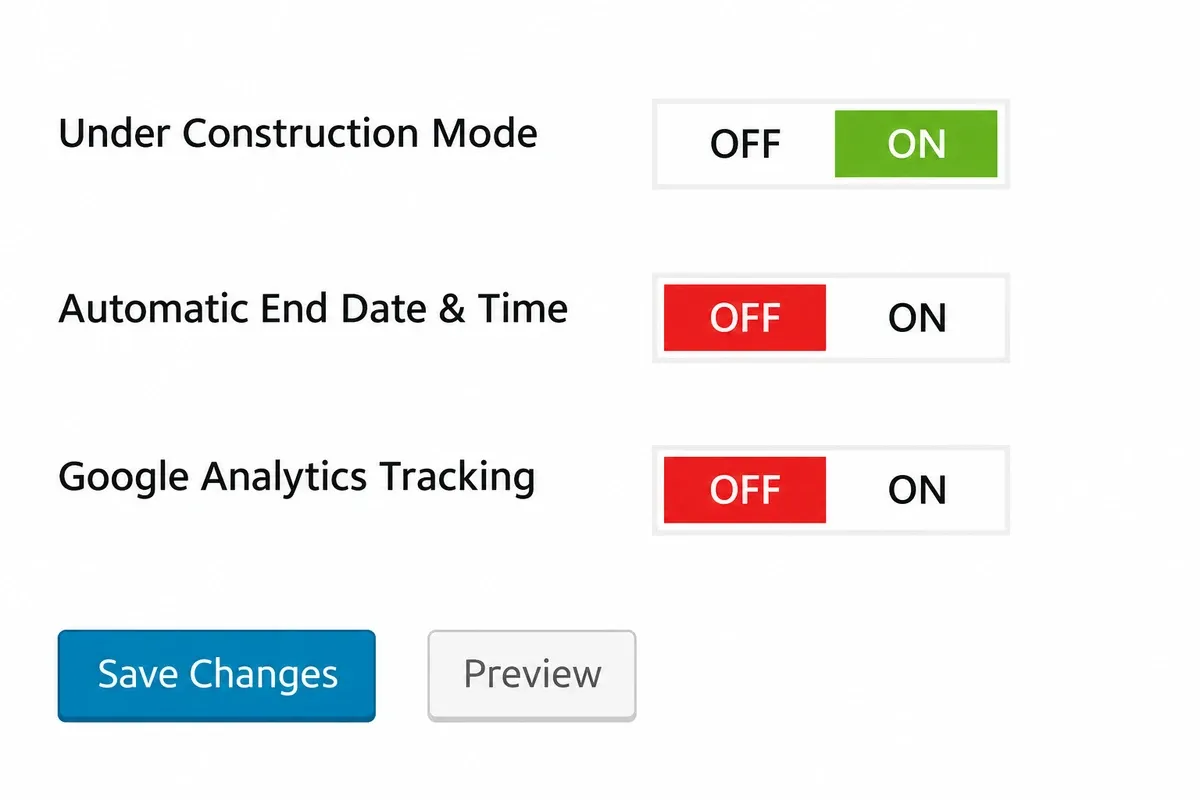
- Open Main. If you want an automatic end time, enable Automatic End Date & Time and choose a future date and time. Confirm the WordPress site's clock before relying on the deadline.
- Turn Under Construction Mode on and click Save Changes. An end date only stops the mode later; it doesn't schedule the start or turn the mode on for you.
- Open the homepage and an existing inner page in a private browser window where you're logged out. Confirm that both show the intended message, its images and working contact links.
- In your logged-in, permitted account, open the same URLs. Confirm that you can still reach the normal site. If another editor has an exception, have them check while logged in to their own account.
Preview shows the holding-page design. It doesn't prove that ordinary visitors receive that page, or that an access exception works. The Main tab instructions also distinguish the end date from a scheduled start. Use the logged-out view as the final check before you begin changing the site.
Resolve a mismatched visitor view without resetting everything
If you still see the normal site, check your login state first. An allowed administrator seeing the normal front end is expected. Repeat the check in the logged-out window before changing the role exceptions.
If the logged-out view is wrong, confirm that the mode is saved as on and the automatic end time hasn't passed. Save the latest content again, refresh the browser and clear the relevant page cache. If your host or CDN also caches pages, clear that layer through its normal controls and check the same URLs again. The plugin's cache troubleshooting guidance identifies cached pages as a reason saved changes can remain invisible; don't assume every cache layer was purged automatically.
When the message appears but the real site is missing for an editor, check the exact account or role in Access and confirm that the editor is logged in. Keep the login route available rather than disabling security tools at random. Resetting all plugin settings removes the configuration you've prepared and isn't the first repair for a stale page.
Turn the mode off and verify the site is open
Finish the site work before the automatic deadline exposes it. To reopen manually, return to Main, turn Under Construction Mode off and save. Clear any cached holding page, then inspect the homepage and the same inner page from the logged-out window. Follow the contact link or other essential route on the normal site to confirm visitors can continue.
If you chose an automatic end date, check the visitor view after it passes instead of assuming the timer completed the launch. Remove temporary development restrictions only when the site is ready, and verify the final response and search visibility settings separately. Keep the plugin configuration until the normal site is confirmed; there's no need to delete it to turn the mode off.
Setup guide
Open Plugins → Add New or Add New Plugin in WordPress, search for Under Construction, and verify that the author is WebFactory and the directory slug is under-construction-page. Check the current listing's requirements against your site before installing.
Click Install Now, then Activate. Open Settings → UnderConstruction. Leave the mode off while preparing Design, Content and Access, save each change and preview. Enable the mode only after the page and access exceptions are ready, then check the actual logged-out view.