Install WP Statistics to collect traffic data in your WordPress database without connecting a Google Analytics account. Keep IP anonymization and hashing enabled, exclude your working roles, then check a signed-out visit before relying on the reports. I'd use the free core for local page and visitor trends; campaign goals and detailed tracking need a separate feature decision.
Choose local collection for the right task
WP Statistics by VeronaLabs, directory slug wp-statistics, collects its own analytics. It doesn't display an existing GA4 property's history. Google Site Kit and MonsterInsights follow a different setup route built around Google services.
The release covered here is 14.16.20, requiring WordPress 6.6 or later and PHP 7.4 or later. Check the current directory requirements before installation. Older tutorials and the repository README can show lower minimums.
Local storage also makes the site's database part of your analytics maintenance. Decide who needs access to reports and how much history you need before collecting more detailed information. A self-hosted database still needs protection and a recovery copy.
Keep privacy settings and traffic exclusions separate
Open Statistics → Settings → Privacy & Data Protection and review Anonymize IP Addresses and Hash IP Addresses. Both are enabled by default on new installs. I'd keep both on for ordinary traffic reporting; an existing site's saved configuration deserves a check.
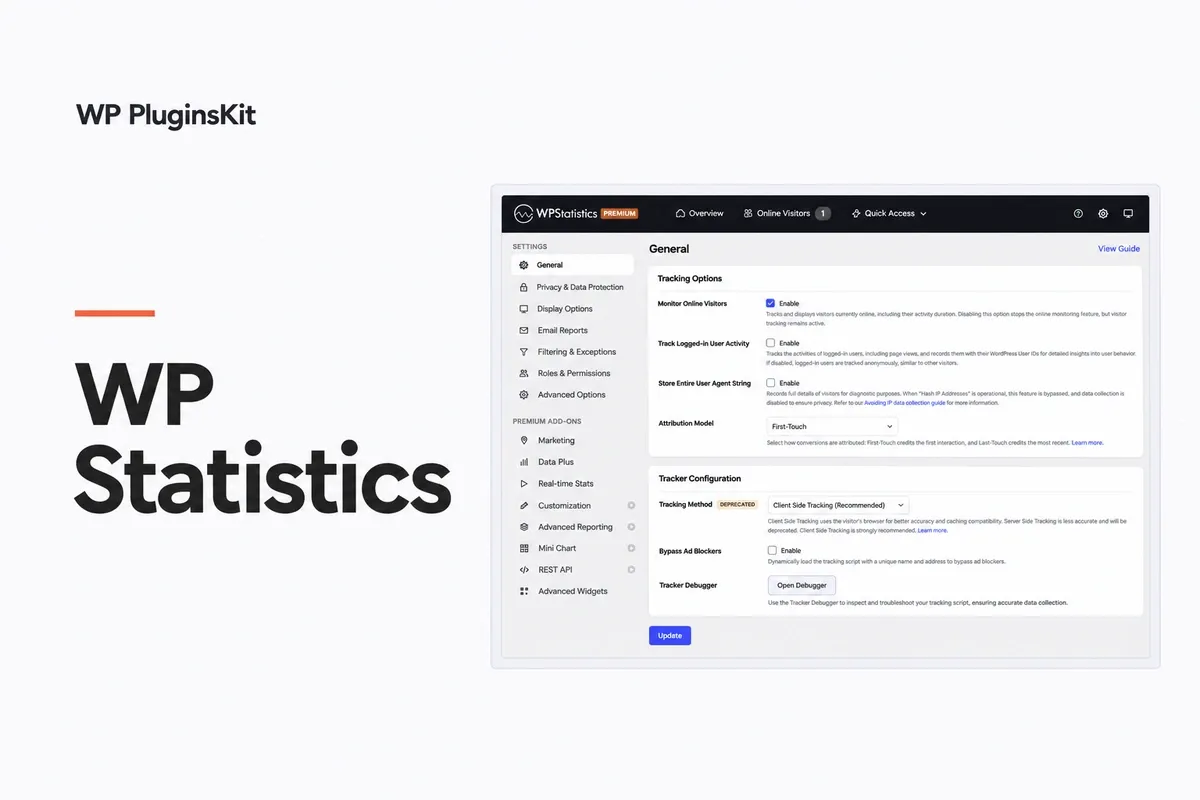
Under General → Tracking Options, leave Track Logged-In User Activity off unless you need user-linked analysis and have addressed its privacy implications. Enabling it associates activity with WordPress user IDs. Also leave Store Entire User Agent String off for routine reporting. The privacy settings guide explains these options and the data they can retain.
Turning off user-linked activity doesn't exclude your own visits. The role-exclusion guide says that logged-in users who aren't excluded can still be counted anonymously. To remove your editing traffic, open Settings → Filtering & Exceptions, select Administrator and any other working roles you intend to exclude, then save. Excluded roles aren't counted while logged in. An excluded administrator's empty test result can therefore be correct behavior.
Review Privacy Audit for settings needing attention. Its checks cover WP Statistics configuration, not every script or data practice on the website. The audit's documented scope is narrower than a whole-site compliance assessment. Cookie-free collection alone doesn't settle consent obligations; those depend on the site's settings and applicable requirements. Keep any existing consent integration intact while checking tracking.
Verify a signed-out visit before interpreting totals
In Statistics → Settings → General, review Tracking Method. The General settings guide recommends Client-Side Tracking, which sends hits from the visitor's browser and supports cached pages. Server-side tracking is a separate older mode scheduled for removal in version 15; don't copy an old server-only setup on that basis.
- Confirm the site's date, time and timezone under WordPress Settings → General. Choose the matching current period in the statistics report.
- Keep your administrator session open, then open a separate signed-out browser session. Visit an ordinary public page that isn't excluded from tracking.
- Use the consent choice appropriate to the site's configuration. Note whether the browser sends Do Not Track or blocks the tracker; either can affect collection.
- Return to Statistics → Overview and refresh the report. Check for the new activity in the selected period and compare the page shown with the page you opened.
Treat this as a collection check, not an exact one-person counter. Refreshing a page can add views without adding another daily visitor. New reports also need actual traffic; a blank chart doesn't establish a broken installation.
Use the debugger when data stays missing
Open Statistics → Settings → General → Open Debugger. The Tracker Debugger helps distinguish a missing tracking script from a failed collection request. Read the actual result for the affected page before changing a cache, firewall or consent rule.

The script doesn't load. Check the browser's Network panel for the tracker request and the debugger's reported URL. Inspect the relevant cache or optimization rule, then clear the affected page cache after correcting it. Use the actual request URL rather than a path copied from an old tutorial.
The script loads but a hit fails. Inspect the request's response and any matching host or firewall log. Have the host or developer address the specific blocked request. Disabling the whole firewall isn't a useful first diagnosis.
Requests work but this visit is absent. Review consent status, Do Not Track and Filtering & Exceptions. Check the current date range too. Preserve an intentional exclusion or refused-consent result; don't remove a privacy rule merely to make the counter rise.
Keep the plugin current when investigating sudden drops. Recent releases changed consent handling and cached tracker behavior. The current changelog is more reliable than an older walkthrough's screenshots of diagnostic panels.
Read views and daily visitors as different measures
With Hash IP Addresses enabled, WP Statistics uses an IP-address and user-agent hash with a daily rotating salt. Its daily visitor method counts repeat activity from the same daily identifier once for that day. A return on another day gets a new identifier. It doesn't establish a persistent count of identifiable people or a new-versus-returning audience history.
Use views to examine page activity and visitors to examine the corresponding daily counts. Keep the date range and filtering rules consistent when comparing periods. A difference from GA4 isn't automatically a tracking failure: the tools use different identity and collection rules.
For a useful first review, open Page Insights → Top Pages and examine the pages receiving traffic. Follow an unexpected change to the relevant page and source report before rewriting content. A page view alone doesn't prove a sale, completed form or successful campaign.
The free core and paid add-ons cover different tasks. Data Plus adds features such as download and outbound-link tracking; Marketing adds campaign analytics, Search Console integration and custom events. Check the exact add-on before buying it. A locked premium report doesn't mean basic collection has failed.
Choose retention before removing detailed history
Under Statistics → Settings → Advanced Options → Automatically Aggregate Old Data, aggregation retains site and per-page Visitors and Views totals while deleting older detailed rows. Source channels and device breakdowns are among the details removed. This differs from deleting everything.
Aggregation can't restore the deleted detail. Before shortening the retention period, keep a recoverable database backup; the UpdraftPlus backup setup covers that recovery preparation. Then choose a period that preserves the comparisons you need. The retention guide explains the next scheduled cleanup and remaining summaries. Don't use a shorter history as an unmeasured promise of a faster site.
Setup guide
Open Plugins → Add New or Add New Plugin in WordPress. Search for WP Statistics, verify VeronaLabs and slug wp-statistics, then check the current WordPress and PHP requirements. Choose Install Now, then Activate.
Review Statistics → Settings. Keep IP anonymization and hashing enabled, leave user-linked activity off unless needed, and save the intended working-role exclusions under Filtering & Exceptions. Check a signed-out public visit with the correct date range. If it stays missing, use General → Open Debugger to identify the failing step.