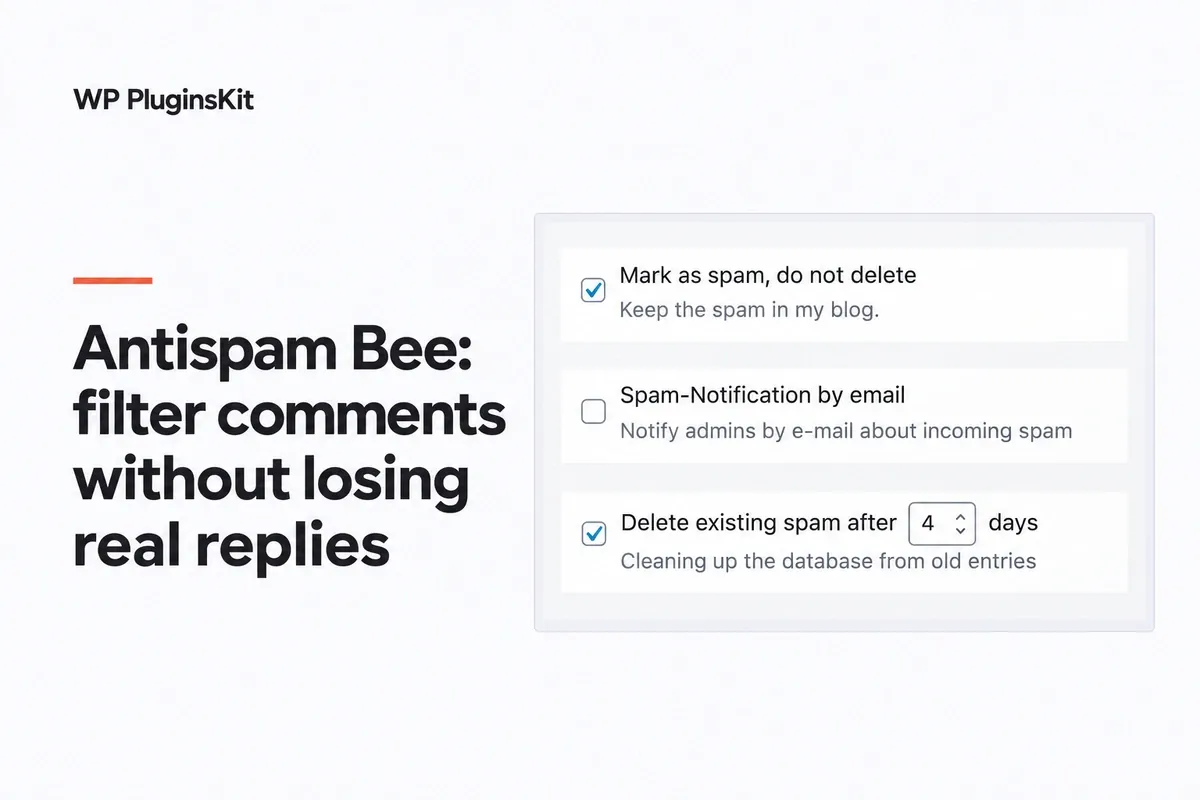
Antispam Bee filters spam in standard WordPress comments and trackbacks without adding a CAPTCHA or requiring an API key. I'd start with its local filters and keep suspicious comments in the Spam queue for review. Leave automatic deletion off until you've checked that genuine replies survive; this plugin doesn't protect contact forms or registrations.
Check the comment form before installing
The Antispam Bee listing identifies pluginkollektiv as the maintainer and confirms free use on private and commercial sites. Its FAQ excludes Jetpack Comments, wpDiscuz and Disqus. A replacement comment system or a custom AJAX form needs a compatibility check before you rely on this workflow.
For contact forms, configure protection in the form plugin instead. Our Forminator setup covers building and checking that separate submission path. Spam registrations need their own protection too; activating Antispam Bee doesn't cover every entry point on a WordPress site.
If the post has no comment form, check its discussion setting first. WordPress can close comments for an individual post or after a chosen age; a spam-filter setting won't reopen a closed discussion.
Back up an existing site and record its comment settings before changing the filtering or cleanup rules. The UpdraftPlus recovery-copy steps cover the backup. Start on staging, with a post that accepts comments and a working administrator account.
Keep suspected spam available for review
Open Plugins → Add New Plugin, search for Antispam Bee by pluginkollektiv, then choose Install Now → Activate. Open Settings → Antispam Bee. Activation starts filtering; the settings determine what happens to suspicious comments.
- Keep Mark as spam, do not delete checked. The spam-handling instructions explain that switching it off deletes detected spam without keeping it in WordPress.
- Leave Delete existing spam after X days off during the initial review period. It removes older spam automatically when enabled; choose a retention window only after you know how often someone will review the queue.
- Leave Limit approval to and Delete comments by spam reasons off initially. These create deletion exceptions, so the main keep-spam checkbox alone isn't enough to preserve every flagged comment.
- Leave Do not save the spam reason off. Keeping the reason makes a mistaken classification easier to investigate.
- Click Save Changes, reopen the settings and confirm that your choices remain saved.

In Comments → Spam, read the content and its spam reason before removing anything. WordPress's comment administration instructions explain how Not Spam recovers a genuine reply. Review its resulting status before publishing it. A recovered comment still needs to fit your discussion policy.
Choose filters around your readers
Use regular expressions checks predefined spam patterns; Look in the local spam database compares incoming details with comments already marked as spam on your site. Keeping a reviewed stock of spam gives the local check data to compare. Don't classify a genuine reply as spam merely to clear the queue.
Trust approved commenters uses a previously approved email address to skip later Antispam Bee checks. WordPress doesn't verify the name and email supplied with a guest comment before submission, so an email match is not identity verification. Keep this option only if that trust matches your moderation policy. If spam arrives under an address with an approved comment, inspect this option before making unrelated filters stricter.
Leave BBCode links are spam off if your site deliberately accepts BBCode links. Use Consider the comment time only after checking the real visitor path; a time-based rule can flag a fast submission. Add one optional filter at a time so a new false positive has a traceable cause.
Separate local checks from external lookups
Country, language and Gravatar options are optional and off in the plugin's default configuration. They change how data is handled. The developer's manual describes the optional transmissions; the 2.11.13 implementation identifies the current services.
| Option | What enabling it involves |
|---|---|
| Trust commenters with a Gravatar | Looks up a hash of the commenter's email address at Gravatar. A valid avatar lets the comment skip later checks. |
| Block comments from specific countries | Uses an anonymized IP address with IPLocate to determine a country. An allowlist excludes countries you haven't selected. |
| Allow comments only in certain language | Sends comment text to the pluginkollektiv language-detection service. A language outside your selection can be classified as spam. |

Leave these off if your intended setup should avoid those lookups. A country or language restriction can exclude legitimate readers, especially on an international site. Treat the developer's privacy claims as information about this plugin's behavior; installing it doesn't settle every privacy obligation of the site.
If you enable the country filter behind a proxy, have the maintainer verify the trusted visitor-IP configuration first. The current changelog names antispam_bee_trusted_ip; an empty value can mark every comment as spam. Don't copy an old forwarded-IP snippet into an unfamiliar server setup.
Check a real visitor submission
Open a comment-enabled staging post in a signed-out browser session. Use a harmless, relevant comment and an address you control that has no previously approved comment on that site. An already trusted address can skip checks and hide a problem in the route you're trying to verify.
Submit through the site's actual comment form, then locate that exact reply in the administrator's Comments screen. A reply waiting in Pending isn't the same as one in Spam. Check WordPress Discussion settings for manual approval and previously approved-author rules before blaming the filter.
If appropriate, approve the harmless reply and verify that it appears on the post while signed out. This checks the visitor-to-moderator path. Continue reviewing genuine and flagged comments; one accepted comment or a rising dashboard spam counter doesn't establish detection accuracy.
Follow the reason when a reply is missing
A genuine reply is in Spam: retain its reason, use Not Spam, then inspect the corresponding rule. A BBCode reason matters if your community uses forum-style links; a language or country reason calls for reviewing that restriction. Change the relevant rule, save and repeat the same visitor path.
The reply is absent from both Pending and Spam: inspect the deletion options before submitting more tests. If a comment was deleted without being saved, Not Spam can't restore it from the queue. A recorded backup is a recovery route, not a reason to enable destructive cleanup early.
A custom form bypasses filtering: the FAQ distinguishes normal comment submissions from requests to admin-ajax.php, which need developer handling. Provide the support forum with the theme, comment plugin and submission route. Don't assume that every AJAX comment form is either supported or unsupported.
An extra comment field is visibly exposed: a strict Content Security Policy can prevent the honeypot's inline styles from hiding it. The current FAQ documents the antispam_bee_honeypot_styles filter and a stylesheet-based correction. Ask the site maintainer to apply that specific fix while preserving the policy.
Once real replies reach the right queue and mistakes remain recoverable, choose a cleanup interval that fits the moderation workload. Use the WordPress plugin catalog for the next separate site task.
Setup guide
- Confirm that the site uses a supported WordPress comment form. Back up the site and record its current discussion settings.
- Install Antispam Bee by pluginkollektiv, activate it and open Settings → Antispam Bee.
- Keep Mark as spam, do not delete on; leave timed deletion and deletion exceptions off while reviewing. Keep the spam reason and save changes.
- Review trusted-commenter and BBCode behavior. Leave Gravatar, country and language lookups off unless you have chosen their specific behavior and data handling.
- Submit a harmless comment through the real form using a new, controlled email address. Check Pending versus Spam, recover mistakes and verify the visible reply after approval.
- Correct the relevant rule before tightening another. Set cleanup only after the queue can be reviewed reliably.