Use Autoptimize to optimize your site's CSS, JavaScript and HTML, with one tool responsible for each job. The free plugin's file cache doesn't replace page caching. I'd start without aggregating CSS or JavaScript, keep the existing page cache, and test one change at a time. If a menu, form or layout breaks, restore that function before chasing a higher speed score.
Decide what Autoptimize should handle
The free Autoptimize plugin minifies HTML, CSS and JavaScript, with options to combine files and change how scripts and styles load. Combining files is called aggregation. Minification makes code smaller; aggregation changes which files the browser requests. These are separate decisions.
Autoptimize stores generated CSS and JavaScript in its asset cache. A page cache stores generated HTML so WordPress doesn't have to rebuild the page for every eligible visit. If your host already provides page caching, you can keep that service while evaluating Autoptimize's file optimization.
Assign each operation to one tool. If LiteSpeed Cache, WP Rocket, W3 Total Cache or another plugin already minifies or combines the same files, turn off that overlapping operation in one place. Keep unrelated caching functions that you still need. Our LiteSpeed Cache setup covers that product's own server and optimization decisions; don't copy its settings into Autoptimize.
Autoptimize Pro adds page caching, automatic critical CSS, image optimization with a CDN and additional boosters. Those paid features aren't a reason to describe Free as a complete page-cache plugin. Choose the missing function first, then decide whether you need another service.
Install with a recoverable starting point
Save your current optimization settings and take a recoverable backup before changing the stack. The UpdraftPlus backup setup can help if you don't have a backup process. Use staging for the first configuration when you can, especially on a site with forms, bookings or checkout.
With an account allowed to install plugins, open Plugins → Add Plugin, find Autoptimize and confirm the official directory address ends in autoptimize. Install and activate the current release, then open Settings → Autoptimize. Version 3.1.17 lists WordPress 5.3 and PHP 7.4 as minimum requirements. Those minimums aren't a recommendation to retain an obsolete host configuration.
Activation can change the public page: current new-install defaults enable HTML, CSS and JavaScript optimization. CSS and JavaScript aggregation are off by default. Don't assume activation is a harmless pause before configuration, or overwrite existing settings merely to match a screenshot.
Before changing anything else, record the behavior of a representative article, the home page and an interactive page. Check a phone menu, submit a safe test form and note any existing console errors. Keep the same pages and test conditions for comparisons.
Start without combining everything
Open the JS, CSS & HTML tab. On a fresh setup, keep Aggregate JS-files? and Aggregate CSS-files? off for the first comparison. Current defaults use JavaScript deferral without aggregation, including an option to defer inline JavaScript. Existing installations may retain different choices, so read the actual controls before saving.
The official aggregation FAQ explains why combining files isn't automatically the fastest choice on HTTP/2. I wouldn't apply an old “enable every box” preset. Keep the simpler configuration unless repeated checks on your own pages justify combining files.
- Choose which plugin owns HTML, CSS and JavaScript processing. Remove duplicate processing before judging a result.
- Check the public site with the current nonaggregation settings. Verify that menus, forms, consent controls and embedded media still work.
- If you want to compare aggregation, change only CSS or only JavaScript, save, and clear the affected page caches. Repeat the same functional and speed checks.
- Keep the change only if the pages work and repeated measurements improve the problem you're trying to solve. Revert a failure before testing another setting.
A single Lighthouse score can send you in the wrong direction. Compare the same URL, device profile, connection conditions and cache state across repeated runs. Look at loading and interaction as well as the score. A faster first paint doesn't compensate for a form that won't submit.
Leave Also aggregate inline JS? and Also aggregate inline CSS? off initially. Unique inline code can create many different combined files and make the cache grow rapidly. Don't force all JavaScript into the head to silence one report warning.
Exclude a broken file and check minification
If JavaScript optimization breaks a feature, first confirm that turning that branch off fixes it. Inspect the browser console for the failing script, then add a specific filename or path fragment to the JavaScript exclusion field. Separate entries with commas. A directory can help isolate the responsible plugin, but narrow the exclusion after finding it.
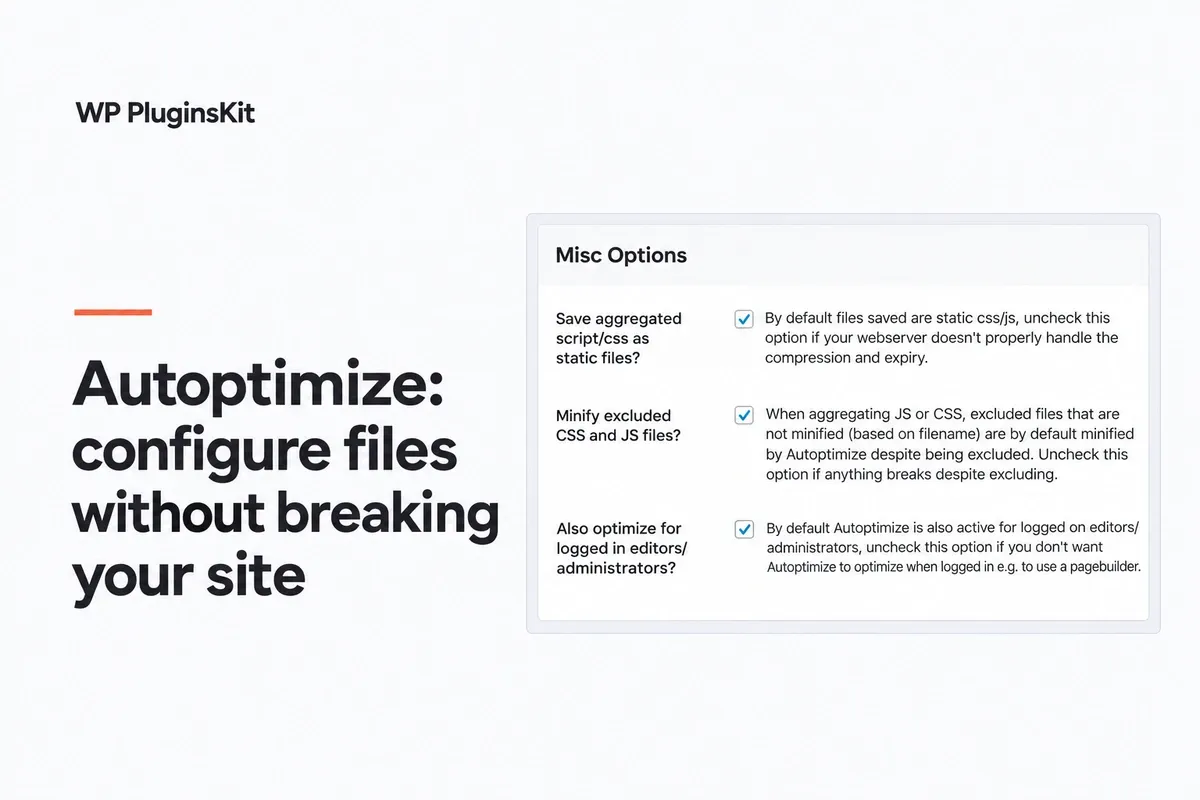
Exclusion from aggregation doesn't necessarily prevent minification. When the filename suggests that an excluded file isn't already minified, Autoptimize can still minify it. If the excluded file continues to break, open Misc Options and uncheck Minify excluded CSS and JS files?. Save and clear the affected page caches before retesting.

For a jQuery is not defined error, the developer's Autoptimize troubleshooting steps say to keep wp-includes/js/jquery/jquery.min.js out of aggregation and asynchronous or deferred loading. Check other speed tools too. Removing every jQuery exclusion can put a dependent script ahead of the library it needs.
If aggregation is the trigger, try Do not aggregate but defer? instead and verify the affected interaction again. Don't add unrelated script names from somebody else's site. Your exclusion should describe a file or dependency actually present on yours.
Handle CSS and images after the basic check
If the layout breaks, turn CSS optimization off to isolate the branch. When aggregation is enabled, try disabling inline CSS aggregation first, then CSS aggregation. Excluding a theme or plugin directory can identify the source; retain a narrower exclusion when possible. Keep HTML optimization off if that specific branch causes the failure.
Eliminate render-blocking CSS? needs critical styles for the content visible before scrolling. Older instructions call this “inline and defer CSS.” Those styles must cover the templates and screen sizes you actually serve. Missing rules can cause a flash of unstyled content. I'd leave this option off until there's a reliable way to generate and maintain the critical CSS, then check both narrow and wide layouts. Free supports a manual critical-CSS route; Pro automates that work.
Inline all CSS? puts the styles into the HTML instead of leaving a separate stylesheet the browser can reuse across pages. It can enlarge every page response. Don't use it as a universal fix for a render-blocking warning.
The ShortPixel image integration rewrites image URLs to an external image CDN and requires publicly reachable source images. It won't fetch protected intranet images. Don't weaken access controls to make private files available to an image service; leave that integration off for protected material.
Use one lazy-loading implementation. Keep the main above-the-fold image out of delayed loading, and verify its actual request on a phone. Autoptimize supports lazy-load exclusions by an image's path or class; current releases also exclude high-fetch-priority images. If a gallery or hidden lightbox image fails, exclude that image or class rather than turning off every optimization.
Leave the CDN Base URL field empty for a proxy service such as Cloudflare. An asset CDN with a separate delivery hostname is a different setup; don't paste a Cloudflare account or zone-dashboard URL here. Change Google Fonts, preconnect and preload options only when you can identify the resource and the reason it needs different handling.
Clear file cache and page cache together
Autoptimize doesn't automatically purge its whole file cache whenever it grows. Cached HTML elsewhere can still refer to a generated CSS or JavaScript file. Removing that file while old HTML remains in a host, plugin or CDN cache can leave visitors with missing styles or scripts.
Enable 404 fallbacks? can reduce the damage from missing generated files, but its fallback copies come from the home page and may not suit another template. It doesn't replace coordinated cache cleanup.
When a configuration change requires clearing generated files, coordinate that action with the page-cache layers serving the HTML. Use Save Changes and Empty Cache in Autoptimize, then promptly purge the affected page caches at the plugin, host and CDN layers you actually use. Check the regenerated public pages and their CSS and JavaScript requests before considering the cleanup finished.
Don't put an unattended “delete the Autoptimize folder” job on a timer. First investigate whether unique inline code is creating excessive combinations. A cache that becomes nonempty immediately after a purge can also reflect preloaders or fresh visitors rebuilding files; that alone doesn't prove the purge failed.
If the toolbar action doesn't clear the cache, use the settings-page save-and-empty button. If cache information reports that the directory isn't writable, ask the host to fix the specific ownership or permission problem. Broadly opening filesystem permissions isn't a suitable repair.
Recover the affected page before retuning
For a problem limited to one page, open its editor and use the Autoptimize this page metabox. If the box is missing, check Enable configuration per post/ page? in Misc Options. Disable optimization for that page, or only its failing JavaScript, CSS or lazy-loading branch. For a widespread problem, isolate one branch at a time and clear the page cache after changes. That sequence is easier to diagnose than changing several exclusion lists together.
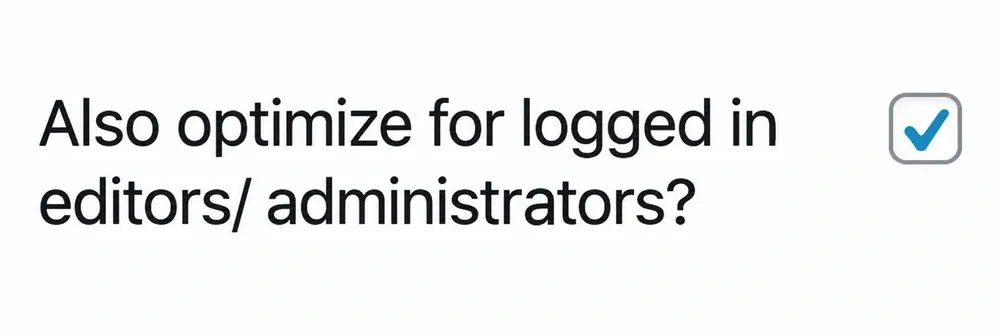
If the page builder misbehaves while you're logged in, disable Also optimize for logged in editors/ administrators? in Misc Options. Then test the public page separately while logged out. Fixing the editor doesn't establish that visitors receive the right files.
Keep Also optimize shop cart/ checkout? off if optimization breaks those paths; it is off in current defaults. Verify payment buttons and validation through an appropriate safe test process before enabling it. A working home page doesn't establish a working checkout.
To compare a page without Autoptimize processing, the official FAQ documents adding ?ao_noptimize=1 to a URL with no existing query string. This diagnostic doesn't clear the host or another plugin's cache. If you still see the same broken output, check which layer is serving it before deciding that Autoptimize isn't involved.
After a fix, revisit the original pages while logged out: open navigation, submit a safe form, change a consent choice and load embedded content. Check for failed CSS or JavaScript requests and new console errors. Repeat the narrow-layout check, then compare speed under the same conditions as the starting point.
If the failing branch still isn't clear, ask in the plugin's official support forum with the affected public URL, relevant settings and console error. Explain which single change restores the feature. Remove account details, tokens and private form data before sharing a report.
If you remove Autoptimize, clear the remaining page caches so they stop serving HTML that references its old files. For a different optimization approach, use the WordPress performance plugin collection. I'd keep the smallest set of working controls that solves the measured problem, with a saved configuration you can restore.
Setup guide
- Save the existing settings and take a recoverable backup. Decide which tool owns each overlapping optimization.
- Install the official Autoptimize plugin and open Settings → Autoptimize. Check the public site immediately because activation can enable processing.
- Start without CSS or JavaScript aggregation. Change one branch at a time and verify the same pages.
- For a broken file, narrow the exclusion and check whether Minify excluded CSS and JS files is still enabled.
- Coordinate generated-file cleanup with page-cache purges. Confirm that the rebuilt pages load their assets and that visitor interactions work.