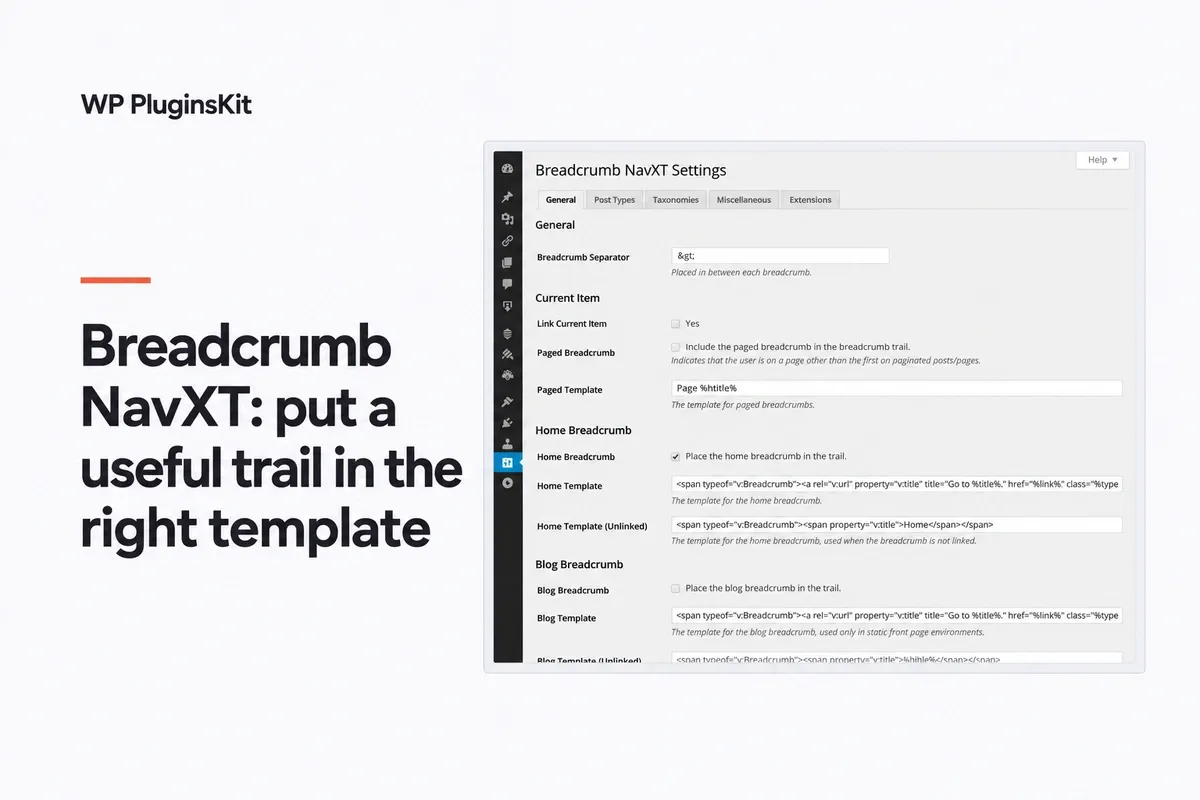
Add the Breadcrumb Trail block where you want the navigation to appear, then configure the trail under Settings → Breadcrumb NavXT. On a block theme, put it in the relevant template to cover the pages using that template. I'd check the parent links before changing the styling: a neat trail is useful only when it leads to the right places.
Decide whether you need another breadcrumb system
The free Breadcrumb NavXT plugin by John Havlik generates a locational trail through your content hierarchy. It describes where the current page belongs, rather than recording the visitor's browsing history. A typical result might be Home → Resources → Installation, with links back to the parent resources.
Check the theme and existing SEO plugin first. If they already supply the trail you need, keep that arrangement. The Yoast SEO setup guide covers the broader metadata task; Breadcrumb NavXT is a separate choice for controlling breadcrumb output. I'd choose one visible trail and review its structured data alongside any SEO plugin's output, rather than adding a second row by accident.
Breadcrumb NavXT 7.5.2 lists WordPress 5.8 and PHP 7.0 as compatibility minima. Keep the site on maintained WordPress and PHP releases; those minima aren't an instruction to install an old runtime. Use the current stable package. Back up the site before changing templates or replacing an existing trail; the UpdraftPlus backup steps cover a recoverable WordPress copy.
Install and place the trail
In an administrator account that can install plugins, open Plugins → Add New Plugin, search for Breadcrumb NavXT and match the John Havlik listing. Choose Install Now → Activate. Activation makes the tools available; it doesn't establish a display location in every theme.
Choose the route that matches the site:
- Block theme: open Appearance → Editor → Templates and select the template used by the content you want to cover, such as Single Posts or Pages. Add Breadcrumb Trail near the content heading, outside a Query Loop that lists unrelated posts. Save the template and review a page that uses it. Check the save confirmation so you know which shared template changed. WordPress's Template Editor instructions explain that template changes affect every post or page using that template.
- One page or post: add the Breadcrumb Trail block in that item's block editor and save the item. This places the block in that content; it doesn't add it to other pages automatically.
- Widget-based classic theme: use the included Breadcrumb NavXT widget in an appropriate area under Appearance → Widgets. The theme must display that area on the pages you want to cover.
- Existing theme or builder integration: use its documented NavXT placement. If the theme needs a PHP call, have its maintainer follow the developer's breadcrumb calling instructions through a child theme or suitable integration hook. Don't paste PHP into a Custom HTML block or make a parent-theme edit that the next update can replace.
A template is the useful distinction here. You don't need to add the block manually to every post on a block theme, but one template won't cover pages that use a different one. Check custom templates and archive layouts separately.
Start with the defaults and check the hierarchy
Open Settings → Breadcrumb NavXT. Start with the defaults and change the setting tied to a specific problem. The developer's settings and block reference separates how the trail is assembled from how the block displays it.
Under General, Home Breadcrumb controls whether the home item belongs in the trail. Link Current Item controls whether the current page is linked; leaving it unchecked doesn't remove that page's label. Keep the home item unless your navigation has a reason to leave it out, and leave the current item unlinked for the first check.


The block has a separate option to hide the trail on the front page. It can also change link behavior and reverse the order. If the output differs from the global settings, inspect the placed block or widget as well. Choose Save Changes after editing the plugin settings, then reopen the settings to confirm the values persisted. Save the template or content separately when you change the block.
- Pages: check the actual parent-page relationship in the page editor. Indenting an item in the navigation menu doesn't create that relationship.
- Posts: inspect the relevant Post Types hierarchy settings and the post's category assignments. A post assigned to several category branches needs a deliberate content decision; the plugin can't infer which branch you intended just from how a menu looks.
- Custom post types: review that type's hierarchy and root-page settings rather than changing ordinary Page settings. Keep this separate from registering the content type itself.
If the home item uses the site title and you want a shorter label, review Home Template and Home Template (Unlinked). These are HTML templates with dynamic tags, not plain title boxes. Preserve their link and markup structure when changing the displayed wording. I'd leave template editing to the maintainer if the placeholders aren't familiar.
Verify destinations before judging appearance
On a staging copy, inspect a nested page, an ordinary post, an archive and a page using a custom template. Add other content types that the site uses. Open each as a signed-out visitor and check:
- There is one intended trail in the right place, with a meaningful hierarchy and the correct current-page label.
- Each parent link opens the expected page or archive. A category archive and a manually created page named Resources are different destinations; matching text doesn't make them interchangeable.
- The home item and front-page visibility behave as intended. A hidden trail on the homepage doesn't mean the Home Breadcrumb setting failed.
- Long labels wrap readably on a phone, links remain distinguishable and keyboard focus is visible. If separators appear twice, check whether the theme supplies one before removing the plugin's separator.
Give parent pages useful content. If a breadcrumb leads to an empty page created only to organize a dropdown menu, improve that destination or reconsider the content structure. Hiding its label is a cosmetic change to a navigation problem.
Check markup without promising search results
Breadcrumb NavXT supports Schema.org BreadcrumbList output in RDFa. It also exposes a JSON-LD display function for developer integrations; that doesn't mean every placement automatically emits a separate JSON-LD script. Keep the supported default markup unless the integration requires a specific format.
Inspect the rendered page's complete breadcrumb markup, including anything produced by an SEO plugin. For custom PHP placement, the surrounding BreadcrumbList wrapper matters as well as the individual items. Review the names, URLs and ordered positions, then use the Rich Results Test described in Google's breadcrumb markup guidance. Multiple legitimate trails are supported, so the presence of more than one list alone isn't a reason to delete markup; resolve contradictions and accidental competing output.
Google describes breadcrumb search appearance as a desktop feature and doesn't guarantee that valid structured data will appear in results. Judge this setup first by whether visitors can use its links. Validate the live configuration again after an authorized template or plugin update.
Trace a missing or wrong trail
Nothing appears: confirm that the plugin is active and a block, widget or integration calls it. Check the template the affected page uses, front-page hiding and the widget area before reinstalling anything.
The wrong parents appear: inspect page parents or the selected post hierarchy and category assignments. A menu-only structure won't automatically become the default NavXT hierarchy. If settings are overridden by network-wide options, review that with the network administrator.
The label is right but the destination is wrong: inspect the link itself and the resource it represents before changing text templates. For a translated site, check each language's home and parent links separately; multilingual extensions and custom mappings need their own configuration.
The trail looks broken: compare the generated HTML with the theme's styles and cached output. Restore the previous template or settings if an edit caused the problem. Use the WordPress plugin catalog for other site tasks once the navigation route is settled.
Setup guide
- Record the existing breadcrumb output, back up the site and install the current stable Breadcrumb NavXT plugin by John Havlik.
- Choose a block template, individual content item, widget area or documented theme integration. Place Breadcrumb Trail once in the intended location.
- Review Settings → Breadcrumb NavXT, actual page parents and the relevant post hierarchy. Save Changes, then save any edited template or content.
- Check home inclusion, current-item links and the block's separate front-page visibility option.
- Open representative pages as a visitor. Follow every parent link, check custom templates and review long labels on a phone.
- Inspect the full BreadcrumbList markup alongside other output, validate it and repeat the page checks after an authorized release.