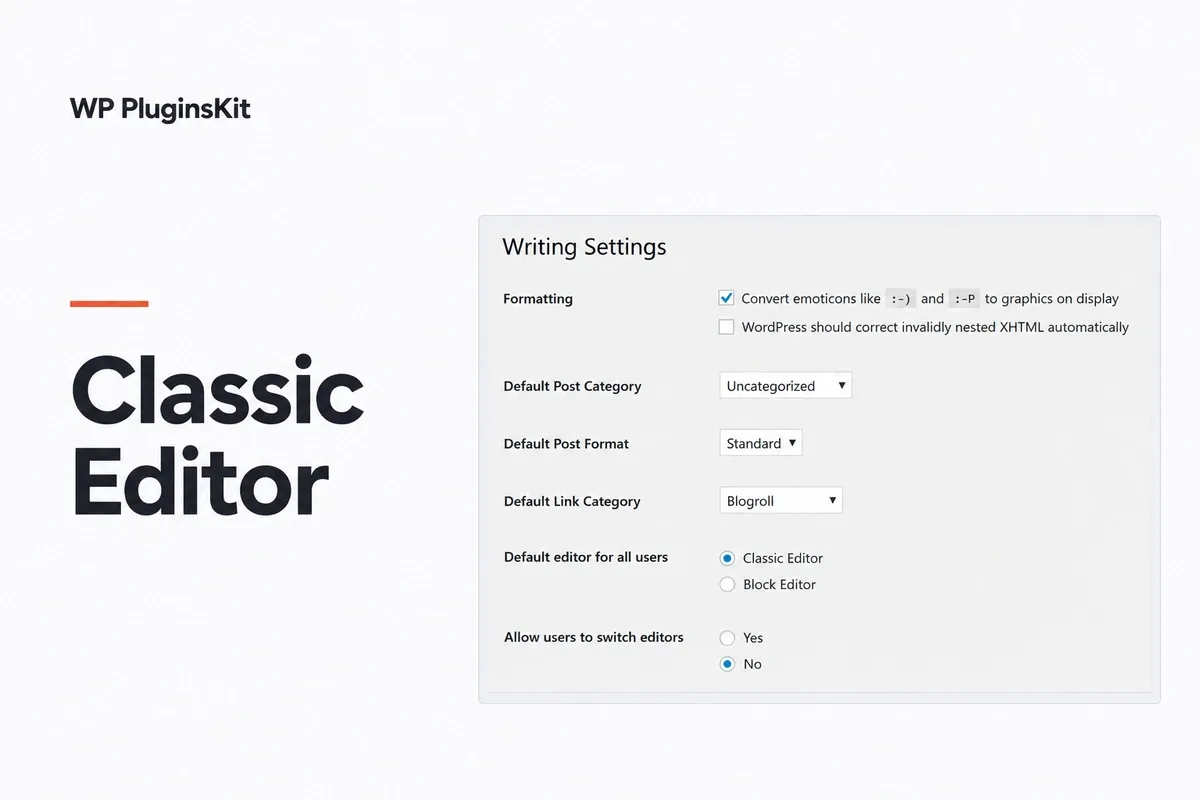
Choose Classic Editor when an existing WordPress site needs the previous Edit Post screen for its writing workflow or a plugin that depends on that screen. On a classic theme, activate it and open Settings → Writing to choose the default editor and whether users can switch. I'd keep the block editor for a site built around blocks; Classic Editor's own FAQ excludes block themes and full site editing.
Check which part of WordPress you need to change
Classic Editor restores the older post-editing screen, including its TinyMCE editor and support for plugins that extend that screen with old-style meta boxes. That makes it a practical choice when a specific editing dependency requires it. Identify that dependency before changing the site's default, then check the field or panel it supplies on a representative draft.
If you only want a familiar text toolbar, I'd try the Classic block inside the block editor first. Open the block inserter and search for Classic, or type /classic in the editor. It provides classic visual editing within a block, so you can keep the surrounding block workflow. A plugin that depends on the full older Edit Post screen is a different requirement.
A block theme uses blocks for templates, headers and other site areas. The Classic Editor FAQ explicitly excludes block themes and full site editing, while WordPress's block-theme documentation explains the Site Editor's role. If you're using a theme such as Twenty Twenty-Five to edit site templates, keep that workflow and solve the specific content-editing need within it.
Before activating the plugin on an existing site, make a recoverable backup of its database and files. The UpdraftPlus setup guide separates those backup components. Try the editor choice on staging first when existing layouts or editing extensions matter. Opening the old screen doesn't establish that every legacy plugin is compatible with your current WordPress release.
Choose the default and switching policy separately
Open Settings → Writing. Under Default editor for all users, choose the editor you want as the site's starting choice. Under Allow users to switch editors, choose whether contributors can use the alternative editor. Save the settings after making both decisions.

| Your editing policy | Settings |
|---|---|
| Consistent classic workflow | Default: Classic Editor Allow switching: No |
| Classic first, with a block option | Default: Classic Editor Allow switching: Yes |
| Block first, retaining classic access | Default: Block Editor Allow switching: Yes |
I'd allow switching during a planned transition when contributors need both editors. For a team whose required editing extension only works on the classic screen, keep the policy consistent until that dependency has a replacement. These are workflow choices; they don't convert a block layout into a classic layout.
Understand why an existing post opens differently
When switching is allowed, users can choose their preferred editor in their profile, and individual posts remember the last editor used. A remembered post choice can therefore differ from the site's default. Check a new draft and an existing post separately before concluding that the setting failed.
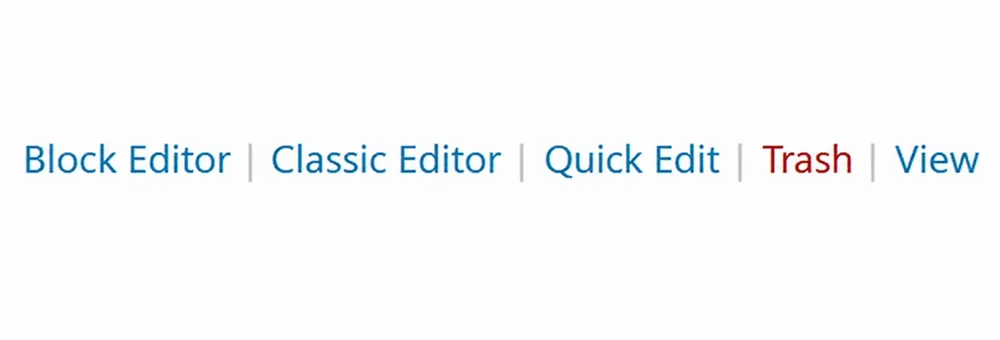
The released plugin's editor-selection logic also checks for block content when an existing post has no remembered editor and switching is allowed. New drafts start with the selected default. The post-list actions provide Edit (classic editor) and Edit (block editor) when both editors are available. In the classic editing screen, an Editor panel provides the route back to the block editor; the block editor's main menu contains the route to classic editing.
Save unfinished work before switching. Start with a duplicate or staging copy of important content, then compare its headings, media, shortcodes and layout in preview. I'd avoid moving a complex block-built page back and forth just to see which editor feels familiar. An editor preference is a poor reason to risk an established layout.
Find the reason switching controls are missing
Check Allow users to switch editors first. With switching disabled, the alternative-editor links aren't the expected workflow. If it is enabled, check whether both editors are available for that content type; the plugin exposes filters that other plugins can use to control editor availability.
On Multisite, network policy can hide the site's settings and prevent users from changing editors. The plugin's network settings let the network administrator select a default and allow site administrators to change it. Ask that administrator to check the policy before changing unrelated plugins. A missing site-level option doesn't establish a broken installation.
Keep neighboring editing tools separate
Classic Widgets restores the older widget settings screens on a classic theme. It doesn't answer the same question as restoring the Edit Post screen. Install it only if widget administration is the part of WordPress you need to change.
For toolbar buttons, tables or the Classic Paragraph block, look at Advanced Editor Tools' formatting controls. That plugin supports the classic editing environment and the Classic and Classic Paragraph blocks. I wouldn't add both tools automatically: choose Classic Editor for editor selection, then add formatting controls only for a specific missing task.
Check the current release before installation
- Listed version
- 1.7.0
- Theme condition
- Classic, non-block theme
The current listing and released plugin header identify version 1.7.0. Its low minimum WordPress and PHP versions describe an installation floor, not a recommendation to run obsolete hosting software. Check the compatibility information for your actual WordPress version before installation and keep the site's supported software stack current.
Setup guide
Use an administrator account with plugin-install permission. Confirm the site uses a classic theme, prepare its backup and keep important existing content available for comparison.
- Open Plugins → Add New Plugin, search for Classic Editor and match the result to the official WordPress.org listing. Check compatibility, choose Install Now, then Activate.
- Open Settings → Writing. Choose Classic Editor or Block Editor as the default. Set Allow users to switch editors to match the workflow you decided on, then save changes.
- Create a new draft from the Posts screen. Confirm that the intended editing screen opens and that any required legacy fields or panels are present.
- If switching is enabled, check the alternative edit action in the Posts list on a safe draft. Reopen that draft to check the remembered editor. Check the user's profile preference if new drafts start in a different editor.
- Preview representative content before updating an existing published page. Compare headings, images, shortcodes and the page layout with the original. Stop and resolve a mismatch before saving it over important content.
- If site-level options are unavailable on Multisite, have the network administrator check the network's editor policy. Keep theme changes, widget settings and toolbar customization as separate decisions.
Once the required editing workflow is in place, use the plugin directory to choose additional tools by the feature you still need. Restoring an older editor doesn't require replacing the rest of your site's tools.