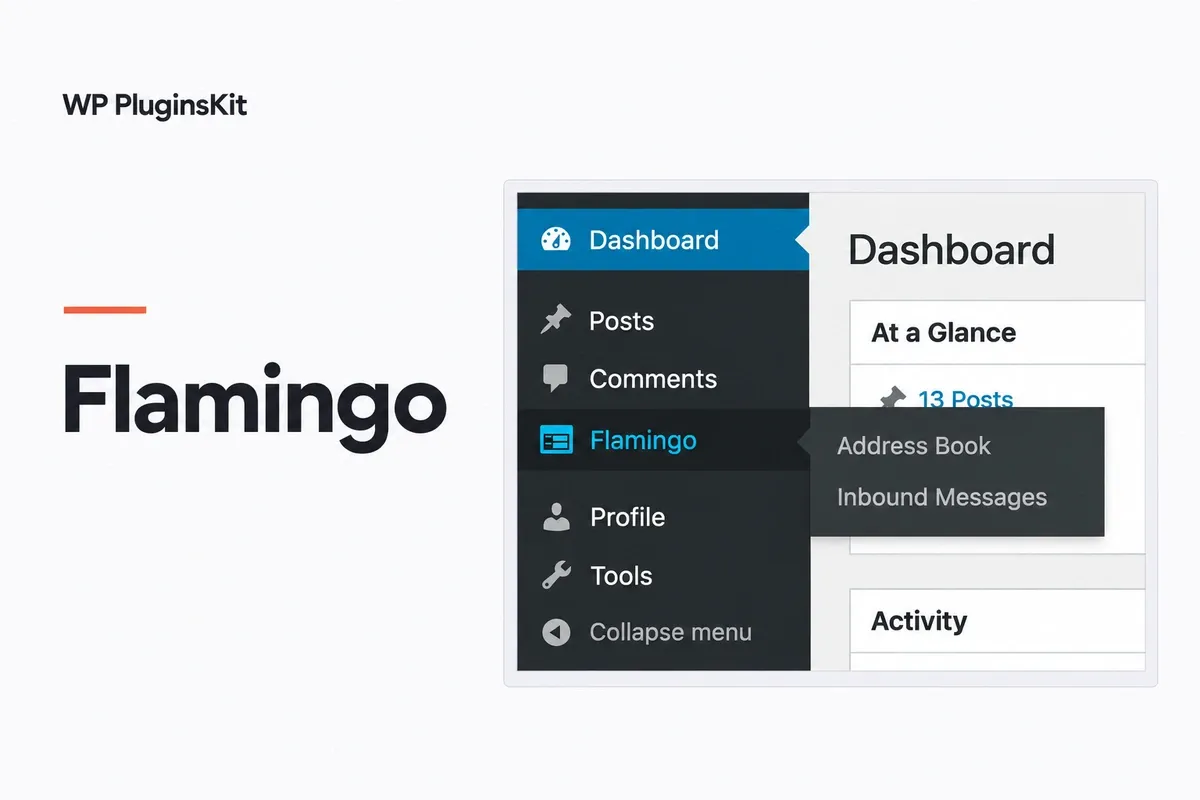
Flamingo saves Contact Form 7 submissions in your WordPress database so you can find messages beyond your email inbox. I'd add it when a site needs a local submission archive, then verify a new message and email delivery separately. A saved entry doesn't prove that the notification reached its recipient.
Choose a local Contact Form 7 archive
The free Flamingo plugin was built for Contact Form 7, which doesn't retain submitted messages on its own. After activation, the Flamingo menu provides a searchable archive. It stores personal data on the server hosting your WordPress site, so include that storage in your privacy and retention decisions before collecting real submissions.
Choose Flamingo for its native Contact Form 7 integration, inbound-message views and address book. The separate CFDB7 addon also saves CF7 submissions and offers CSV export, but it has its own database and administration workflow. Pick one archive deliberately; adding two creates another copy of the data to secure and maintain.
This is a companion to an existing form, rather than a replacement form builder. If you need a different form system, the Forminator guide covers that separate choice.
Install it and locate Inbound Messages
- Back up the site and confirm that your WordPress version meets the current directory requirement. Flamingo 2.6 raised the minimum to WordPress 6.7.
- Open Plugins → Add New, search for Flamingo and confirm the slug
flamingo. Install and activate the plugin alongside Contact Form 7. - Open Flamingo → Inbound Messages. Use this view for submitted messages; Address Book is a different list.
- Submit a new message through the actual front-end form with a recognizable, non-sensitive test subject. Open its saved entry and compare the submitted fields.
- Check the recipient mailbox separately, including spam. Archive storage and notification delivery are two different results.

Start with a new submission after activation. The integration runs when Contact Form 7 processes a submission; it doesn't reconstruct messages that were never saved before Flamingo was installed. An old email inbox is a separate source, not an automatically imported archive.
Understand which submissions are saved
Contact Form 7's current Flamingo integration accepts the mail_sent, mail_failed and spam statuses by default. A mail failure can therefore coexist with a saved inbound message. A validation failure isn't one of those default storage cases.
The same integration skips demo-mode forms, submissions marked do_not_store and individual form-tag values designated do-not-store. Site customizations can also filter the storage cases. Don't interpret every missing entry as a broken database connection.
Address Book has a narrower trigger: the integration adds a contact when the status is mail_sent. Check Inbound Messages when looking for a failed or spam submission instead of using the address book as a submission count.
Fix blank names and subjects
The default display values come from [your-email], [your-name] and [your-subject]. If your form uses different tag names, a message can be stored while its displayed sender or subject is unhelpful. Compare the saved fields with the tags in the original form first.
For custom tags, set flamingo_email, flamingo_name and flamingo_subject in that form's Additional Settings. The integration reads these values as mail-tag templates. For example, a form whose existing email tag is [contact-email] can use:
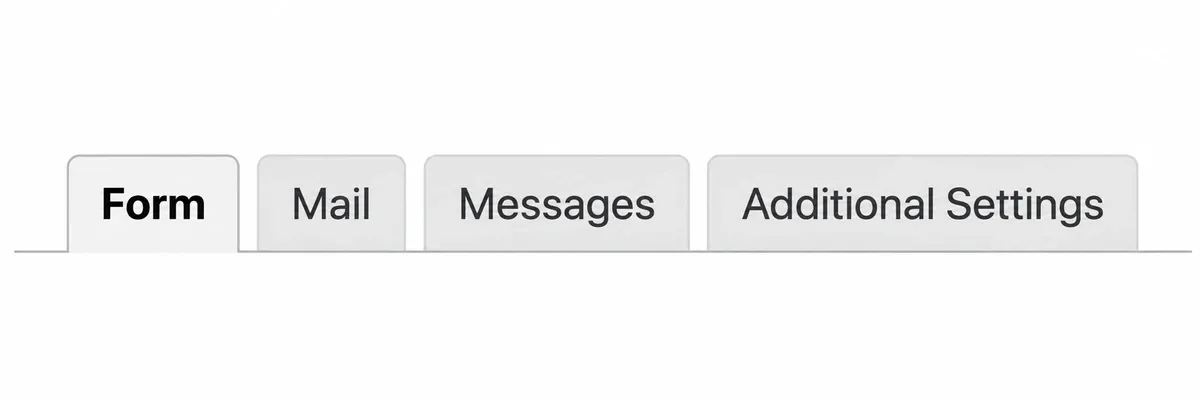
flamingo_email: "[contact-email]"This documented-code example maps an existing field; it doesn't create a new form tag. Keep the other mappings aligned with your own form, save it and submit a fresh message to check the result. Changing a mapping isn't a promise to rewrite older entries.
Find a missing message without deleting data
First confirm the site and form you submitted. In Inbound Messages, clear search, date and channel filters. Then check Spam and Trash. The current message-list controls include channel filtering, search, spam handling and restoration from Trash.
If the entry exists but no email arrived, investigate the form's mail configuration and delivery route. Reinstalling Flamingo won't fix a recipient address or a rejected notification. If the entry is absent, confirm that both plugins are active, the form isn't in demo mode, and a developer hasn't enabled a storage exclusion. Capture the form's displayed result and a non-sensitive test identifier before asking support.
For a legitimate message in Spam, use Not spam after reviewing it. Check the form's anti-spam configuration if subsequent valid submissions are still rejected. Don't disable all protection just to make the archive count rise.
Control access, exports and retention
Review who can open the archive. Flamingo 2.6.4's capability mapping maps its management permissions to edit_users by default, with a filter available for customization. Don't grant broad user-management powers merely to let someone read inquiries. Have a developer apply narrowly scoped access and verify the resulting role on your site.
Use the current release and recheck custom role rules after updates. The directory changelog records capability hardening in 2.6.3 and spreadsheet-vulnerability protection in 2.6.2. An old role tutorial isn't enough to establish what today's configured account can access.
The Inbound Messages inbox provides an Export action that produces CSV. Open the downloaded file carefully, confirm its fields and intended scope, and store it in a restricted location. The Export button isn't shown in the Spam or Trash views. Exported submission text remains untrusted input; avoid enabling active content or following unexpected links in a spreadsheet.
Set a retention period for messages, contacts, exports and backups. Review entries before bulk removal: Delete permanently and Empty trash are destructive. When WordPress trash retention is disabled, the plugin deletes rather than moving an entry into a recoverable Trash.
Protect the archive during site moves
Flamingo stores inbound messages as the flamingo_inbound custom post type. The current storage implementation uses WordPress posts and post metadata rather than a separate Flamingo-named table.
That matters when a host pushes a staging database to production: replacing shared post tables can replace live inquiries along with page content. Make a recoverable backup and agree on a migration method that preserves new production submissions before proceeding. Don't exclude or overwrite tables by guessed names. The UpdraftPlus guide covers backup preparation, but a CSV export alone isn't a complete site backup or a proven restore path.
Setup guide
- Review privacy, retention and access requirements, back up the site and confirm WordPress compatibility.
- Install the exact Flamingo plugin and keep Contact Form 7 active.
- Submit a new front-end test and inspect Flamingo → Inbound Messages; check email delivery separately.
- Match custom field tags through the form's Additional Settings if the displayed identity or subject is wrong.
- Check filters, Spam, Trash and storage exclusions before troubleshooting missing entries. Protect saved inquiries before any database move.
Keep the archive only if someone will review and maintain it. Return to the plugin directory for other site tools after one fresh submission has reached the intended archive and mailbox.