WPCode keeps custom WordPress code in named snippets, with controls for where it runs and how to switch it off. I'd choose it when the site needs a central home for approved PHP, CSS, JavaScript or provider tags without editing theme files. Start by identifying who already inserts that code, then choose either sitewide Header & Footer fields or an individual snippet with the scope you need.
Give each piece of code one owner
Check the theme, tag manager, analytics integration and existing snippet plugin before adding anything. If another tool already inserts the same provider tag, decide which tool will retain it. Adding a second copy through WPCode can duplicate the code rather than replace the first installation.
WPCode is useful for small, reviewed changes that need names, locations and individual on/off controls. Keep a specialist plugin when it already owns the complete feature you need. Moving an integration's tag into WPCode doesn't recreate that integration's consent handling, account connection or reporting controls.
Code stored in WPCode survives theme updates and theme switches. That persistence helps maintenance, but it also means you must review snippets that depend on the old theme or a plugin you've removed. Give each snippet a descriptive name and use its private Note field to record its purpose and dependencies.
Check the free and paid boundaries
The free plugin supports the global Header & Footer fields and custom code snippets. Basic conditions such as logged-in status, user role, post type and Page URL are available without buying the advanced rule set. The conditional-logic requirements identify the rules that need a paid license, including Post/Page selection, device, cookie, scheduling and eCommerce rules.
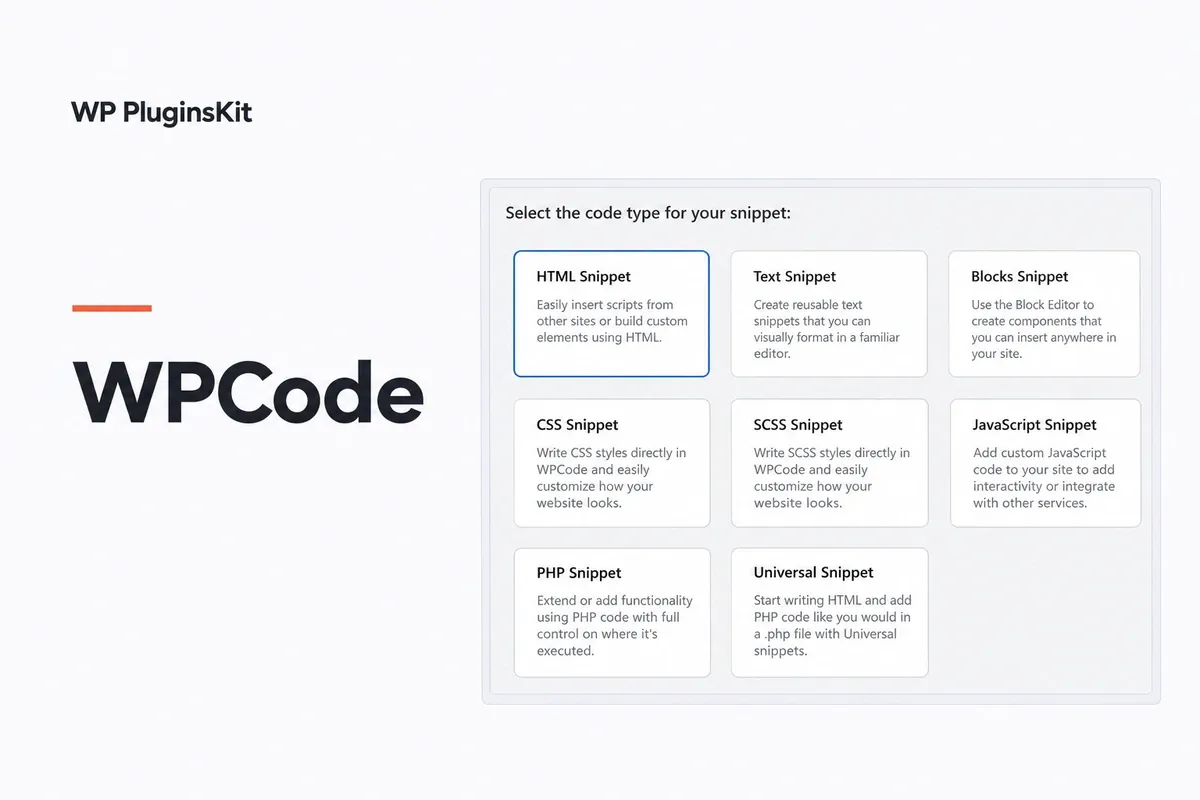
Blocks and SCSS snippets require a paid version. The code-type guide distinguishes those types from HTML, CSS, JavaScript and PHP. Seeing an option in a tutorial's picker doesn't establish that your free installation includes it.
Sitewide Testing Mode requires a paid license. Every logged-in user allowed to manage snippets sees its test versions; other visitors see the live versions. For a brand-new snippet in Testing Mode, first save it inactive, then activate it from the Code Snippets list while that mode is on. Conversion Pixels aren't covered and go live when saved. For free snippet work, use a staging copy when the change could disrupt the site; don't assume a preview label protects every setting.
I'd keep code management with administrators unless the site has a defined reason to delegate it. WPCode's role-based Access Control requires Pro or higher. PHP permission is powerful code access, so avoid granting it merely to let someone edit a small piece of text.
Prepare recovery before installing
Keep a restorable backup of the files and database, plus access to the hosting account. The UpdraftPlus setup page covers a backup route. A code editor's error check isn't a substitute for recovery access when a snippet changes login behavior or fails only on a particular request.
The directory lists WPCode 2.4.2 with WordPress 5.0 and PHP 7.0 as minimums. Those are compatibility minimums; maintain supported WordPress and hosting software rather than choosing an obsolete PHP release because the plugin can run on it.
In WP Admin, open Plugins → Add New Plugin, search for WPCode and identify the plugin by WPCode in the official Insert Headers and Footers listing. Choose Install Now, then Activate. The paid-account ZIP, upload and license route in the vendor's installation guide is a separate route; you don't need to buy a license to install the free directory plugin.
Choose global fields or an individual snippet
Use Code Snippets → Header & Footer for code intended for every page. Header outputs inside the head section, Body immediately after the opening body tag, and Footer before the closing body tag. Fill only the fields the provider requires, preserving the complete tag it supplied, then click Save Changes at the top.
The global field instructions show how to check each placement in page source. Body placement needs the theme's wp_body_open support. If that code is missing, ask the theme developer to check the hook; don't move a provider's required body code into Header simply to make it appear somewhere.
Global fields aren't the route for page-specific rules. Create an individual snippet when code needs its own toggle, a conditional rule or a different insertion location. I prefer that route when the code has a separate owner or a foreseeable removal date: the snippet's name and note make it easier to identify later.
Match the code type to the input
Open Code Snippets → + Add Snippet. On Add Your Custom Code (New Snippet), choose + Add Custom Snippet, then select the code type. The initial picker starts with HTML; after a save it remembers your last choice, so check the selected type each time.
HTML: use the provider's complete markup or script tag. WPCode outputs it as entered. This is the suitable route for a provider tag that must retain its wrapper.
CSS: enter styling rules without surrounding style tags. WPCode supplies the wrapper.
JavaScript: enter the script body. WPCode supplies script tags and removes supplied script wrappers for this type. Choose HTML when the provider's complete tag needs to remain intact.
PHP: use reviewed server-side PHP for WordPress behavior. WPCode strips leading and trailing PHP tags. Universal snippets mix markup and PHP; use that type only when the code calls for both.
Name the snippet and add the code in Code Preview. New snippets start inactive. Leave yours inactive while checking the type, dependencies, location and rules; copying code from a library doesn't remove that review step.
Set the location before activation
In Insertion, Auto Insert places the snippet at the chosen Location. Shortcode is the alternative for placement in content. Pick the method that matches the intended use instead of adding the same output twice.

New PHP snippets default to Run Everywhere; the other code types start at Site Wide Header. Change that default when the code's required execution point differs. The location guide distinguishes page output from PHP execution locations. A sitewide header location isn't a substitute for a PHP hook or an admin-only task.
For a page-limited snippet, open Smart Conditional Logic, turn on Enable Logic and choose Show to run it when the rules match. Click + Add new group, choose the rule type, comparison and value. Rules within one group use AND; separate groups use OR.

A free Page URL rule can target an address without the paid Post/Page picker. WPCode compares the full, case-sensitive URL, including a trailing slash and query string. Use Is for an exact match or Contains for a deliberate fragment; check that a broad fragment doesn't include unwanted pages.
PHP needs another check. Run Everywhere executes early, before WordPress knows the requested page. Page-dependent rules need the later Frontend Conditional Logic location. WPCode can switch a saved Run Everywhere PHP snippet when you enable logic, but a new snippet or another location needs a manual selection.
Don't move every PHP snippet to that later location. Code that registers something on an earlier hook needs to run before that hook; admin, AJAX and REST work also falls outside Frontend Conditional Logic. The PHP timing guide explains which task belongs in each location. Have the code's developer resolve a timing conflict before activation.
Activate and check the real result
Once the code, location and scope are ready, set an ordinary auto-inserted snippet to Active and click Save Snippet. The editor should return as Edit Snippet with an Active status and an Update button. Read any error message instead of assuming that saving made the code live.
Open the affected front-end page in another tab. Check visible output where appropriate, or inspect page source for a nonvisual tag. Confirm that the intended tag appears once; if it appears twice, return to the theme, tag manager and plugin inventory before adding more code. For conditional code, check a matching page and a nonmatching page, using the intended logged-in or visitor state. Then check the provider's own verification tool when the integration supplies one. Code appearing in source alone doesn't confirm that an external service accepted its configuration.
Clear the relevant page cache after a change. If an optimizer combines or delays the script, follow that optimizer's instructions for a targeted exclusion. The missing-script guide covers cache and optimization effects; disabling every performance or security control is a poor starting point.
To identify a tag's WPCode owner, enable Admin Bar Info under Code Snippets → Settings → General, save, then inspect the WPCode menu on the front end. Stay signed in with permission to activate snippets and enable Show Toolbar when viewing site in your WordPress profile if the toolbar is missing. The Code Spotter identifies loaded snippets and global script areas. The Global Scripts count is the number of used Header/Body/Footer areas, not the number of individual scripts.
Know what error handling can recover
WPCode checks PHP and Universal snippets when they activate. Code deferred to a later hook can pass that initial check and fail afterward. Automatic deactivation for a later fatal error is limited to Run Everywhere or Admin Only snippets failing during admin loading. A front-end error is recorded and marked; you must fix or switch off that snippet yourself.
Open Snippets With Errors, read the exact error and correct its cause before reactivating and clicking Update. A missing dependency, incompatible function or wrong execution time calls for a different correction. Keep the failed snippet off while identifying which applies.
For a logged-in user who can activate snippets, adding &wpcode-safe-mode=1 to the Code Snippets admin address pauses auto-inserted snippets for that user. Use ?wpcode-safe-mode=1 when the address has no query string. This URL mode doesn't pause snippets for visitors. Switch off the suspect snippet, then use Exit safe mode to open a normal tab; the original tab remains in safe mode.
If you can't log in, the configuration-file recovery procedure uses WPCODE_SAFE_MODE to pause auto-inserted snippets for everyone. It needs hosting file access and a backup before editing wp-config.php. After disabling the faulty snippet, remove the temporary constant so other snippets can resume.
WPCode isn't a security filter for arbitrary code. Version 2.4.2 removed the restricted-code check, allowing functions such as eval() that were previously blocked; previously skipped active snippets can run again. Review old active snippets and dependencies before that update. The current changelog records this behavior change. Maintain separate site protection; the Wordfence page covers security controls rather than code-placement checks.
Setup guide
Prepare administrator access, a restorable backup and hosting recovery access. Review the code and its dependencies, then check whether another tool already inserts it.
- Install the official WPCode plugin through Plugins → Add New Plugin, then activate it.
- For a provider's sitewide tags, use Code Snippets → Header & Footer, preserve its required tags and placement, and save. For independent controls or page rules, create an individual custom snippet instead.
- Choose the code type, name the snippet and paste the approved code. Leave it inactive while reviewing Insertion, Location and any conditions.
- Check PHP timing separately. Page-dependent PHP rules use Frontend Conditional Logic; early hooks and admin tasks need a compatible execution location.
- Set the reviewed auto-inserted snippet to Active and save. Read the resulting status and any error before checking the front end.
- Clear the relevant cache, confirm the required output and test both matching and excluded pages. Use the provider's own verification where available. Keep faulty snippets off while correcting their cause.
Use the plugin catalog when the site needs a complete feature rather than a small code change. Check ownership before adding another tool for the same job.