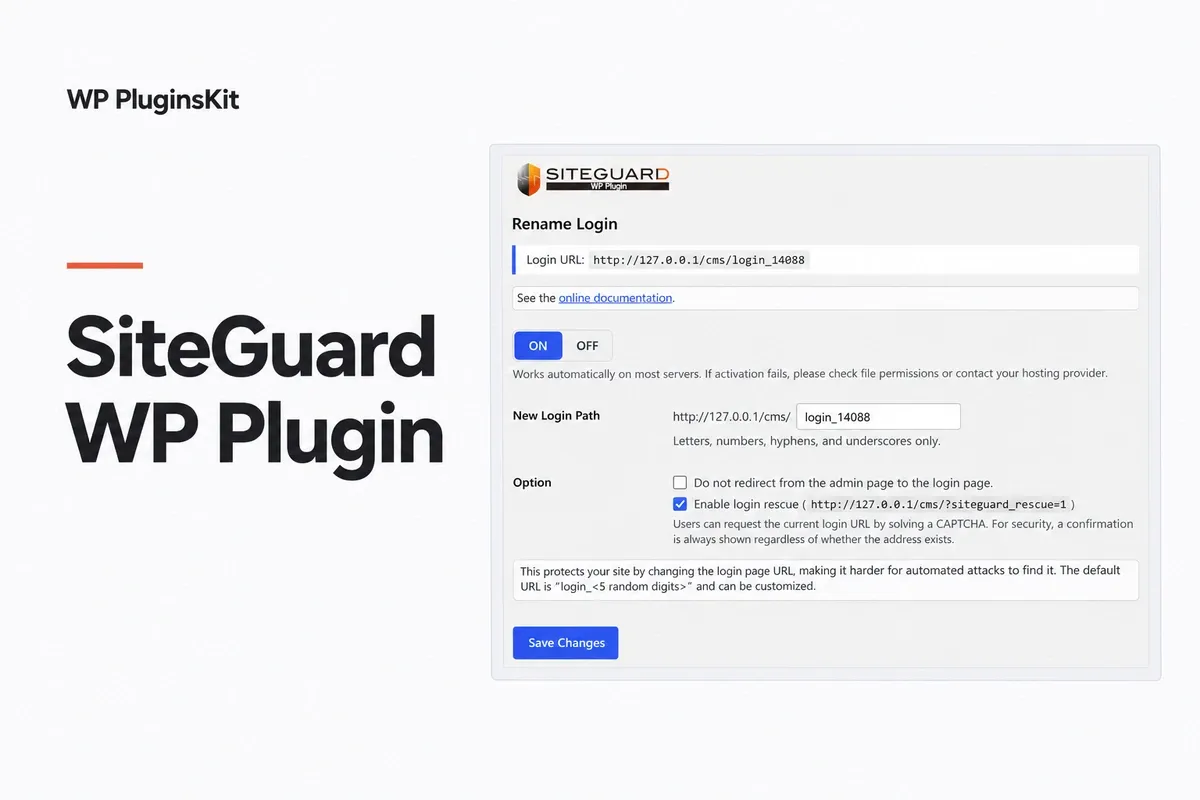
Use SiteGuard WP Plugin to add login and admin-area controls to a single WordPress site. Before activating it, keep a recoverable backup, host access and a working administrator email: Rename Login is enabled by default and changes where you sign in. I'd configure one protection at a time and verify a separate signed-out login before ending the existing administrator session.
Confirm the product and the current requirements
The free plugin by jp-secure uses the directory slug siteguard. It is separate from SiteGround hosting and other services called SiteGuard. Its controls include Rename Login, Login Lock, CAPTCHA and Admin Page IP Filter. WAF Tuning Support creates exclusions for a separately installed SiteGuard Server Edition WAF; installing the WordPress plugin doesn't install that server product.
The current directory release is 1.8.11 and requires WordPress 6.0 or later. Multisite isn't supported. The current listing supports Apache and Nginx, and the developer's release notice identifies version 1.8.0 as the change that added Nginx and Apache environments without .htaccess. The older FAQ's Apache-only instructions therefore shouldn't decide a current installation.
Keep WordPress and the plugin current. The recent release notes record fixes for login URL protection, fresh-install access and time-zone handling in Login Lock. A current release matters more than copying an older tutorial's settings.
Prepare recovery before activation
Save a recoverable backup of files and database; the UpdraftPlus setup explains that preparation. Confirm you can reach the hosting panel or ask the responsible administrator to be available. Check the email registered to your administrator account and that WordPress mail reaches it.
Choose one owner for login URL changes. The directory warns against combining Rename Login with another plugin's login URL feature: the combination can expose two login URLs or prevent the page from loading. If another plugin already owns that feature, resolve the overlap before activating SiteGuard. Keep unrelated security features intact.
From Plugins → Add New, search for SiteGuard WP Plugin, check the developer, install and activate. The installation instructions show the new SiteGuard menu. Leave the current administrator session open while you inspect its settings.
Save the actual login URL
Open SiteGuard → Rename Login. Record and bookmark the complete Login URL displayed there. The documented default path is login_ followed by five random digits, but use your site's actual displayed address. Some server configurations use a .php fallback; don't construct a URL from a generic example.
The New Login Path field accepts letters, numbers, hyphens and underscores. After changing it, choose Save Changes, record the resulting Login URL and check it in a separate signed-out browser session. Confirm that your credentials work and the dashboard opens before closing your original session. Also check password reset if your users depend on it.

The Rename Login settings also include Do not redirect from the admin page to the login page. With it enabled, a signed-out visit to /wp-admin/ goes to the site's top page instead of revealing the changed login page. I would verify the bookmarked address first, then decide whether to enable that option.
Keep login rescue usable
Review Enable login rescue on the same screen. When enabled, the recovery address uses /?siteguard_rescue=1 at the WordPress installation's site URL. Keep the underscore: an older FAQ shows a different spelling. The settings screen and the current recovery handler use siteguard_rescue.
If you lose the login address, open that rescue URL, enter the registered administrator email, complete the CAPTCHA when shown and choose Send Email. Check that mailbox for the current login URL. A generic confirmation doesn't establish that the address is registered or that mail was delivered.
The recovery handler limits submissions by source IP to three attempts within its one-hour counter window. Don't repeatedly submit the form when an email hasn't arrived. Check spam filtering and mail delivery, then use your host's recovery help if necessary. Rescue also depends on Rename Login and the rescue option being enabled.
Check lock behavior before tightening it
Login Lock works on the connection's source IP, rather than locking an individual account. The documented default detects three failures within five seconds and locks that IP for one minute. Inspect the actual settings on an existing site before changing them.
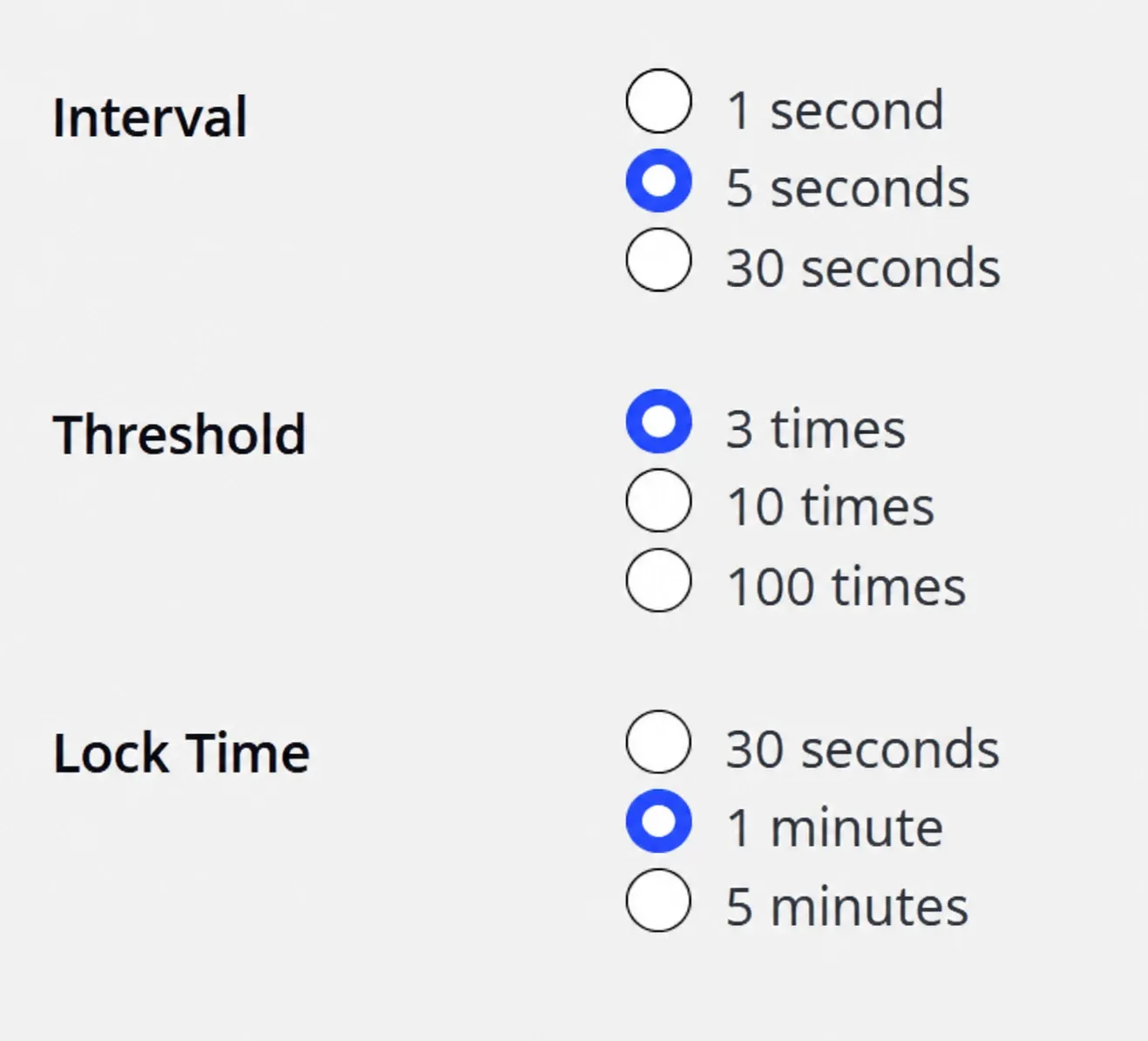
Several people behind an office, school or proxy connection can share that source IP. A lock can therefore affect another legitimate user. I'd investigate that pattern before increasing restrictions. Don't trust an arbitrary forwarded-IP header as a fix; involve the host when a proxy makes the observed source address unclear.
Fail Once deliberately rejects the first correct login. The developer describes a second correct attempt after at least five seconds and within sixty seconds. If enabled, explain that behavior to users before treating the first rejection as a wrong password. It isn't a replacement for a separate authentication factor.
CAPTCHA needs the PHP extensions mbstring and gd. Check the plugin's settings notice if the image is missing. The current changelog records fixes for environments that couldn't render CAPTCHA; a missing image deserves investigation rather than an assumption that protection is active.
Diagnose the specific access failure
The bookmarked login page doesn't open. Recheck the displayed Login URL from the administrator session you kept open. Review any competing login URL feature and current SiteGuard notices. Use Login URL Rescue if it is enabled and the administrator mailbox works.
Admin pages return 404 after changing networks. Admin Page IP Filter allows source addresses that have logged in and removes inactive addresses after its allowance period. Sign in through the saved login URL first. If a legitimate feature still fails, inspect that filter's exclusions with the host rather than disabling every security control.
Recovery mail never arrives or the site is locked out. Stop repeated attempts and ask the host to recover the affected plugin configuration from the backup. The older FAQ includes deletion of plugin files and editing marked .htaccess rules; don't apply that recipe blindly to a current Nginx or fallback-mode installation.
Setup guide
- Confirm a single-site installation, current requirements, backup, host access and a reachable administrator mailbox.
- Resolve any existing login URL feature, then install SiteGuard WP Plugin by jp-secure from Plugins → Add New.
- Keep the administrator session open. In SiteGuard → Rename Login, save the actual Login URL and review login rescue.
- Verify a separate signed-out login and password reset before ending the original session.
- Review Login Lock, Fail Once and CAPTCHA one at a time; check legitimate users and investigate specific failures.
For broader firewall and authentication decisions, use the Wordfence setup. Keep one owner for each overlapping login function, and use the plugin directory to continue with a different maintenance task.