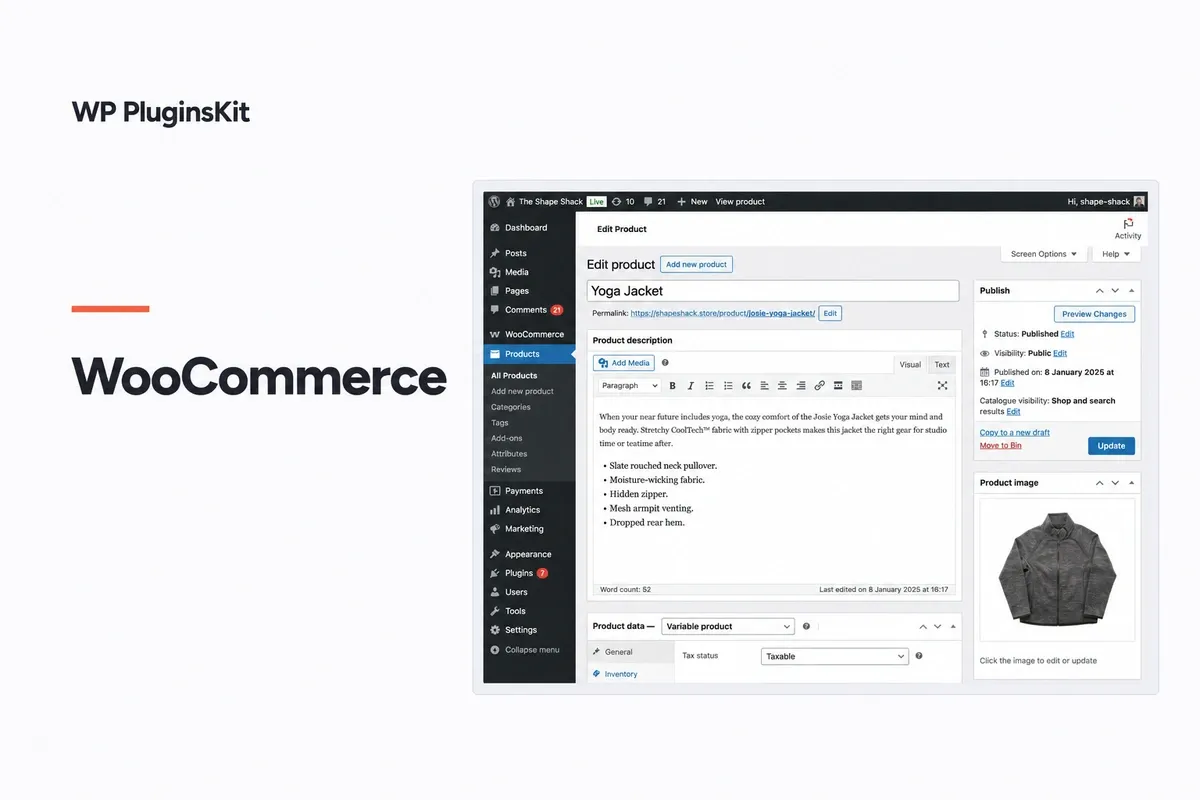
Choose WooCommerce when customers need to select products, use a cart, check out and create orders on your WordPress site. The WooCommerce listing describes a free open-source core with support for physical and digital products. Payment services, hosting and optional extensions still need their own decisions and budget.

Distinguish the store from its services
The core plugin supplies the store framework. A payment gateway connects the checkout to a payment service, while shipping and tax arrangements depend on where and what you sell. A free plugin download doesn't make payment processing, delivery or site hosting free.
Start by writing down the transaction your customer must complete: a simple product purchase, a downloadable item, or something that needs recurring billing or booking dates. WooCommerce's listing points to extensions for subscriptions, bookings and memberships. Check that required extension before selecting the rest of the store's tools.
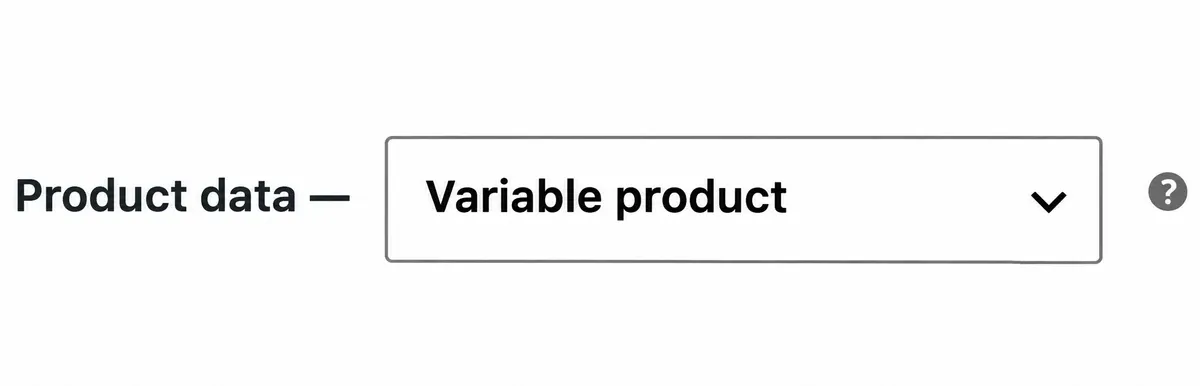
For an item with choices such as size or color, use Variable product in Product data, then configure its variations. WooCommerce’s variable-product instructions cover that setup.
Choose a theme around the shopping pages
The theme controls the presentation of the storefront; WooCommerce manages the commerce functions. Astra and GeneratePress both list WooCommerce compatibility. Assess a product page, cart and checkout alongside the homepage when evaluating a design.
For a website that only collects an inquiry or a single payment form, compare the narrower job handled by Forminator. A form can suit a simple request flow, while a catalog with cart and order management calls for a store system. Choose around the checkout workflow rather than installing both by default.
Plan the checks before accepting orders
Build and review the store on a trial copy before opening checkout to customers. Check the intended product type, shipping destination, tax handling, payment confirmation and order emails. Use the payment service's test environment where available, and verify its documented process before switching to live payments.
Keep a recoverable backup and a way to restore it. A store's order data changes as customers buy, so decide what must be preserved before restoring an older copy. The UpdraftPlus feature summary explains the backup components and storage choices to consider; a backup schedule should reflect the store's actual activity.
Check WooCommerce requirements and download it
| Item | Listed value |
|---|---|
| Directory version | 11.3.1 |
| Minimum WordPress | 7.0 |
| Minimum PHP | 7.4 |
| Tested up to WordPress | 7.1.5 |
Check your host's WordPress and PHP versions before installing the free WooCommerce plugin. Listed minimums are compatibility requirements; they aren't a recommendation to run an outdated software version. Review the current listing and keep WordPress and PHP on supported releases.
Setup guide
Set up WooCommerce
- Check the current WooCommerce release and WordPress/PHP requirements, make a restorable backup, and use staging for the first store setup.
- Open Plugins → Add New Plugin, search for WooCommerce, confirm the official Automattic listing, then choose Install Now and Activate.
- Choose the product type and theme around the shopping pages. Configure shipping and tax for the intended products and destinations. Put the payment service in its documented test mode before placing the test order.
- Place a logged-out test order and verify the product page, cart, checkout, payment confirmation, order email and saved order in WooCommerce.
- Keep checkout closed to customers until the test order, recovery route and supported software versions are confirmed.